Fix Call of Duty: Modern Warfare Visual Issues on RTX 50-Series GPUs
An outdated NVIDIA driver is making Modern Warfare (2019) look like it's built from Lego on RTX 50-series GPUs — updating to version 575.79 resolves it instantly.
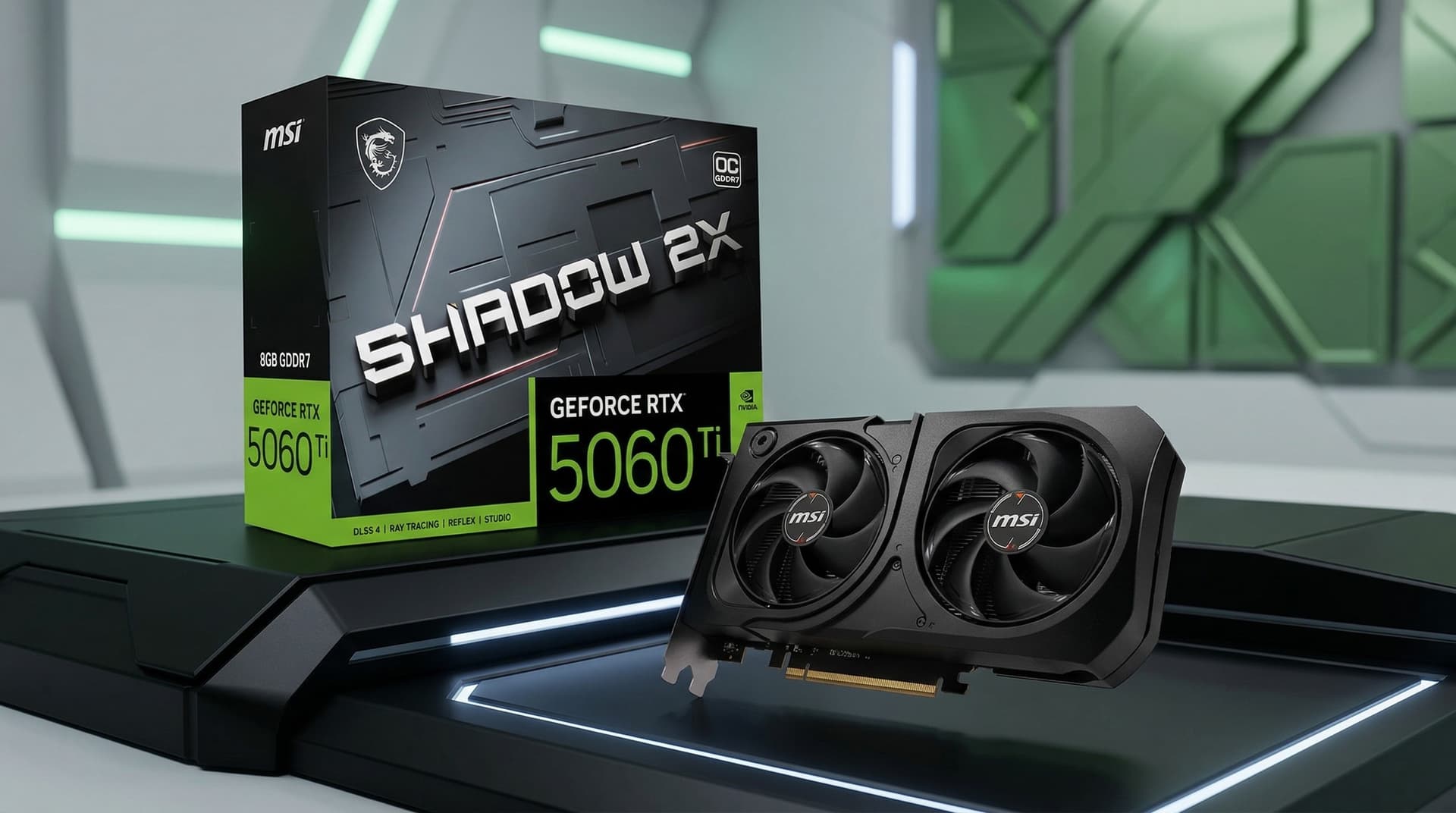
Modern Warfare (2019) hit 61,667 concurrent players on Steam on March 22, 2026, outpacing Black Ops 7 and Warzone combined — a stunning reversal of fortune for a seven-year-old title. The catalyst was the Steam Spring Sale, which slashed the game's price from $59.99 to just $5.99, attracting both returning fans and new players eager to experience one of the franchise's standout entries. But thousands of those players, especially anyone running a shiny new NVIDIA RTX 50-series card, booted up and found something deeply wrong: blocky, pixelated geometry, broken shadows, and visual artifacting that had nothing to do with their settings.
Windows Central tech writer Richard Devine published a practical guide on March 24, 2026 walking through exactly what's happening and how to fix it. The answer is less complicated than the symptoms suggest — but you do need to follow the right steps in the right order.
What You're Actually Seeing
On RTX 50-series hardware, Modern Warfare (2019) can look blocky and distracting, as though the game is made from Lego, regardless of what combination of in-game settings you try. More specifically, players report banding across surfaces, washed-out or abnormally dark shadow rendering, inconsistent lighting that flickers between areas, and shader compilation errors that produce visual artifacts mid-match. These aren't settings problems in the traditional sense; they're symptoms of a driver-level incompatibility between RTX 50-series architecture and the game's older rendering pipeline.
The issue was confirmed by NVIDIA in the GeForce forums and has been reproduced across multiple RTX 50-series systems. Devine confirmed it firsthand on his own RTX 5090 — "no matter what combination of settings I tried with my RTX 5090, it was all blocky and distracting and looked horrible."
Fix 1: Update to the Latest GeForce Driver (Do This First)
The fix is updating to the latest NVIDIA GeForce driver. Devine updated to release 575.79 and the visual problems resolved immediately. This is your single highest-priority action before touching any in-game setting or config file.
A standard driver update isn't enough, though. A clean installation is strongly recommended, which you can perform either from the NVIDIA app or by using the Display Driver Uninstaller (DDU). DDU completely removes the old driver before installing the new one, preventing leftover files from the previous installation from reintroducing the same rendering artifacts.
The step-by-step process for a clean install via DDU:
1. Download the latest GeForce driver (575.79 or newer) from NVIDIA's website before starting.
2. Download DDU from its official source.
3. Boot into Windows Safe Mode to prevent NVIDIA services from interfering.
4. Run DDU, select "GPU" as the device type and "NVIDIA" as the brand, then choose "Clean and restart."
5. Once the system reboots into normal Windows, run the NVIDIA driver installer you downloaded and select "Custom" install with "Clean installation" checked.
If you'd rather not use Safe Mode, the NVIDIA app's built-in clean install option handles this adequately for most users. The key is that you're not layering a new driver on top of a corrupted one.
Fix 2: Delete and Regenerate the Shader Cache
Even after a successful driver update, some players find the visual problems persist or return on subsequent sessions. The culprit is usually a stale shader cache. Modern Warfare (2019) generates a local cache of compiled shader data to reduce load times, but that cache becomes incompatible when the underlying GPU architecture changes significantly, as it does between the RTX 20-series the game was designed around and the RTX 50-series you're running it on now.
Clearing the cache forces a full recompile against your current driver and hardware:
- On Steam, navigate to the game's local files, locate the shader cache folder (typically under `%localappdata%\Temp\NVIDIA Corporation\NV_Cache` for the NVIDIA-level cache, and within the game's installation directory for the game-level cache), and delete the contents.
- On Epic Games Store, use the game's "Verify" function after clearing the cache to ensure rebuilt files are confirmed clean.
- Back in-game, allow the shader compilation process to run to completion before jumping into a match. Interrupting it mid-compile re-creates the exact problem you're trying to solve.
Expect the first launch after clearing the cache to take longer than usual. That's normal and expected; the game is doing the work it should have done on your first launch with the new driver.
Fix 3: In-Game Rendering Settings to Address Residual Issues
If updating the driver and clearing the shader cache still leaves visual rough edges, a targeted settings pass will close the gap. The following adjustments address the specific artifacts that RTX 50-series architecture handles differently from older GPUs:
- Ray tracing: If you have ray tracing enabled and are seeing shadow inconsistencies or lighting artifacts, disable it. Modern Warfare (2019) was built for the RTX 20-series' first-generation ray tracing implementation; running it on RTX 50-series without a fully updated driver stack can produce unstable results. Turn it off, confirm the visual problems clear, and only re-enable if everything is stable.
- Shadow Map Resolution: Drop this from Ultra to High. Ultra shadow maps carry a significant GPU cost and interact poorly with the driver-level differences on newer hardware. High delivers a visually comparable result without the artifacting risk.
- Post-process effects: Certain screen-space effects, particularly Screen Space Ambient Occlusion and Screen Space Reflections, can amplify driver-level differences and produce banding. Reduce or disable these first when diagnosing persistent issues, then reintroduce them one at a time to isolate the problem.
Fix 4: Keep Driver-Level Color and Filter Tools Neutral
The NVIDIA app and GeForce Experience both offer color correction, sharpening, and filter tools that can layer on top of in-game rendering. When the game is already producing visual artifacts at the rendering stage, these tools can mask the actual problem or make it worse. The guidance here is to leave NVIDIA's driver-level filters at their defaults and apply any brightness or contrast corrections using the game's own settings instead. Once the rendering pipeline is clean, per-game NVIDIA profiles can be configured safely.
Verify Game Files After Every Change
Whichever platform you're on, Steam or Epic, run a file verification pass after making driver and cache changes. This ensures that the game's binaries and shader data match what the newly installed driver expects. On Steam: right-click the game, go to Properties, then Local Files, and select "Verify integrity of game files." Epic has an equivalent option in the game's installation menu.
The Full Prioritized Checklist
Working through these in order gives each fix a chance to fully resolve the issue before you move to the next step:
1. Update to NVIDIA GeForce driver 575.79 or newer using a clean installation via DDU or the NVIDIA app.
2. Delete the game-level and NVIDIA-level shader caches, then allow full recompilation on the next launch.
3. Verify game files on Steam or Epic.
4. Disable ray tracing if shadow and lighting artifacts remain.
5. Set Shadow Map Resolution to High and reduce Screen Space effects individually to isolate any residual banding.
6. Leave NVIDIA driver-level filters at default until the rendering baseline is clean.
NVIDIA's own Modern Warfare graphics and performance guidance, which Devine links as supplementary reading, provides step-by-step detail on the specific ray tracing and shadow fidelity settings the game officially supports. If you want to dig deeper into driver and config-level changes beyond what the checklist covers, that's the reference to have open alongside it.
MW2019 peaked at 61,667 players on March 22, which is 20 times its prior high of 3,581 from the 2023 Battle.net migration. A significant portion of that returning audience is playing on hardware that didn't exist when the game launched. Getting the visuals right isn't cosmetic — it's the difference between a session that feels like a rediscovery and one that sends you straight back to the main menu.
This article was produced by Prism’s automated news system from verified source data, official records, and press releases, then run through automated quality and moderation checks before publishing. The system is built and supervised by the people who set the standards it runs under. Read our full AI policy.
Did this article answer your question?