How to Optimize Sensitivity, Aim, and Movement in Call of Duty
Sensitivity is paramount in Call of Duty: here's how to dial in your stick sensitivity, ADS multiplier, and button layout across PS5, Xbox, and PC.
Getting your controller settings right in Call of Duty isn't a one-time task you complete during setup and forget. Whether you're dropping into Black Ops 7 multiplayer, grinding Warzone, or jumping between other live CoD releases, the gap between a frustrating session and a consistent one often comes down to three things: sensitivity, aim, and how your buttons are mapped. The good news is that every setting covered here is accessible at any time, including mid-match, so you can iterate in real time rather than guessing in the menus before a game starts.
Why Sensitivity Is the Foundation
The Call of Duty Intel Card on Controller Basics puts it plainly: "Sensitivity is paramount: Changing your button mapping is important, but nothing will be more important than getting your sensitivity right." That holds true whether you're using a PlayStation® DualSense, an Xbox controller across the Series X, Series S, or One, or a custom third-party controller on any platform. The hardware matters less than your willingness to actually tune the numbers until they feel locked in.
Most players accept the default sensitivity and then wonder why their aim feels inconsistent. The default is a starting point, not a recommendation. Your playstyle, your hand speed, and even the game mode you're playing can all shift what "right" feels like, which is why understanding each sensitivity setting individually is more useful than chasing a single number.
Basic Controls: Where to Start
Before changing anything, get into the settings menu. Press the Menu button on your controller and scroll to the settings tab. From there, every controller option is visible and editable. Critically, these settings are also available in the middle of a match, so you can change them at any time without quitting to the main menu. That mid-match access is worth using: make a small change, play a few engagements, and assess whether the adjustment helped before committing to it.
The Call of Duty Basic Controls documentation frames the approach well: "There are many ways to set up your controller past the default settings. Some methods may be more comfortable for players with lots of experience, but here are the methods that we recommend in order to dial in what's comfortable to you." The operative phrase is "dial in" rather than "set and forget." This is an iterative process.
Horizontal and Vertical Stick Sensitivity
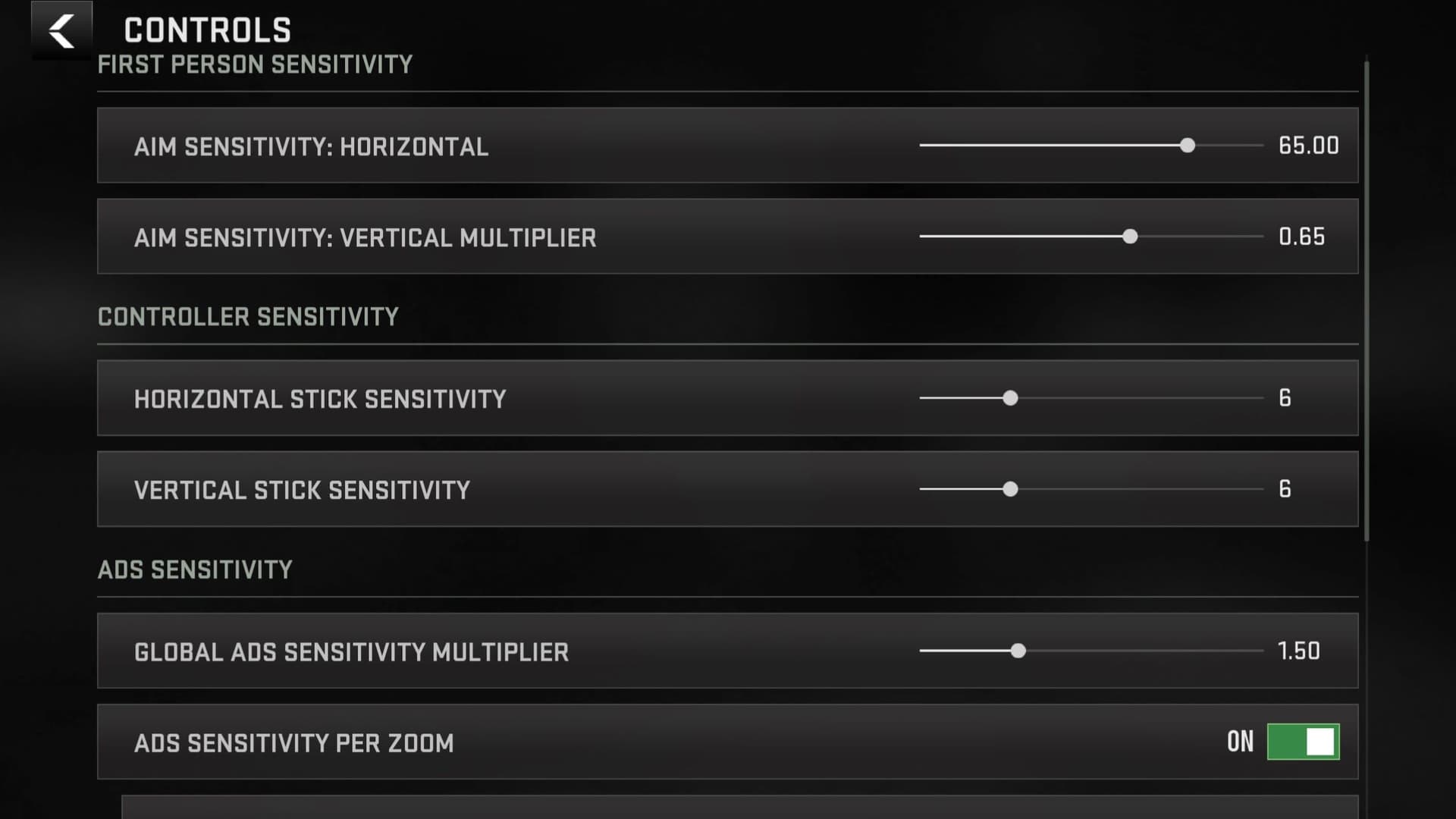
Horizontal and Vertical Stick Sensitivity control how much stick movement translates to in-game aim movement on each respective axis. As the Basic Controls documentation describes it: "Decide how much stick movement affects your in-game aim on the horizontal and vertical axes. Some players prefer a low setting for fine-tuned aiming, while others set the number high to boost their reaction time. Keep both options in mind when tuning your sensitivity."
The tradeoff is real and worth thinking through deliberately. A low sensitivity gives you finer control over where your crosshairs land, which helps in long-range gunfights where small corrections matter. A high sensitivity lets you whip onto targets faster, which pays off in close-quarters engagements and when enemies are moving unpredictably around you. Neither extreme is universally correct; the right setting is the one that lets you track moving targets without overshooting or struggling to turn fast enough when a player flanks you.
One practical approach is to set both axes to the same value initially, then adjust vertical sensitivity separately if you find yourself consistently over- or under-compensating on that axis during fights.
ADS Sensitivity Multiplier
The ADS Sensitivity Multiplier is one of the most useful and underused tools in the controller settings. It decouples your aiming-down-sights sensitivity from your hipfire sensitivity, solving a problem that affects players at both ends of the sensitivity spectrum.
The Basic Controls documentation explains the mechanic precisely: "For players who like a high sensitivity when running and gunning but have trouble making micro-adjustments while aiming down sights (ADS), change the ADS Sensitivity Multiplier. This also works for the opposite problem of having a lower sensitivity and needing to make a bigger adjustment without coming out of ADS. The slider changes the speed your crosshairs will move compared to when you are not in ADS. Setting this above 1.00 will speed your crosshairs up while ADS and setting this below 1.00 will slow it down."
In practice, this means aggressive run-and-gun players who run a high sensitivity for hipfire movement can set the ADS multiplier below 1.00 to slow down their ADS crosshair speed for more precise shots. Conversely, players who prefer a low overall sensitivity for controlled tracking can push the multiplier above 1.00 so they can still swing onto targets quickly when scoped in. The 1.00 threshold is the neutral point: at that value, your ADS sensitivity matches your hipfire sensitivity exactly.
Button Layout Presets
Sensitivity gets the most attention, but button layout is the other half of the controller equation. The Basic Controls documentation asks the key question directly: "Lefty, Tactical, or Bumper Jumper? Choose from these and other button layouts to specify which actions are assigned to which buttons. Take your time viewing the various presets to ensure a comfortable playing experience."
Each preset exists to solve a specific ergonomic problem. Tactical, for example, moves the crouch/slide function to a button that's easier to access during active gunfights without lifting your thumb from the aim stick. Bumper Jumper moves jump to a bumper, which is popular among players who need to jump, aim, and shoot simultaneously without breaking their right-thumb position on the stick. Lefty accommodates left-handed players by flipping the stick assignments.
The recommendation to "take your time viewing the various presets" is worth following literally: scroll through each one and trace where your thumbs and fingers would need to move for common actions like jump, crouch, reload, and melee. A layout that looks unusual on paper might feel immediately natural once you map it to your hand position.
Putting It Together
The settings described here, Horizontal Stick Sensitivity, Vertical Stick Sensitivity, ADS Sensitivity Multiplier, and Button Layout Preset, form the core controller configuration that CoD's own documentation recommends addressing before anything else. They apply across PS5, PS4, Xbox Series X, Xbox Series S, Xbox One, and PC, and they carry over into Black Ops 7, Warzone, and every other active CoD title in the current lineup.
The most effective approach is to change one variable at a time and test it in actual gameplay rather than adjusting everything simultaneously. Start with your button layout, since a comfortable preset removes physical friction before you ever worry about numbers. Then set a baseline sensitivity on both axes, tune the ADS multiplier to match your playstyle, and refine from there. The mid-match settings access exists precisely for this kind of live tuning, and players who use it consistently tend to arrive at a setup that actually fits how they play rather than one that just felt right in the menus.
This article was produced by Prism’s automated news system from verified source data, official records, and press releases, then run through automated quality and moderation checks before publishing. The system is built and supervised by the people who set the standards it runs under. Read our full AI policy.
Did this article answer your question?