How to Prepare Your PC for Call of Duty RICOCHET Anti-Cheat Requirements
RICOCHET's Remote Attestation now verifies your TPM 2.0 and Secure Boot settings via Microsoft Azure servers; here's how to fix every error before patch day locks you out.
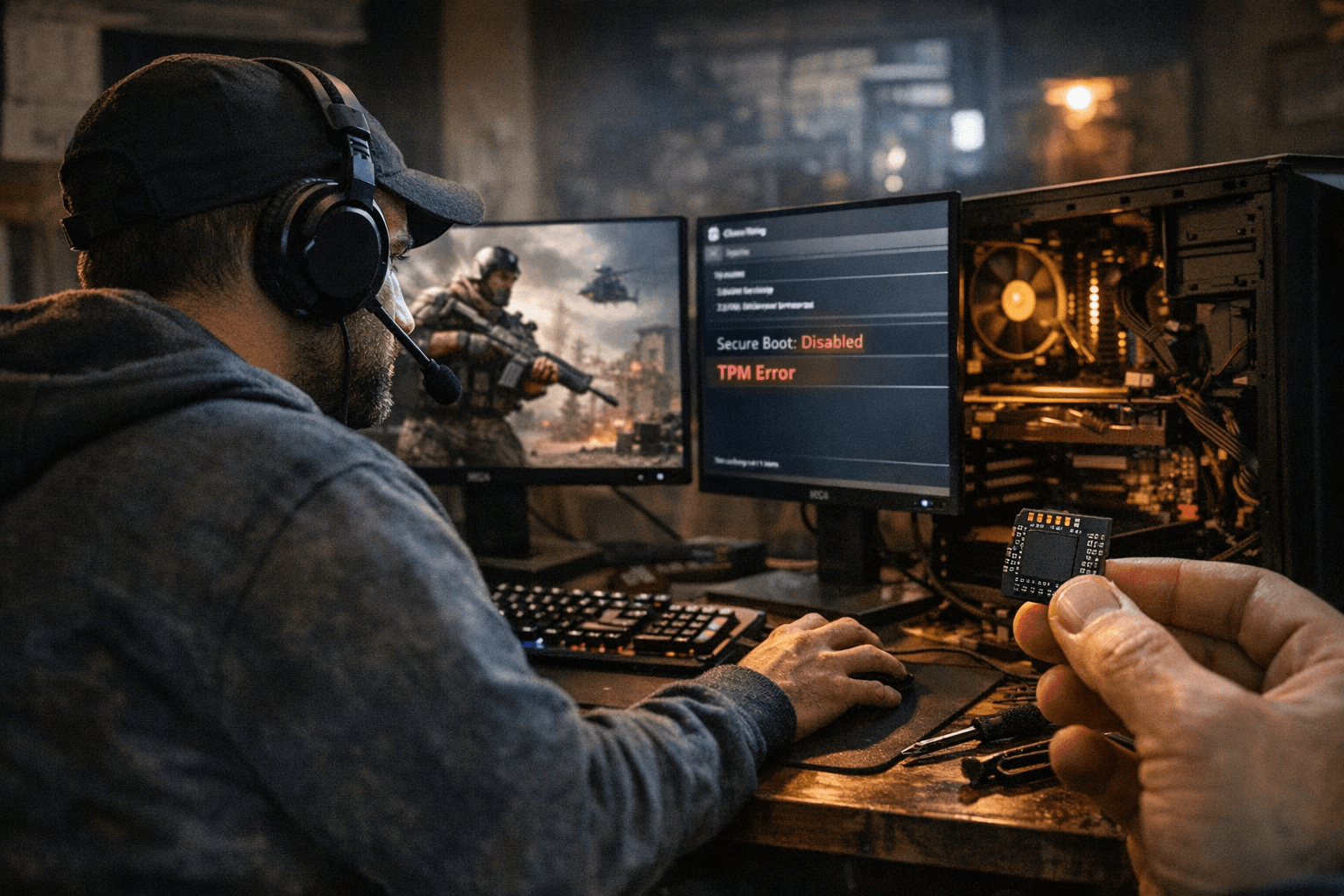
The moment Black Ops 7 went live on November 14, 2025, thousands of PC players hit a wall they hadn't seen coming: an in-game notification telling them their system didn't meet new security requirements. No TPM 2.0 or Secure Boot enabled meant no multiplayer, no Ranked, no game. When Warzone followed suit at Season 01 in December, the net widened further. More than 800,000 accounts have been permanently banned for cheating over the past year, and 97% of cheaters caught are now banned within 30 minutes, statistics that explain exactly why Activision is raising the hardware bar. This is the pre-flight checklist that keeps you on the right side of that wall.
What RICOCHET Is Actually Checking (And Why It Blocks You)
RICOCHET's TPM and Secure Boot enforcement isn't a simple local checkbox. When Black Ops 7 launched, Activision introduced Remote Attestation, a process that validates your TPM 2.0 and Secure Boot settings through Microsoft Azure servers in the cloud. That's a materially more stringent approach than the client-side or local attestation methods used in other games: the game isn't just trusting what your system reports locally, it's asking a trusted external server to verify it. If the attestation call fails, because your TPM is disabled, misconfigured, or running outdated firmware, you get locked out before you ever reach the lobby.
The error messages that trigger this lockout fall into a few consistent patterns:
- "Your system does not meet the new security requirements": The broadest blocker, shown as an in-game notification. It means either TPM 2.0 isn't present and enabled, Secure Boot isn't active, or Remote Attestation failed for another reason.
- TPM attestation error 0x80070490: This one hits AMD AM4 users specifically. Older AGESA firmware packages on AM4 boards can fail attestation even when the TPM reads as enabled. The fix is a BIOS update, not a Windows setting.
- "Secure Boot State: Unsupported": Usually means Windows is installed in Legacy/CSM mode on an MBR-partitioned drive. Secure Boot cannot be enabled in this state without disk conversion.
- Repeated verification loops: The game launches, checks, fails silently, and either closes or cycles back to a prompt. This typically signals the game client isn't launching through the correct store path, or that a third-party security tool is blocking RICOCHET's kernel-level driver.
The Pre-Flight Checklist: 10 Minutes Before Patch Day
Work through these in order. Each step feeds the next.
1. Confirm your Windows version. Open Settings and check that you're running Windows 10 version 22H2 or later.
Note that while TPM 2.0 technically works on Windows 10 version 20H2, Call of Duty specifically requires 22H2 or newer. Windows 11 ships with TPM 2.0 and Secure Boot enabled by default on most OEM machines, so if you're already on 11 and bought a system in the last two years, you're likely clear.
2. Check TPM status in Windows. Press Win+R, type `tpm.msc`, and hit Enter.
If the TPM Management console shows "The TPM is ready for use" with Specification Version 2.0, you're good on this front. If it shows no compatible TPM, or version 1.2, you'll need to enter UEFI and enable the firmware TPM (labeled fTPM on AMD platforms, PTT on Intel). Some older boards require a discrete TPM module via a header on the motherboard; check your vendor's documentation.
3. Check Secure Boot status. Press Win+R, type `msinfo32`, and look for "Secure Boot State" under System Summary.
It should read "On." If it reads "Off" or "Unsupported," proceed into UEFI.
4. Enter UEFI firmware. Restart and press DEL or F2 (the key varies by board vendor, but it's displayed briefly during POST).
Once inside, confirm that BIOS Mode is set to UEFI, not Legacy. If it reads Legacy or CSM, that's the root cause of most Secure Boot failures.
5. Disable CSM / Legacy Boot. In the Boot tab or equivalent section, find the CSM (Compatibility Support Module) setting and disable it, or set boot mode to UEFI Only.
This is the step that surprises the most people: Secure Boot cannot be fully enabled while CSM is active, even if the Secure Boot toggle appears to be on.
6. Enable Secure Boot. With CSM disabled, navigate to the Security section and set Secure Boot to Enabled.
If prompted about Secure Boot Mode, select Standard. On some ASUS boards you'll see an option to "Install default Secure Boot keys," which you should confirm.
7. Enable fTPM or PTT. Still inside UEFI, find the TPM settings (sometimes under Security, sometimes under Advanced).
Enable fTPM (AMD) or PTT (Intel). Save and exit.
The CSM/Legacy Trap: When Disabling It Breaks Your Boot
This is where things can go sideways, and it's worth calling out directly. If your Windows installation lives on an MBR-partitioned drive, disabling CSM can prevent Windows from booting entirely. Before disabling CSM, open Disk Management or run `diskpart` to confirm your system disk uses GPT partitioning, not MBR. If it's MBR, use Microsoft's MBR2GPT command-line tool to convert the partition style without data loss, but back up your data first regardless. MBR2GPT must be run from a Windows PE environment or from the current Windows install with the `/allowFullOS` flag. Converting the disk, then disabling CSM, then enabling Secure Boot is the correct sequence.
AMD AM4 Users: The Firmware Update Is Not Optional
If you're running a Ryzen 3000 or 5000 series CPU on an AM4 motherboard and you're seeing TPM attestation errors or the 0x80070490 code, toggling settings won't fix it. The root cause is outdated AGESA firmware in the fTPM module. You need a BIOS update from your board vendor that includes a current AGESA package (3.\*.2.\* or newer). ASUS has published a specific guide for this. Check your motherboard vendor's support page, download the appropriate BIOS, and flash it using the board's built-in update utility. After the update, re-enable fTPM in UEFI if it was reset to default.
Decision Tree: Update Firmware or Roll Back Drivers?
Not every fix requires a BIOS flash. Here's how to decide:
- Game won't launch at all, no error code visible: Update GPU drivers first (via GeForce Experience or AMD Adrenalin), then check that antivirus software isn't blocking RICOCHET's kernel driver. Add the Call of Duty install folder as an exclusion in your security software.
- TPM attestation error / 0x80070490 on AMD AM4: Update BIOS firmware. Driver rollback will not resolve a firmware-level attestation failure.
- Secure Boot State: Unsupported: Convert disk from MBR to GPT, disable CSM, re-enable Secure Boot. No driver changes needed.
- TPM shows 2.0 in tpm.msc but game still flags it: Check `msinfo32` for Secure Boot State. If that reads Off despite UEFI showing Enabled, toggle Secure Boot off and back on in BIOS and save again. A small number of boards require this reset cycle to register the state correctly in Windows.
- Repeated verification loops: Confirm you're launching through the correct Battle.net or Microsoft Store client. Anti-cheat kernel checks activate only through the supported launch path; bypassing the store client will cause silent attestation failures.
Configurations That Won't Work
Dual-boot Linux setups run into kernel-mode anti-cheat compatibility issues by design. RICOCHET's kernel driver does not load in SteamOS or Linux environments, and the Steam Deck lacks the required attestation chain. If this is your setup, Call of Duty on PC requires booting into Windows natively, not via a compatibility layer. Players on genuinely old hardware without a TPM header and no firmware TPM option face a harder choice: a motherboard upgrade, or a shift to console play.
After You've Done the Work
Once TPM 2.0 and Secure Boot are both confirmed active, Activision's Secure Attestation Wizard, introduced in Season 01, provides a quick in-client verification before you queue. It surfaces the same checks in a friendlier interface than tpm.msc and msinfo32, and it'll flag any remaining configuration mismatch before the game attempts the Remote Attestation call to Azure. Enabling these settings also hardens your system outside of gaming entirely: TPM 2.0 underpins Windows Hello, BitLocker encryption, and a range of enterprise security features. The one-time BIOS session is the only barrier between where you are now and every future season running without a lockout screen.
This article was produced by Prism’s automated news system from verified source data, official records, and press releases, then run through automated quality and moderation checks before publishing. The system is built and supervised by the people who set the standards it runs under. Read our full AI policy.
Did this article answer your question?