PC checklist to boost Call of Duty responsiveness and aim
A practical PC checklist to improve input latency, FPS stability, and aim consistency for Call of Duty players. Follow hardware, OS, in-game, input, and network steps to tighten performance.
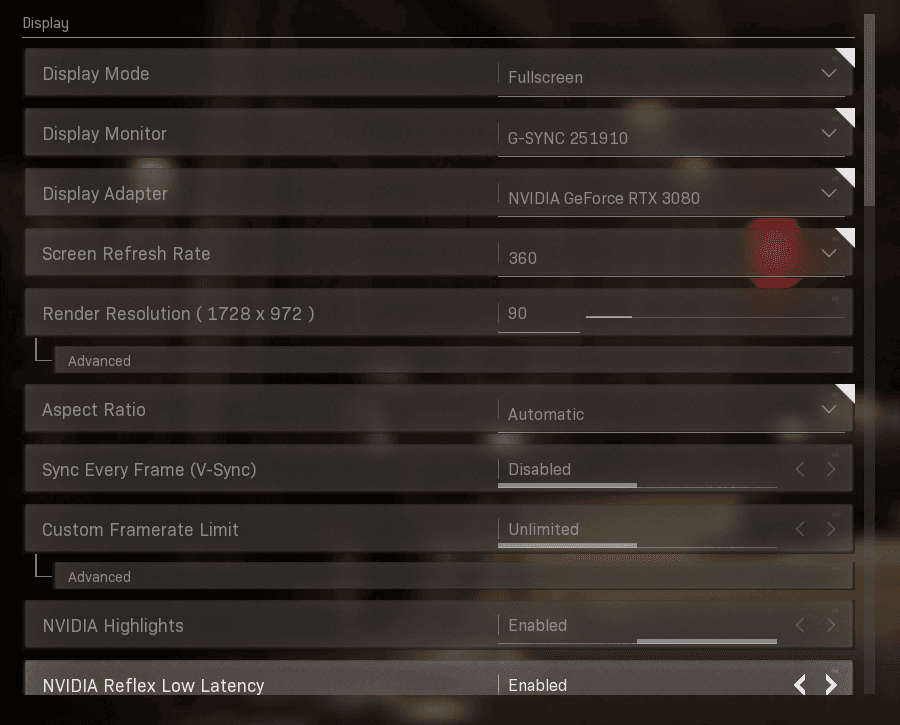
Competitive PC Call of Duty play comes down to milliseconds and repeatable aim. To help you squeeze responsiveness out of your rig and keep FPS stable, use this checklist as a starting point for tuning system, OS, in-game settings, input, and networking.
First, keep system software current. Update NVIDIA or AMD GPU drivers regularly and install any game-ready drivers released around major patches or engine updates. Close or disable unnecessary background apps that cause input lag or steal CPU cycles during matches.
At the Windows and game-executable level, set the power plan to high performance, disable fullscreen optimizations on the game executable, and use exclusive fullscreen mode where the title supports it. Exclusive fullscreen generally reduces input latency compared with borderless or windowed modes. These OS tweaks are low effort and often yield measurable gains in responsiveness.
In-game settings affect both visibility and frame stability. Turn off motion blur and film grain immediately to reduce visual noise that can hide targets. Match your frame rate target to your monitor’s refresh rate, or leave it uncapped if your GPU and thermals allow, to keep frame pacing consistent. Lower shadow and post-processing settings if you need clearer silhouettes and more stable FPS during chaotic fights.
Mouse and sensitivity choices are foundational. Use a low-to-medium DPI, roughly 400–1600 depending on your sensor, and tune your in-game sensitivity so a 360-degree turn sits in a comfortable centimeter range on your mousepad. Keep eDPI consistent across shooters so your muscle memory transfers, and log changes as you tweak to avoid overcorrecting.
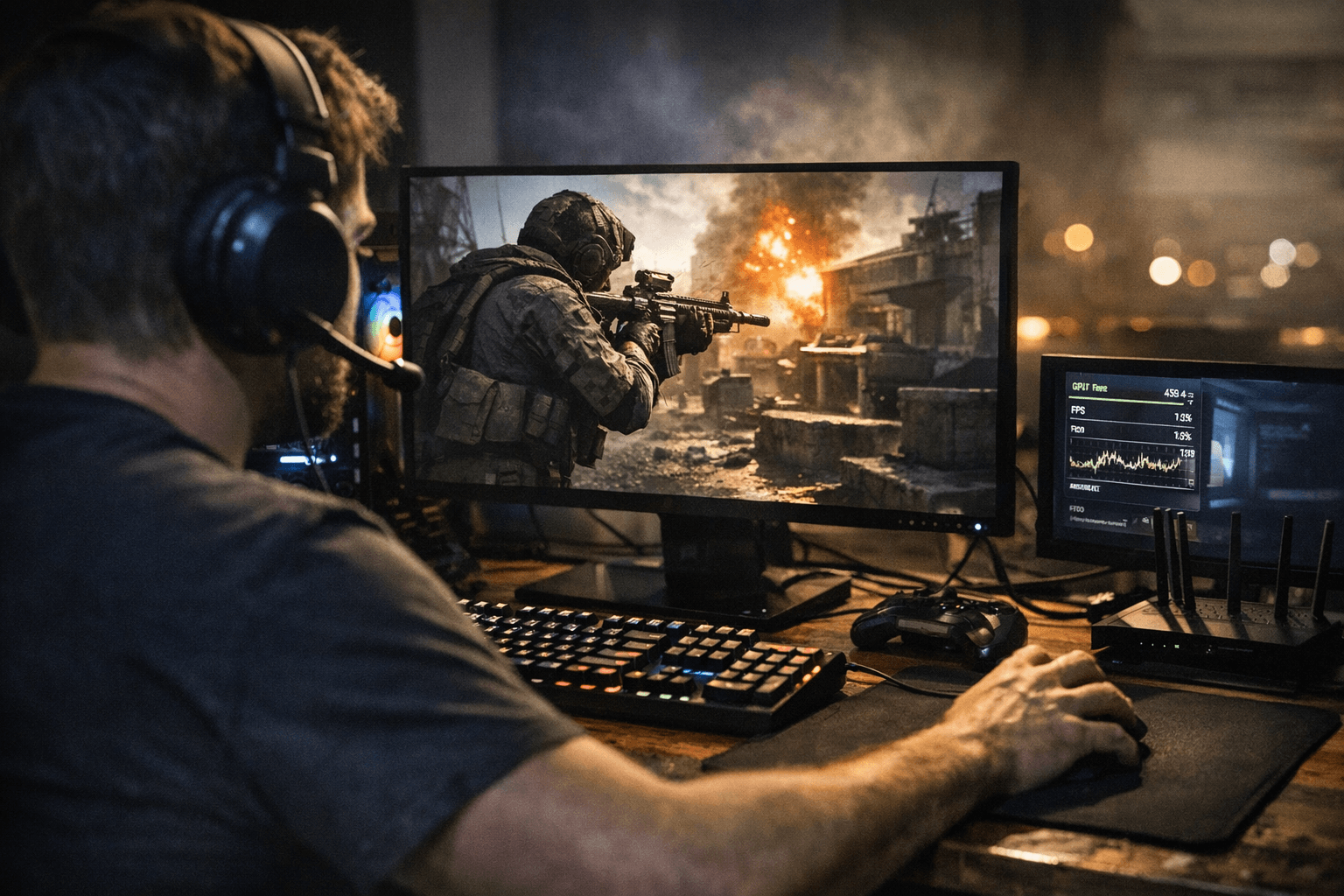
Network setup matters as much as input. Prefer wired Ethernet whenever possible. If you must use Wi-Fi, choose 5 GHz with a strong signal and reduce other household network traffic while you play. Monitor ping and packet loss and use the game’s net debugging tools if available to spot spikes or dropout that could be mistaken for aim problems.
Keybinds and controller settings should be practical and tested. Map leaning, tactical, equipment, and scorestreaks to accessible keys so you don’t fumble in trades. For controllers, set stick sensitivity and deadzones conservatively and test aim assist behavior in custom lobbies before taking it into ranked matches.
Keep a performance overlay active, FRAPS, RTSS, Steam, or GeForce Experience, for FPS and frametime monitoring during sessions so you can catch regressions after updates or driver installs. Consistent logging is the fastest path to diagnosing what changed and when.
This checklist is intended as a stable starting point for PC competitive players; tweak each item to match your hardware and playstyle. Our two cents? Make one change at a time, test in a custom lobby, and keep a simple log of settings so you can roll back if a tweak hurts more than helps. Small, repeatable gains add up to a snappier, more consistent game.
This article was produced by Prism’s automated news system from verified source data, official records, and press releases, then run through automated quality and moderation checks before publishing. The system is built and supervised by the people who set the standards it runs under. Read our full AI policy.
Know something we missed? Have a correction or additional information?
Submit a Tip