Platform-agnostic Call of Duty PC checklist for TPM and Secure Boot
Practical checklist to get Call of Duty running on PC with RICOCHET, TPM, and Secure Boot requirements. Follow BIOS, driver, launcher, AV, and network steps to troubleshoot access and crashes.

RICOCHET’s anti-cheat and recent platform requirements have left many PC players hitting authentication, driver, and Remote Attestation roadblocks. This practical, platform-agnostic checklist walks through the most common fixes you can apply now: BIOS toggles, Windows housekeeping, launcher checks, antivirus exclusions, network steps, and when to escalate to support.
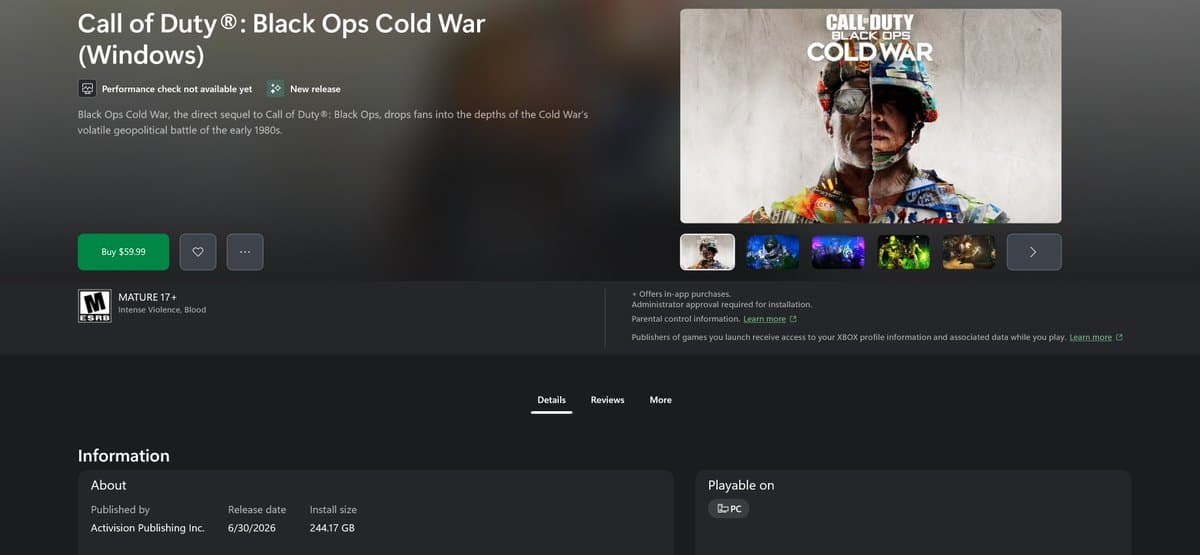
First, confirm system requirements and account status. Verify your Activision account is in good standing and that you meet the game’s minimum hardware and OS requirements on the store page before deeper troubleshooting. Authentication and entitlement errors often trace back to account linking or multi-factor prompts, so sign out and sign back in, and re-link your Activision account if necessary.
TPM 2.0 and Secure Boot are required by recent anti-cheat iterations. Enter BIOS/UEFI at boot (Delete, F2, or F12 on most boards) and enable TPM, which may be listed as PTT on Intel boards or fTPM on AMD. Toggle Secure Boot on as well. If those options are missing, update your motherboard firmware first; many older boards need a firmware update to expose TPM or Secure Boot toggles. After enabling, confirm TPM via tpm.msc (TPM Management) and check System Information for Secure Boot State in Windows.
Keep Windows and drivers current. Install the latest Windows updates, including major servicing updates. Use Device Manager or your GPU vendor updater, NVIDIA GeForce Experience, AMD Radeon Software, or Intel Driver & Support Assistant, to update graphics drivers, and grab chipset and storage/NVMe drivers from your motherboard vendor. If crashes begin after an update, roll back the GPU driver to a previously stable version for testing.
Verify game files in your launcher (Steam, Battle.net, or the Activision client) to fix missing or corrupted files. If the title uses multiple launchers, ensure you use the same launcher and account consistently to avoid auth conflicts. If anti-cheat drivers fail to load, enable Secure Boot/TPM, reinstall the anti-cheat when prompted, and reboot into normal Windows rather than Safe Mode.

Address software conflicts by adding the game and its anti-cheat driver to antivirus exclusions instead of permanently disabling AV. Temporarily disable overlays, Discord, NVIDIA/AMD overlays, Xbox Game Bar, Steam overlay, and close input remappers, macro tools, RGB control utilities, and third-party performance overlays while testing.
For network issues, use wired Ethernet when possible or move to a less congested 5 GHz Wi‑Fi channel. Temporarily disable VPNs and proxies to rule out routing problems. Authentication errors and entitlement messages often clear when the client can reach Activision services without packet modifiers.
When reinstall is necessary, fully uninstall the game and anti-cheat, reboot, and reinstall, accepting the anti-cheat driver when prompted. If you encounter hardware ban notices or Remote Attestation failures, capture screenshots of BIOS settings and Activision client logs, then open a support ticket with those attachments. Keep a troubleshooting log with timestamps, steps taken, driver versions, and BIOS revision to speed diagnosis.
The takeaway? Treat this like a methodical loadout: check account and system, enable TPM/Secure Boot in BIOS, update Windows and drivers, verify files, clear software conflicts, and document everything. Our two cents? Start with BIOS and driver housekeeping before nuking installs, most players save hours that way and get back into the match without drama.
This article was produced by Prism’s automated news system from verified source data, official records, and press releases, then run through automated quality and moderation checks before publishing. The system is built and supervised by the people who set the standards it runs under. Read our full AI policy.
Did this article answer your question?