Plug-and-Play GTA Streaming Guide: Hardware, OBS Settings, Minimal Overlays
A plug-and-play guide lays out hardware, OBS settings, and minimal overlays to help GTA streamers get consistent video and audio quality and stronger viewer engagement.
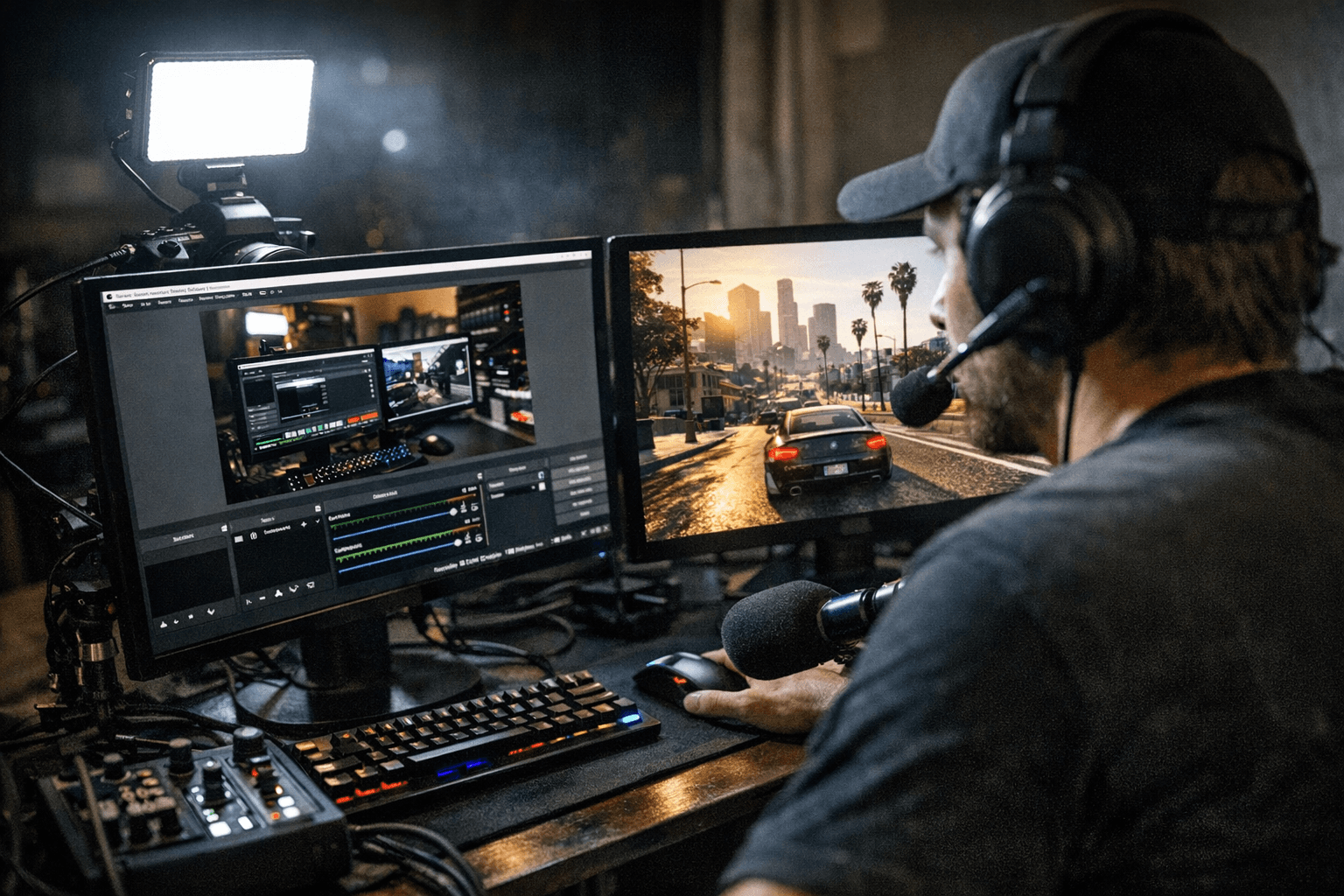
Stable, high-quality GTA streams start with a simple checklist that separates flaky setups from reliable ones. Modern multi-core CPUs such as Ryzen 5/7 or Intel i5/i7 provide the headroom needed for CPU encoding or balancing game and stream tasks, while a recent NVIDIA or AMD GPU enables NVENC hardware encoding to offload work from the CPU. Aim for 16 GB of RAM minimum and 32 GB if you run heavy mods. For network stability, plan on 8–10 Mbps upload for 720p60 and 12–18 Mbps for 1080p60 depending on bitrate.
OBS defaults that work out of the box include NVENC (new) for NVIDIA users and x264 when you have a high-core CPU and prefer quality per bitrate. Use 1280x720 at 60 fps for most streams; step up to 1920x1080 at 60 fps only when bandwidth and encoding headroom are strong. Target 4500–6000 Kbps for 720p60 and 6000–9000 Kbps for 1080p60, noting Twitch historically capped streams around 6000 Kbps - confirm platform limits. Set keyframe interval to 2 seconds, rate control to CBR, and choose the quality or performance preset for NVENC depending on GPU headroom.
Keep overlays minimal and readable. A compact overlay that shows goal, recent follower, donation, and a chat box preserves screen real estate for the game. Place a facecam in a bottom corner away from HUD elements and consider a 16:9 rectangular crop for clarity. Use short alert animations and delay alerts to avoid covering peak RP action.
Capture GTA with Game Capture in OBS for best performance. Use Window Capture when anti-cheat or FiveM and Cfx.re clients block Game Capture. Disable in-game vsync if you rely on OBS frame pacing; otherwise match framerate to reduce stutter. For audio, route game audio, music, and voice chat through a virtual audio cable or OBS Audio Mixer so you can balance levels live. Keep voice chat below your microphone level and use noise gate or suppression filters such as RNNoise or NVIDIA Broadcast.
Manage music rights by using licensed music services or streamer-friendly playlists, and consider muting music on VODs or routing music to a separate source you can disable for archives. Protect sessions with a short stream delay of 10–30 seconds when playing with IRL interactions or to reduce RP stream-sniping. Enforce clear chat rules, automated moderation filters, and a small trusted mod team. Avoid exposing personal information during streams.
Record locally in high quality while streaming at a lower bitrate to preserve VODs. Use hotkeys to save the last 30–60 seconds and tag sessions with server names and key players for future edits. Limit shader-heavy mods while live, pre-load key mods, verify compatibility, and keep a clean backup profile to switch quickly if a mod breaks the stream. If you hit microphone echo, ensure desktop audio isn’t re-capturing your mic; for dropped frames lower bitrate or resolution and check CPU and GPU usage. Update GPU drivers and run OBS as admin to troubleshoot capture losses.
This practical setup turns technical friction into more RP moments and cleaner highlights. Implement the checklist, tune OBS to your rig, and use minimal overlays and reliable audio routing to make sessions easier to manage and clip-worthy for YouTube and socials.
This article was produced by Prism’s automated news system from verified source data, official records, and press releases, then run through automated quality and moderation checks before publishing. The system is built and supervised by the people who set the standards it runs under. Read our full AI policy.
Did this article answer your question?