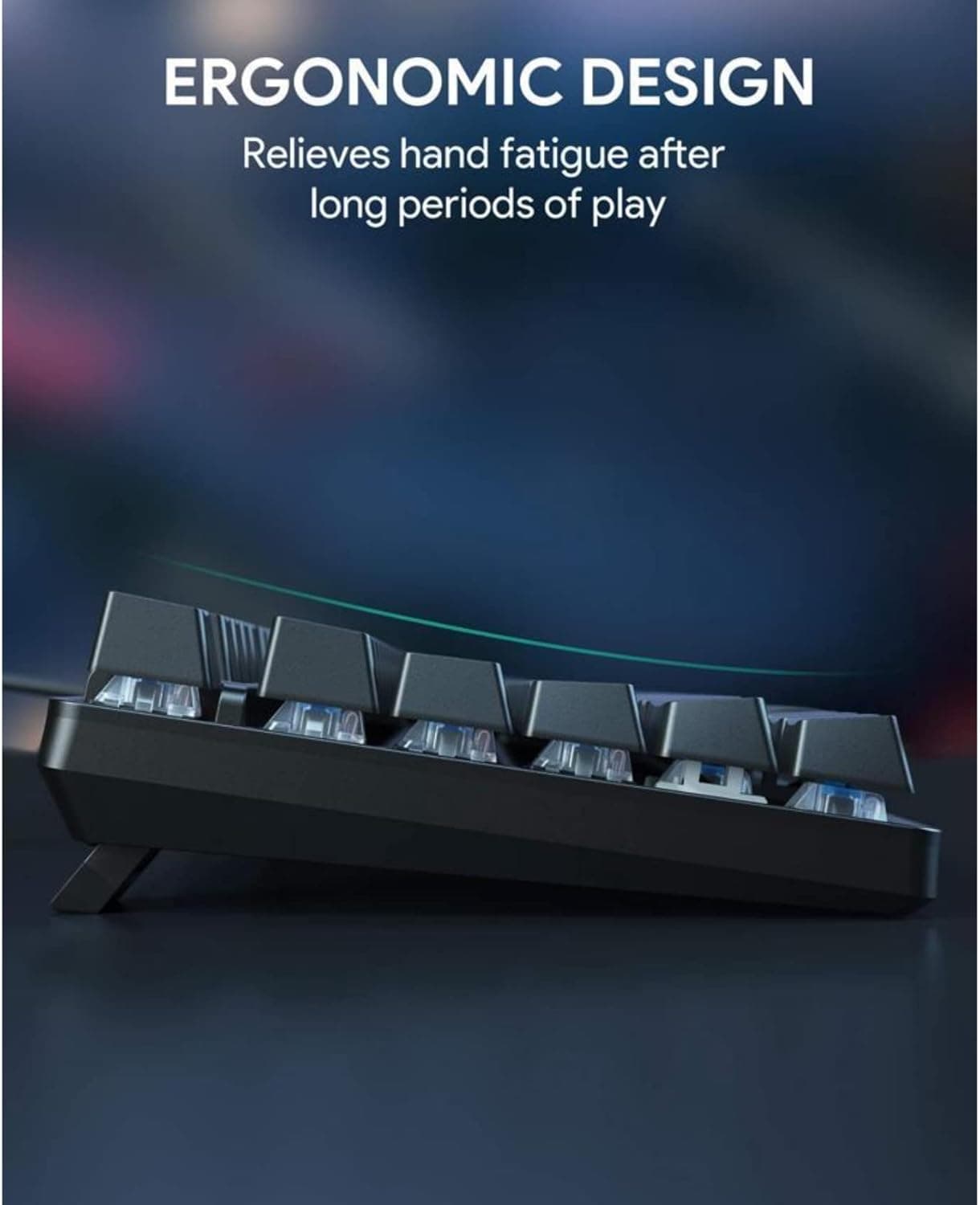
Lubing Switches and Tuning Stabilizers Transforms Your Keyboard's Typing Feel
Lubing switches and tuning stabilizers is the single highest-impact mod you can make to a mechanical keyboard, turning a scratchy, rattly board into something that feels genuinely premium.

Picking the right switches is only half the battle. No matter how good your linears or tactiles are stock, the difference between a mediocre typing experience and a genuinely great one almost always comes down to lubrication and stabilizer work. Lubing is one of the most common and immediately effective aftermarket modifications done by mechanical keyboard enthusiasts: the process can make your switches sound better, deepening and clearing up those clacks and thocks, and make them feel better by getting rid of internal scratchiness. Pair that with dialed-in stabilizers, and even a mid-range board can punch far above its price.
Why bother lubricating?
If you've spent any time with a mechanical keyboard, you may have noticed a slightly scratchy feel or a distracting "pinging" sound from the springs. Applying specialized lubricant to the internal components of a switch reduces friction between moving parts, effectively silencing the scratch and creating a smooth, deep, and satisfying typing experience. Beyond feel, over time the moving parts inside switches can wear down. Lubing helps reduce the amount of friction between them, which can potentially extend the life of your switches and keep them functioning smoothly for longer.
One important caveat before you start: if you love the crisp click of clicky switches, lubing can mute that signature sound and reduce tactile feedback. Clicky switches are generally best left alone. Most mechanical switches benefit from lubing, except for clicky types where lubing can dampen the click feel.
Choosing the right lube
There are two main categories of lubricants: oil-based lubricants, which are thin and light and best for switches where a smooth but not overly dampened feel is preferred; and grease-based lubricants, which are thicker and more viscous, ideal for stabilizers and switches where you want a deep, smooth keystroke with reduced rattle.
For switches specifically, the community has converged on a short list of go-to options:
- Krytox 205g0 is a thin lubricant for linear switches, considered a go-to solution in the keyboard community thanks to its ability to improve a switch's sound profile and feel.
- Tribosys 3203 is a medium-viscosity lubricant best suited for tactile switches. It can also be used on linear switches in smaller quantities for those who want something closer to their keyboard's stock sound and feel.
- Tactile switches specifically benefit from a lower-viscosity lube such as Tribosys 3203 or Carbon GS1 to prevent losing tactility.
For stabilizers, the calculus shifts toward thicker greases. Krytox 205g0 reigns supreme as the most widely used lube for keyboard stabilizers. Its high viscosity effectively reduces rattling and "clacking" noises caused by friction between stabilizer components, and also enhances keystroke smoothness. For the stabilizer wire itself, XHT-BDZ G1.5 is easily the highest-viscosity grease on offer, making it well-suited to tame any unpleasant rattling or pinging from keyboard stabilizers. Note that it's recommended you only apply XHT-BDZ G1.5 to the stabilizer wire, not the housing. Krytox 205g0 should work fine for the housings. Dielectric grease is a budget-friendly alternative for wires that many builders swear by.
One absolute rule: do not use petroleum jelly, such as Vaseline, to lube your switches. It will damage the plastic and degrade your switches over time.
What you'll need
Tools required include a switch opener (like the KFA Switch Opener), Krytox 205g0 lube, a fine-tip brush (size 00 or smaller), a switch puller, precision tweezers, and a clean workspace. A lube station is optional but recommended because it holds each switch upright while you work, dramatically improving your pace over a full board of 60 to 100+ switches. Tweezers help with picking up small components and keep grease off your fingers. You'll need a small workstation where you can lube the switches without making a mess.
Lubing switches: the process
Each switch is composed of four different components: the stem, spring, bottom housing, and top housing. Every friction surface between those parts is a candidate for lubrication.
1. Remove switches. If your keyboard is hot-swappable, you can pull them out easily. Otherwise, desoldering may be required.
2. Open the switches using your switch opener by gently pressing on the edges of the switch to separate the top housing from the bottom.
3. Using a small amount of lube, carefully brush the rails of the bottom housing, which is the area that sees the most contact with the switch.
4. Handle the stem carefully. On a linear switch, you do want to lube the legs; on tactile switches, you absolutely don't want to lube the legs, as doing so will reduce or outright eliminate the tactility. On a linear switch, gently brush lube on the legs and the flat space between them. On a tactile, just lube that flat space, or avoid lubing that side of the stem entirely.
5. Lube the springs. You can individually coat the ends with a small amount of lube. Alternatively, you can distribute lube throughout the inside of a zip-lock bag, add your springs, and shake to evenly coat. This "bag lube" method is a huge time-saver.
6. Lube the top housing by evenly spreading lube between the four interior sides.
7. Reassemble: snap the switch housing back together.
Whatever your method, precision is key: too much lube can cause mushiness or even affect switch function. Start by applying lube to just four switches. This will allow you to test those few for feel and decide whether to apply more or less lube to the rest of your switches.
Tuning stabilizers: why it matters more than you think
One rattling spacebar can destroy the smooth feeling of a whole keyboard. This is the underappreciated truth about stabilizer work: bad stabs don't just affect your spacebar in isolation, they color the entire experience. Modding stabilizers is the simplest and most effective means of making a night-and-day difference to your keyboard. Stabilizers serve the express purpose of preventing long keys such as Spacebar, Enter, and Shift from seesawing around the switches.
Stabilizer issues exist because manufacturers are compelled to ensure wider compatibility with all switch and plate types. This forces them to employ looser tolerances, which makes it practically impossible to avoid annoying stabilizer rattle, even if you spend upwards of $1000 on custom keyboard parts.
There are three main stabilizer types to be aware of: plate-mount stabilizers, made primarily by Cherry and Durock, attach to the plate that holds the switches in place. Clip-in PCB-mount stabilizers attach to the PCB using small plastic clips and are more solid than plate-mount but less stable than screw-in. Screw-in PCB-mount stabilizers, usually more expensive, are the most secure type; ZealPC and Durock both offer screw-in options.
Tuning stabilizers: the process
Before lubing, there is one optional but impactful mechanical step: clipping. If your stabilizer stems have smaller protrusions called legs, those legs need to be clipped. Use small wire cutters and remove the two prongs cleanly. You want the bottom to be flat for better acoustics. Most stabilizers sold today come pre-clipped.
Another popular pre-lube mod is the Holee mod: this involves cutting a small piece of a band-aid to the size of the hole in the stabilizer stem and inserting it as a buffer. This is best done before you lube your stabilizers, as the lube can make the band-aids not stick as well to the stem. Getting it the right size can take a couple of tries.
Then move to lubing:
1. Clean the stabilizer housing, stems, and wires with water and cotton swabs, then ensure they're dry.
2. Lube the housing. The plastic-on-plastic and plastic-on-metal action is what contributes to scratch and rattle. Use a brush to apply a medium-to-high viscosity lube such as 205g0 to each interior surface of the stabilizer housing.
3. Lube both sides of the stem and apply lube to the inside of the stabilizer housing as well. For the stabilizer wires, apply dielectric grease or Krytox 205g0, making sure to apply lube on the angled part of the wire that attaches to the stabilizer housing.
4. You can be more generous when lubing stabilizers, but be careful not to overdo it as that can make them feel mushy.
5. Test out the keys on top of the stabilizers to see if the rattling noise is dampened. For your spacebar, click along the keycap to hear the sounds throughout.
Common pitfalls
If your switch feels scratchy, you may have applied too little lube. If your switch has visible globs of lube or feels mushy, you may have applied too much. Both problems require disassembly to fix, so erring toward thin coats and testing as you go is always the right call.
If a switch fails to register a keypress after lubing, check whether the crosspoint contact leaves are lubed. If so, wipe them off with isopropyl alcohol and try again. This is a critical warning for tactile switches in particular.
For stabilizers, if you think you used too much lube and the keys feel sluggish on press and return, you will have to remove the stabilizers and remove any excess lube before reassembling.
The gap between a stock keyboard and a properly lubed, tuned build is not subtle. It's the kind of improvement that makes it genuinely difficult to go back to an unmodded board. Do the switches first to dial in your technique, then tackle the stabilizers, and what you end up with will feel like a completely different keyboard.
This article was produced by Prism’s automated news system from verified source data, official records, and press releases, then run through automated quality and moderation checks before publishing. The system is built and supervised by the people who set the standards it runs under. Read our full AI policy.
Did this article answer your question?