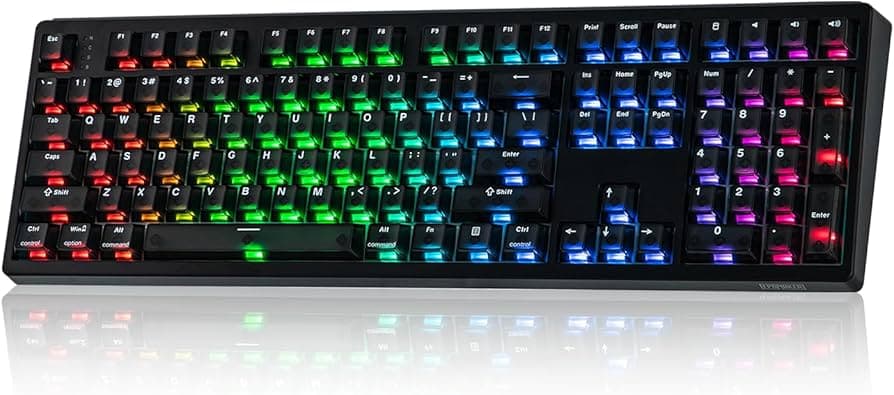
Step-by-step process to lube mechanical keyboard switches for smoother thock
Learn the full, step-by-step workflow to lube mechanical switches for a smoother, deeper “thock,” with tools, techniques, and testing advice.

1. Why lubing matters
“Lubricating switches is one of the highest‑impact, low‑cost mods you can do to change feel and sound: it reduces scratchiness, damps spring ping, and can give a deeper, smoother ‘thock.’” That’s the payoff: cleaner acoustics and a silkier travel under your fingers. If you value sound profile and feel, lubing is the single mod that most community members point to first.
- Switch opener (KFA Switch Opener is a recommended example)
- Switch puller (if switches are hot‑swappable)
- Keycap puller
- Specialized lubricant (examples: Krytox GPL 205g0, Tribosys 3203)
- Fine paintbrush (size 0 or 00; Keebsforall recommends 00 or smaller)
- Lube station or organizing trays, Q‑tips/paper towels, optional magnifier and small containers. Having a tray keeps parts from “spreading over your workbench” and saves headaches.
2. Block out time and gather tools
Lubing is a project, “Lubing is a lengthy process with many steps. Block out a large chunk of time for this and get all supplies needed at the start.” Clear a workspace that can hold keycaps and switch parts and collect everything before you begin. Essentials include:
3. Choose lubricant and brush for your switches
Match lube to switch type: Krytox GPL 205g0 is commonly recommended for linears and many tactiles, while a thinner option like Tribosys 3203 preserves tactile bumps. Keebsforall notes: “Tactile switches need a careful touch to keep their bump feedback intact. Use a thinner lubricant like Tribosys 3203.” Use a size 0 or 00 brush, or 00 or smaller for precision, so you don’t glob lube onto surfaces.
4. Power down and remove keycaps
Power down the keyboard before touching switches or the PCB. “Use a keycap puller to remove the keycaps. Keep your reference photo handy for reassembly, and organize the keycaps in their layout order.” Photograph your layout, remove caps row by row, and store them in order to make rebuild painless.
5. Remove switches: hot‑swap vs soldered
If your board is hot‑swappable, use a switch puller to remove switches, squeeze the tabs and pull upward. Attackshark explains: “You'll need to take the switches out of your keyboard before you can lube them. If your keyboard is 'hot‑swappable', you can just use a switch puller tool to take them out. If your keyboard has soldered‑in switches, you'll have to desolder them, which is a much bigger project for another day.” If switches are soldered, plan for a desoldering job or consult a professional.
6. Open switches and organize components
Use a dedicated opener, Keebsforall: “Place each switch into the KFA Switch Opener, ensuring proper alignment. Push down firmly until you hear a click, which separates the housings.” Each switch comes apart into top housing, bottom housing, stem, and spring; Attackshark notes “It’s a good idea to put them into tidy piles.” Use a lube station: “A Lubing Station is essentially a tray, typically plastic or metal, with sections to keep all your switch parts in place.” Keep parts grouped by row/zone to speed reassembly and avoid mixing.
- Switch stem, “Apply a thin, even coat on all four sides and a light layer inside.” This is the most crucial piece to lube.
- Springs, “Use a light coat or try batch lubing for efficiency.” A light coating prevents spring‑ping without deadening travel.
- Upper & lower housing, “Lightly lube the contact points where the stem slides.” Focus only on the rails and not on electrical contacts. Redragonshop reminds that the stem is “the internal piece that travels up and down when pressed. This is the most crucial part to lube,” and that the bottom housing “holds the spring, leaf, and provides the base structure.”
7. What to lube: component‑by‑component
Treat each component deliberately. Keebsforall’s component guidance is clear:
8. How to apply lube, technique and limits
Follow the community’s golden rule: Attackshark warns, “The golden rule of lubing is less is more. A common beginner's mistake is to use way too much lube, which will make your switches feel gummy and sluggish. You can always add a little more, but it's almost impossible to remove it.” Use a fine brush to apply a light, even coat, avoid flooding parts. For springs you can batch‑lube in a small container, then wipe excess. Redragonshop emphasizes: “A light, even coat of lubricant on the moving contact points reduces friction and noise for smoother, quieter typing. Focus on the parts below and avoid flooding, too much lube can slow return or cause misfires.”
9. What not to lube and stabilizer care
Do not contaminate electrical contact surfaces: “Avoid lubing: click bars on clicky switches, the gold contact leaf, and any PCB/socket surfaces.” For stabilizers, take special care: “Stabilizers (highly recommended for big keys). Under the Spacebar, Enter, Shift, Backspace: lube the wire and housing contact points to eliminate rattle. Use grease sparingly and wipe excess.” Grease stabilizers lightly and always remove excess to avoid slop or dust buildup.
10. Reassembly: springs, stems, housings, and reinstall
Put the switch back together in the correct order: Attackshark instructs to “insert the spring into the bottom housing, place the stem on top of that (with the 'legs' of the stem pointing towards the little metal leaf), and then snap the top housing back on. It should click into place.” Work in small batches and keep parts grouped by row for quick reinstallation. Reinsert switches into the board, or solder them back if needed, then replace keycaps in layout order.
11. Test, iterate, and troubleshoot
Always test early: Keebsforall and Attackshark advise starting with one or two switches tested in the keyboard before lubing all. Keebsforall: “Begin with just one switch. If it feels mushy or sluggish, you’ve likely used too much lubricant. Adjust your approach before moving on to the rest.” KineticLabs adds troubleshooting steps: “If the keyboard feels rough or scratching, you may have missed an area when lubing. You'll need to re-open the switch. Then, re-apply the lube, making sure to touch the stem and spring.” If a key fails to register, KineticLabs notes: “Although rare, a lubed switch may be faulty and need to be replaced.”
12. Common mistakes and community tips
Don’t overdo it, too much lube “can slow return or cause misfires,” and it can attract dust or deaden tactiles. Use appropriate lube for tactile vs linear switches, keep brushes small (0, 00, or 00 or smaller), and test frequently. Use a magnifier if your eyes get tired and containers to separate linear from tactile switches during the run. Batch jobs (springs, housings) save time, but precision on stems is non‑negotiable for good results.
13. Sources and further reading
Primary community and how‑to sources used for this workflow: Original Report (no publishedDate), Redragonshop, Attackshark, Keebsforall, and KineticLabs. KineticLabs metadata: “Catherine L. / Oct 1, 2022 / 12 minutes.” These sources provide the tool lists, quoted warnings, and the component‑level lubrication instructions preserved above.
Closing practical wisdom Start small, plan your session, and treat lubing as an iterative craft, your first few switches are experiments, not a final verdict. Keep the golden rule in your toolkit: less is more, test often, and you’ll be rewarded with quieter keys, reduced spring ping, and that satisfying deeper “thock” that turns a good keyboard into a great one.
This article was produced by Prism’s automated news system from verified source data, official records, and press releases, then run through automated quality and moderation checks before publishing. The system is built and supervised by the people who set the standards it runs under. Read our full AI policy.
Did this article answer your question?