RetroArch Tuning Guide Balances Accuracy and Speed for Every System
RetroArch lets you fine-tune every emulated system for the perfect balance of cycle-accurate fidelity and smooth performance — here's how to get it right.
Getting retro emulation right isn't just about finding the correct ROM and hitting play. The difference between a game that feels authentic and one that stutters, glitches, or looks washed out often comes down to a handful of settings buried inside RetroArch's interface. Understanding what those settings actually do, and why they pull against each other, is what separates a frustrating setup from one that genuinely feels like the original hardware.
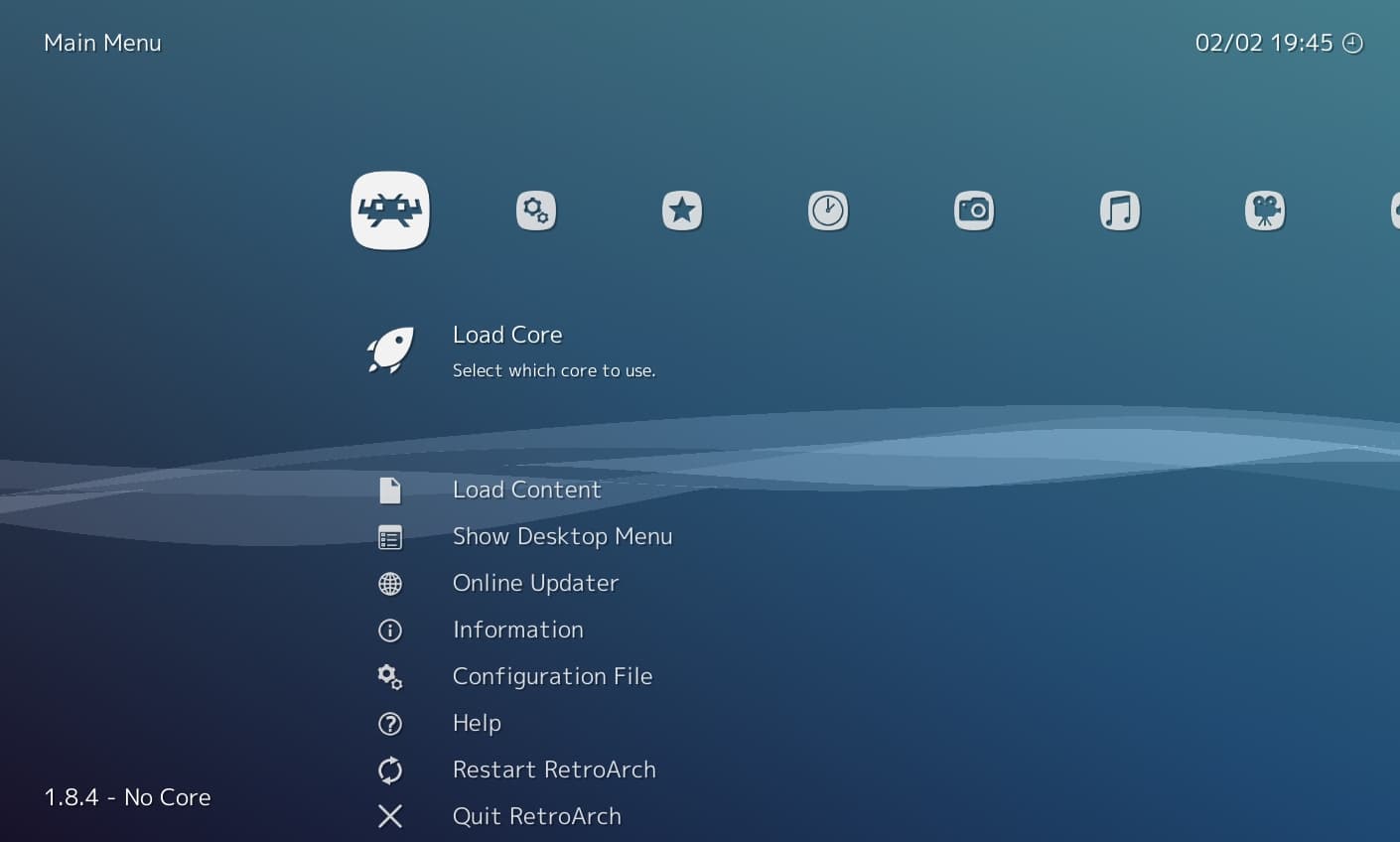
RetroArch is a frontend that runs emulation cores built on the libretro API, meaning a single interface can host dozens of emulators, each with its own accuracy and performance characteristics. The tuning principles below apply across that entire ecosystem.
Why Accuracy and Speed Are Always in Tension
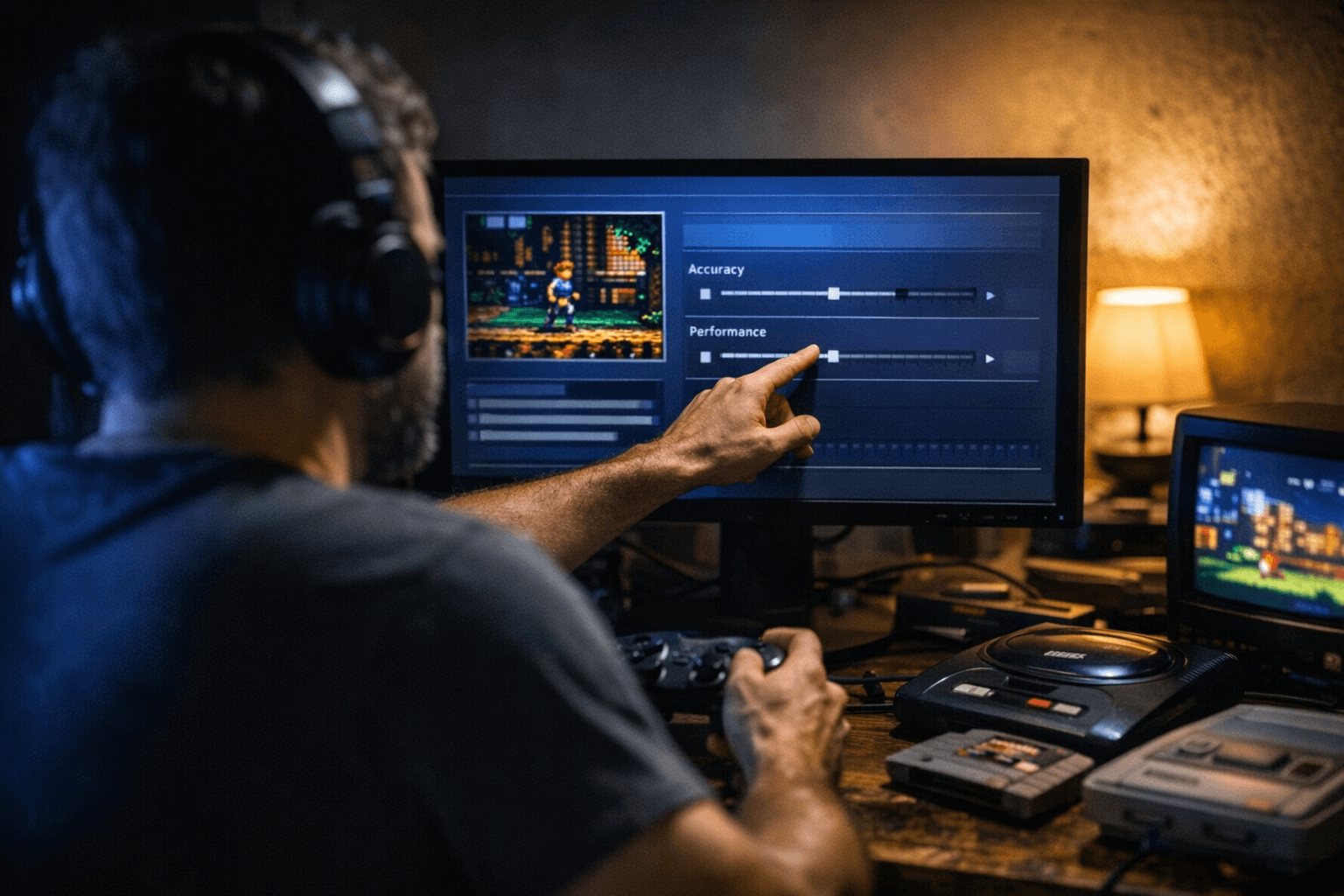
Every emulator makes a choice: how faithfully should it reproduce the original hardware, and how much processing power is that fidelity worth? Cycle-accurate emulation, which replicates the exact timing and behavior of original chips, is the gold standard for preservation but demands serious CPU resources. A cycle-accurate SNES core running on a low-power device may drop frames; a less precise core on the same device will run smoothly but might mishandle edge cases in certain games.
The libretro ecosystem gives you both options side by side. For the SNES alone you can choose between bsnes, which prioritizes near-perfect accuracy, and Snes9x, which trades some precision for broad compatibility and lower overhead. Neither is wrong. The right choice depends on your hardware, the game you're playing, and how much you care about behavior that might only surface in obscure titles.
Choosing the Right Core for Your Hardware
Before touching any other setting, pick a core that matches your machine's capabilities. RetroArch's core selector makes this straightforward, but the naming conventions can be confusing. Several systems have multiple libretro cores that represent different points on the accuracy-speed spectrum.
A few practical rules of thumb:
- For NES emulation, Mesen is the most accurate option available; FCEUmm and Nestopia UE are lighter alternatives that handle the vast majority of games without issue.
- For SNES, bsnes-mercury Accuracy is the highest-fidelity choice; Snes9x 2010 is a proven fallback for weaker hardware.
- For PlayStation 1, Beetle PSX HW offloads rendering to your GPU and adds enhancements; Beetle PSX (software) is slower but more accurate for games with mid-frame effects.
- For Game Boy and Game Boy Color, Gambatte is consistently accurate and lightweight; SameBoy is even more precise if you need it.
- For Nintendo 64, ParaLLEl N64 using the Vulkan renderer delivers the best accuracy currently available in a libretro core.
Starting with the most accurate core your hardware can sustain at full speed means you're not leaving fidelity on the table unnecessarily.
Accuracy Settings Inside the Core
Most cores expose their own accuracy toggles through RetroArch's Quick Menu under Core Options. These vary by system but commonly include CPU overclocking simulation, which lets you reduce slowdown in games that deliberately ran slow on original hardware; texture filtering modes; and sub-system timing options.
For PlayStation emulation in Beetle PSX HW, the internal GPU resolution multiplier is one of the most impactful options in the menu. Pushing this above 1x enhances polygon rendering but can introduce polygon wobble corrections that weren't present on real hardware. Turning on the "widescreen hack" changes aspect ratio behavior in ways the original game never anticipated. These are enhancements rather than accuracy improvements, and knowing the difference helps you make intentional choices.
On the SNES side, bsnes exposes CPU, SMP, and PPU overclocking independently. Bumping these can eliminate slowdown in notoriously choppy games like Super R-Type, but it changes the game's timing from what a real SNES would produce. That tradeoff is worth understanding before you enable it.
Multithreading and CPU Utilization
RetroArch and the libretro cores can take advantage of multiple CPU threads in a few different ways. The most significant is "threaded video," a RetroArch-level option in the Video settings that runs the video driver on a separate thread from the emulation core. This can smooth out frame delivery on systems where the core and the GPU driver compete for the same thread, though it introduces one frame of latency as a side effect.
Some cores also expose their own internal threading options. Beetle PSX HW includes a multithreaded rendering option that distributes GPU command processing across threads, which meaningfully reduces load on high-resolution settings. Enabling this on a quad-core machine can make the difference between playable and unplayable when running at 4x internal resolution.
The general principle: enable threaded video when you're GPU-bound and experiencing microstutter, but be aware of the latency cost if you're playing something where input timing is critical, like a fighting game or a rhythm title.
Integer Scaling and Display Output
How RetroArch scales a 240p game image up to a 1080p or 4K display matters more than most people realize. Non-integer scaling, where the image is stretched to fill the screen without clean pixel multiples, produces subtle blurring and uneven pixel sizes that make sprites look soft or wobbly during scrolling. Integer scaling locks the output to exact multiples of the original resolution, so a 256x224 SNES frame might be displayed at 768x672 (3x) with black borders, but every pixel is rendered crisply.
In RetroArch's Video settings, "Integer Scale" is the toggle to enable this. Pair it with the correct aspect ratio for the system you're running: most pre-fifth-generation consoles output at 4:3, not the square pixels that integer scaling at 1:1 pixel ratio would imply. The SNES, for instance, uses non-square pixels, so a 256x224 resolution at 4:3 aspect ratio requires scaling that accounts for the original pixel shape, not just a raw integer multiple.
Shaders and Visual Presentation
Shaders are graphics filters that run on your GPU after the core produces its frame, and they're one of the most powerful tools in RetroArch for making old games look the way they were designed to be seen. CRT shaders simulate the phosphor glow, scanlines, and color bleed of a consumer television, which is the display every pixel artist was designing for in the 1980s and 1990s. Without those effects, sprites designed to blend across scanlines can look jagged and oversaturated.
RetroArch supports shader formats including GLSL, SLANG, and HLSL depending on your video driver, with SLANG (Vulkan/D3D12) being the most actively developed. The shader library includes everything from simple scanline overlays to complex multi-pass CRT simulations like CRT-Royale and GTU.
A few practical shader starting points:
- CRT-Royale is the most comprehensive CRT simulation available and looks stunning at 4K, but it's GPU-intensive and may not run well at 60fps on midrange hardware.
- CRT-Geom offers a good balance of authenticity and performance and is a reliable first choice for most setups.
- Dot mask shaders work particularly well for Game Boy and handheld systems, replicating the LCD grid characteristic of those screens.
- Integer-scale-friendly shaders like xBR and HQx upscale pixel art smoothly without simulating CRT artifacts, which suits players who prefer a clean modern look.
Load shaders through the Shaders menu in the Quick Menu, and save them per-core or per-game using the shader preset system so you're not reconfiguring every session.
Latency Reduction
Input latency is often the last thing people tune but the first thing they feel. RetroArch includes several tools for minimizing the gap between button press and on-screen response. Runahead, found in the Latency settings, runs the emulation one or more frames ahead and discards those frames to pre-empt latency, effectively removing the buffer that most cores introduce. It's computationally expensive but transformative for games where timing precision matters.
Frame delay is a lighter alternative that holds the video frame slightly longer before presenting it, giving the input handler more time to capture a button press within the current frame. Set it conservatively (2-3 frames) on hardware that can sustain it.
Disabling vsync and using a frontend frame limiter instead can also reduce latency on displays with low input lag, though this trades screen tearing risk for responsiveness.
Saving and Organizing Your Configuration
RetroArch's configuration hierarchy lets you save settings at the global level, the core level, or the individual game level. Use this system deliberately: a global config sets your defaults, core overrides handle system-specific options like aspect ratio and shaders, and game overrides handle one-off cases like a title that needs a specific CPU overclock or a different shader preset.
This structure means you configure once and play everywhere, rather than re-tuning every time you switch systems. The Quick Menu's "Overrides" submenu is where you commit these layered saves, and understanding it is what makes RetroArch genuinely powerful rather than just complicated.
The depth of RetroArch's tuning options is exactly what makes it the standard choice for serious retro emulation. Every layer of configuration, from core selection down to per-game shader presets, exists because someone cared enough about a specific system or title to build that option in. Working through these settings systematically means your setup reflects the same care.
This article was produced by Prism’s automated news system from verified source data, official records, and press releases, then run through automated quality and moderation checks before publishing. The system is built and supervised by the people who set the standards it runs under. Read our full AI policy.
Did this article answer your question?