NBA 2K Online Lag Tied to Packet Loss, Strict NAT; Fix Checklist
Packet loss and strict NAT are the usual suspects behind stutter, slow matchmaking, and disconnects in The City, Park/REC, Pro‑Am, and MyTEAM — follow this checklist that condenses 2K and console networking guidance.
Packet loss and a strict NAT type are the two network problems that keep showing up in complaints from The City, Park/REC, Pro‑Am, and MyTEAM players. When packets never make it to 2K’s servers (or take the scenic route), gameplay stutters, shot timing desyncs, matchmaking drags, and sessions drop — and platform and publisher docs point squarely at packet loss and NAT as the common causes. The checklist below pulls together practical steps from 2K and console networking guidance so you can diagnose what’s happening and fix it without chasing every forum rumor.
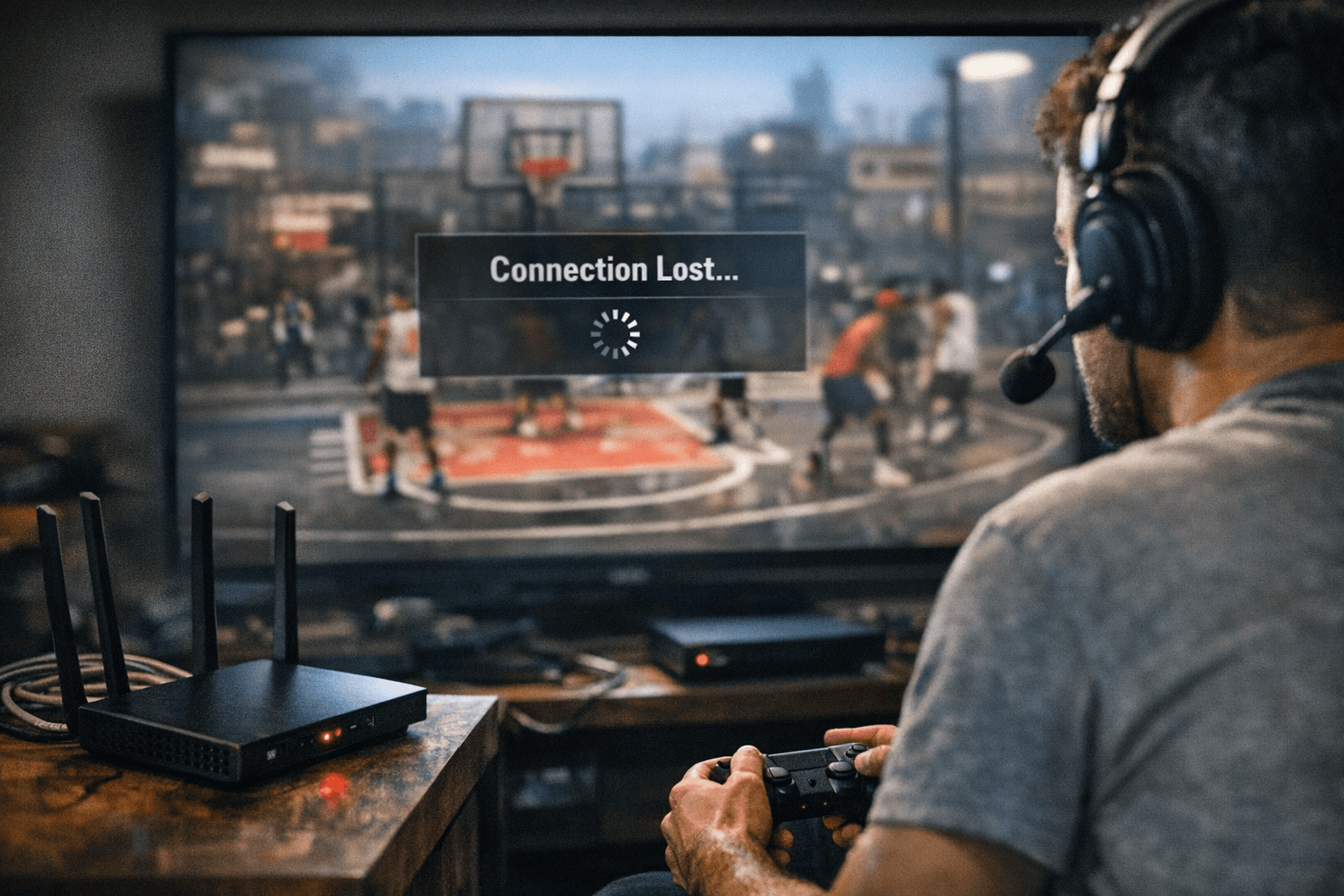
How packet loss and strict NAT show up in-game Packet loss is literal data that never arrives. On-court that looks like rubberbanding, delayed animations, and repeated “re-sync” moments during a play; off-court it makes matchmaking queues jump around or fail entirely. A strict NAT prevents your console from forming smooth peer-to-peer or host connections, which explains why some sessions never find a lobby or why you can enter a Park game but get booted mid-match. 2K modes with real-time peer interactions (The City, Park/REC, Pro‑Am, MyTEAM online) are particularly sensitive because even small packet drops interrupt the frame-to-frame state the game relies on.
Tools to measure the problem (what to run first) Start with the platform tests recommended by console networking docs. Use your console’s network diagnostic (Xbox Network Settings, PlayStation Connection Test) to get a baseline for NAT type and general connectivity; these tests will flag NAT reported as Strict and often surface uplink/downlink issues. 2K’s online status pages and in-game connection indicators (where present) can confirm whether the issue is localized to your home network or affecting broader service regions. If you can, run a test while trying to join the mode that’s failing — noting mode (The City, Park/REC, Pro‑Am, MyTEAM), time, and symptoms will speed up troubleshooting.
A practical fix checklist (sequential) 1) Move to wired first. A wired Ethernet connection eliminates Wi‑Fi interference and is the single most recommended step in both 2K and console networking guidance. If latency and stutter drop immediately on Ethernet, you’ve narrowed the problem to wireless or local interference.
2. Power-cycle modem, router, and console.
Reboot hardware in that order and run the console network test again; transient issues and stale NAT mappings are frequently resolved by a clean restart, per platform recommendations.
3. Confirm and change NAT setting.
If your console reports Strict NAT, follow the router guidance to move it to Moderate or Open: enable UPnP if your router supports it, or set a static IP for the console and use port forwarding as advised by platform docs. Platform guidance emphasizes Open/Moderate NAT for stable matchmaking; Strict generally blocks or throttles peer connections.
4. Use UPnP first, DMZ only as last resort.
UPnP lets the console request ports automatically and is the preferred solution in official console documentation. If UPnP is unavailable and port forwarding is complex for your setup, placing a console in a DMZ can open connections but removes firewall protections — treat DMZ as an emergency fallback, not a first-line fix.
5. Check for packet loss at the ISP level.
If you still see consistent packet drops after local fixes, capture timestamps and test results and contact your ISP; platform and publisher docs both flag persistent packet loss as likely an upstream issue the ISP must resolve. Ask for packet-trace tests or route checks toward your game servers if the ISP supports them.
6. Eliminate local traffic and background downloads.
Pause game downloads, cloud syncs, or other heavy household traffic while you test. 2K and console guidance note that concurrent downloads and streaming can exacerbate perceived lag in real-time modes.
7. Re-run tests during different hours.
Matchmaking and host quality vary across peak times; perform trials in off-peak hours to determine if the problem is local or server-side congestion. Document the difference — that detail will help 2K support or the ISP diagnose intermittent problems.
8. If on Wi‑Fi, optimize the wireless setup.
Move the router closer to the console, use 5GHz where possible to reduce congestion, and avoid mixing extenders that introduce additional hops. Console networking docs recommend minimizing wireless hops because every repeater can increase packet loss risk.
- Plug in an Ethernet cable and immediately test a Park or MyTEAM match.
- Reboot modem-router-console in that order, then check NAT type.
- Pause all downloads and background apps on console/PC before matchmaking.
- Toggle UPnP in your router settings, then re-check NAT status on the console.
Quick fixes you can try right now
What to collect before contacting 2K or your ISP When issues persist, gather the essentials the publisher and consoles request: the exact mode (The City, Park/REC, Pro‑Am, MyTEAM online), timestamps of failures, your console’s reported NAT type, results from the platform network test, and whether Ethernet changed the behavior. Presenting this concise packet of facts helps support teams and ISPs isolate whether the fault lies in your home network, the ISP route, or server/host-side problems.
When fixes don’t stick If moving to wired, opening NAT, and working with your ISP still leaves you with stutter or disconnects, the problem may be server-side or tied to particular hosts in peer sessions. In those cases, keep solid records of times and modes and escalate to 2K support with the diagnostics you collected. Publisher guidance suggests that when many players report similar symptoms in a region or mode, it points to service-side issues that require server-side mitigation rather than more home-network tweaks.
A final word Network issues that look mysterious on the surface usually break down into two culprits: lost packets and blocked connections. Treat the process like triage — wired connection, NAT status, UPnP/port changes, then ISP escalation — and you’ll resolve the vast majority of stutter, slow matchmaking, and disconnect problems in The City, Park/REC, Pro‑Am, and MyTEAM. If your setup follows 2K and console networking guidance and problems remain, the evidence you’ve collected will make the next support conversation fast and productive.
Know something we missed? Have a correction or additional information?
Submit a Tip