One-Click CurseForge and Local Managers Make Sims 4 Mods Safer
Local mod managers plus CurseForge one-click installs reduce human error and make large Sims 4 mod collections safer and easier to test.
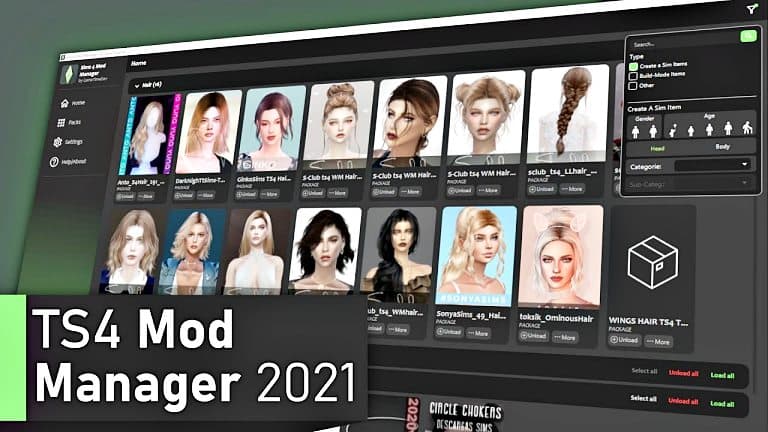
A new workflow combining a local Sims 4 mod manager such as S4MM with CurseForge integration is streamlining how players install, update, and troubleshoot mods. By scanning and indexing the Mods folder, local managers build a searchable database with thumbnails and version metadata so you can see exactly what is installed. One-click install and automatic update flags from CurseForge cut down on manual downloads and reduce the risk of missing files or outdated libraries.
These tools matter because human error is the most common cause of mod breakage after a patch. Managers provide enable/disable toggles that let you turn mods off and on for controlled testing without dragging files in and out of folders. Conflict detection highlights duplicate files and obvious ID collisions, catching many common mistakes before they crash a save. That combination of organization and automation makes post-patch troubleshooting faster and less nerve-racking.
Start with a simple workflow to keep your game stable. Back up Documents/Electronic Arts/The Sims 4/Saves and your Mods folder before making major changes. Install a local manager from the official project page and allow a full initial scan so it can generate thumbnails and metadata. If you want one-click installs and updates, connect CurseForge in the manager; otherwise import Patreon or direct downloads manually. After any EA update, run the manager, disable script mods in-game if you prefer, and re-enable mods in small batches to verify behavior. Many creators advise waiting 24-48 hours for critical updates, but a manager speeds up manual verification and helps you isolate changes.

Pay attention to a few practical gotchas. Do not run the mod manager while the game is open - file locks can cause corruption or incomplete writes. Keep your Sims Documents folder local; OneDrive or other cloud sync can interfere with paths and lead to missing saves or broken mod links. Some mature modules, like MC WooHoo, are not available on CurseForge; download those from creators' official pages and import them into your manager. Use a diagnostic tool such as Better Exceptions alongside the manager to trace which mod is generating errors; the manager organizes files, diagnostics point to the culprit.
Before you launch after changes, verify your backups, ensure Core Library and other required libraries are up to date, and test major updates in a fresh save or new household first. The combination of local indexing, toggle-based testing, and CurseForge automation reduces the guesswork and keeps your content catalog tidy. For anyone running a heavy mod setup, this approach turns chaotic folder surgery into controlled test runs, so you can get back to playing rather than debugging.
Sources:
Know something we missed? Have a correction or additional information?
Submit a Tip