PCMag Recommends OpenEmu 2.1 as Turnkey Frontend for macOS Retro Gamers
OpenEmu 2.1 is a turnkey frontend for macOS retro gaming—easy install, broad controller support, but Catalina users must grant Input Monitoring and MAME remains experimental.
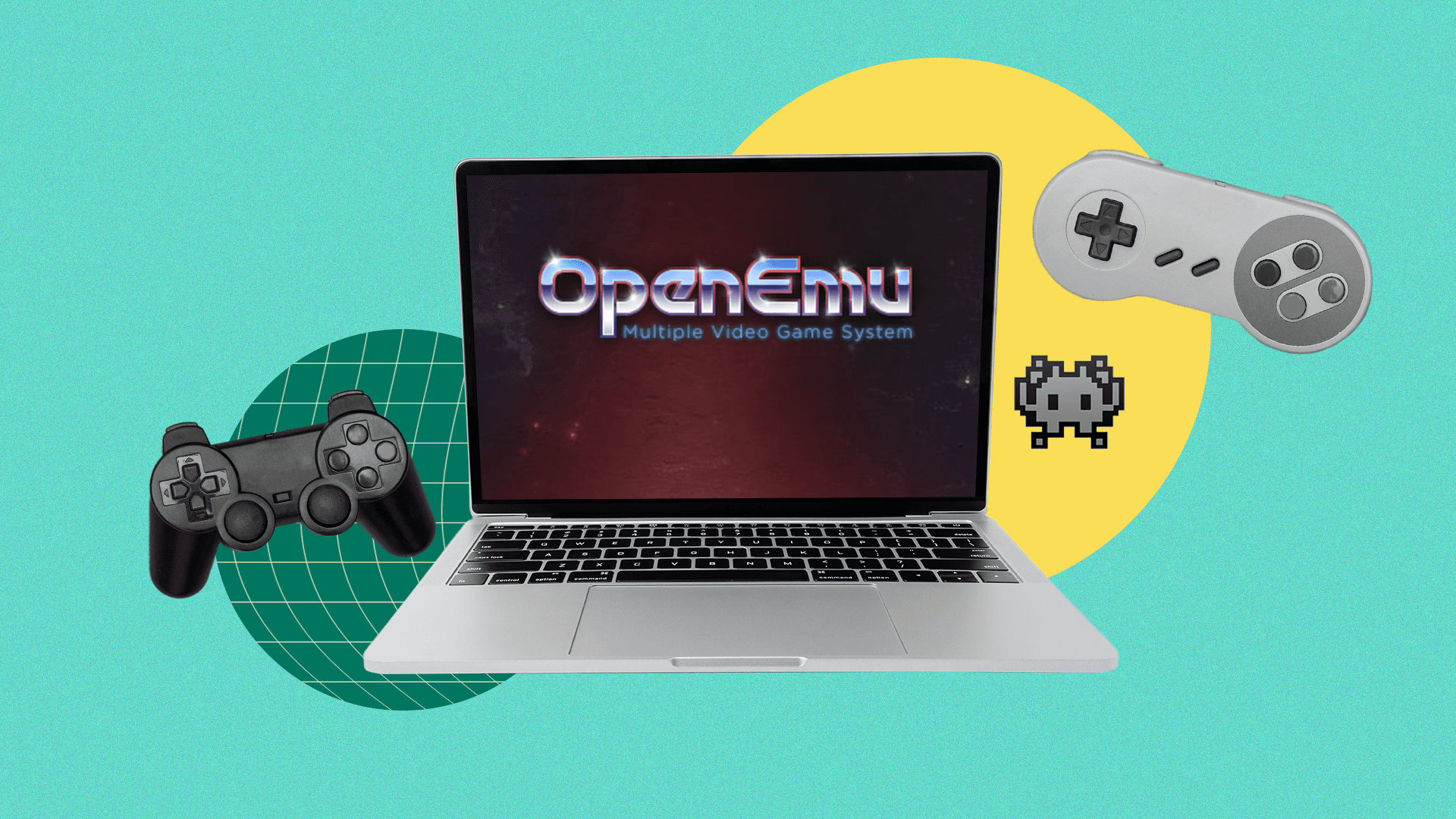
OpenEmu 2.1 aims to give Mac owners a polished, iTunes‑style way to play classic consoles without buying new hardware — and it comes with a few straightforward setup steps you need to know. Jason Cohen at PCMag calls OpenEmu "the perfect solution for retro gamers on macOS (and arguably superior to anything available on Windows)," and the practical payoff is immediate: skip fiddly handhelds (the Retroid Pocket 6 with 12GB of RAM was just cancelled) and get a multi‑system frontend that looks and feels native on a Mac.
What OpenEmu is (and what it isn't) OpenEmu, first released in 2013, is not itself an emulator but "a robust frontend for other console emulators." It aggregates emulator "cores" and presents them in a single, searchable interface that PCMag likens to "a streamlined iTunes." That means you get a unified library, cover art and easy filtering while the actual emulation is handled by the underlying cores you download during setup.
Download and bypassing macOS security macOS can block apps from unverified developers; PCMag spells out Apple’s standard exception workflow so you can get OpenEmu running without terminal hacks. If macOS prevents launch because "the developer is unverified," do the following: 1. Locate the downloaded OpenEmu file in Finder and Control‑click on the app icon. 2. Select Open from the shortcut menu, then click Open to make an exception to the OS' security settings. 3. The app will then be added to your Applications folder. Those three steps replicate Apple's documented approach and will let OpenEmu install cleanly into Applications. On macOS Catalina (10.15) there’s one more crucial permission step described in OpenEmu’s release notes: "IMPORTANT: Due to new security rules in macOS 10.15 Catalina, in order for keyboard input to work you MUST grant OpenEmu 'Input Monitoring' access in the Privacy pane of Security & Privacy preferences." Community reports echo that requirement — skip this and keyboard controls may not register.
First launch: cores, setup and practical defaults When you launch OpenEmu for the first time it walks you through a short setup where you choose which emulator cores to download. PCMag’s practical advice is simple: "You can just leave these options selected by default, since there's no reason not to get every core available." Click Next, then Go to finally launch OpenEmu. That approach ensures broad system coverage out of the box; if you prefer a leaner install you can deselect specific cores, but the default path minimizes friction for most players.
Adding games (what to expect) PCMag includes a dedicated "Add Games to OpenEmu" section as part of its how‑to; while the supplied excerpt doesn’t enumerate file types or scan paths, the general workflow in OpenEmu is to import ROM files or folders into your library so the frontend can catalog them. Expect the app to display cover art and metadata where available, and keep in mind that long‑term library management works best when you store ROMs in a single organized folder before importing.
Controller setup and mapping OpenEmu handles controllers cleanly: it supports any HID‑compliant USB or Bluetooth game controller, and the program often auto‑maps controls. As PCMag demonstrates, put your gamepad into pairing mode, connect it via your Mac’s Bluetooth settings (the author reports using the 8Bitdo SN30 Pro+ with no issues), and then refine mappings in OpenEmu > Preferences > Controls. Use the drop‑down menu to choose a system, and switch the Input drop‑down from keyboard to your controller. These settings give you reliable play — and if something feels off, manual remapping in Preferences will resolve most mismatches.
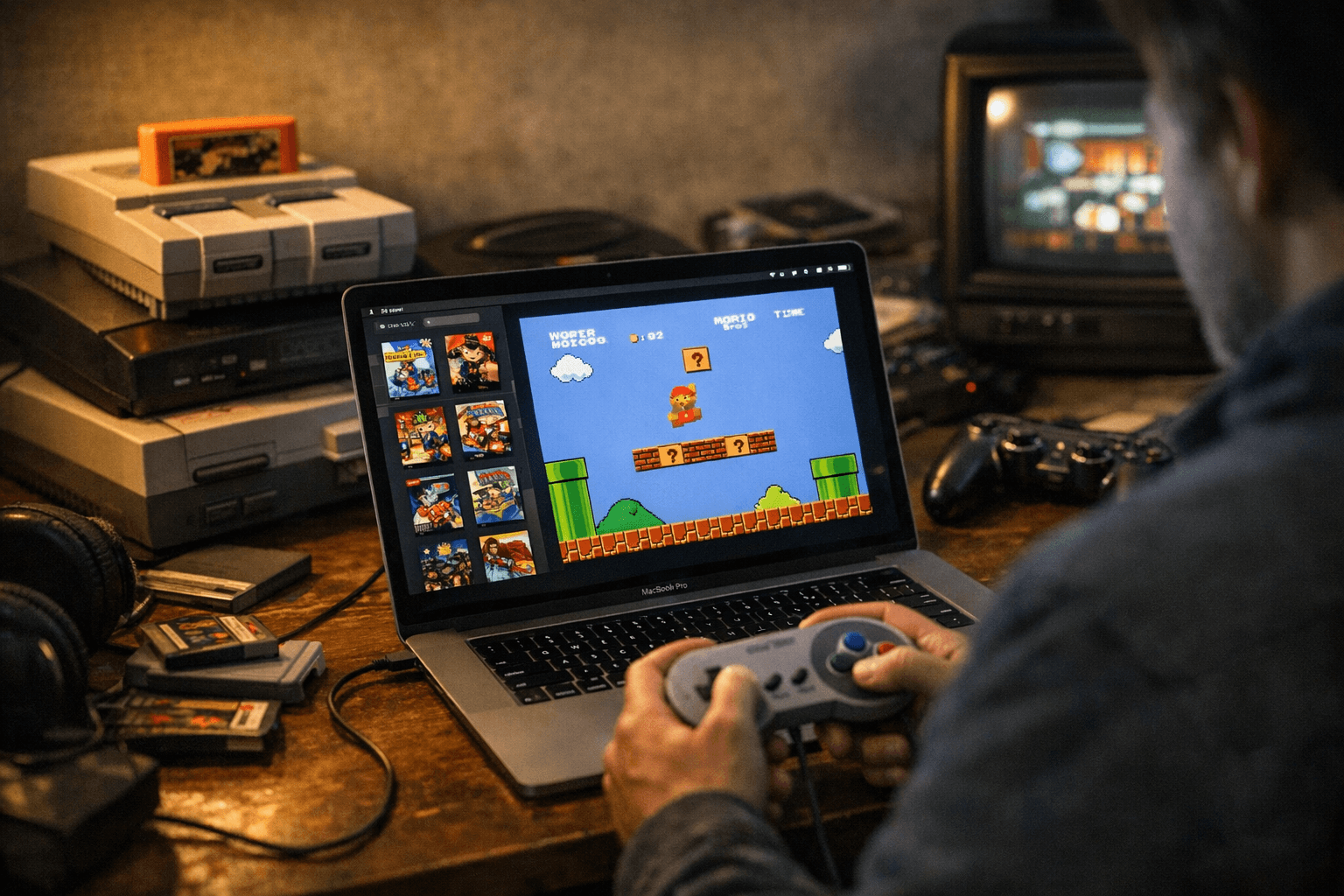
Arcade/MAME: experimental support and community workarounds If your library leans heavily on arcade ROMs and MAME, note an important caveat from the community: "The free OpenEmu is great for running all sorts of emulators on your Mac with a beautiful frontend, and I heartily recommend it for consoles and computers, but its MAME support is classed as ‘experimental’ – indeed, you need to download a separate build to get MAME supported at all." That single line from Retrogamesultra captures the tradeoff: OpenEmu’s console experience is turnkey, but arcade emulation can require extra effort.
Specific limitations include missing access to DIP switch settings, lack of sample support for some titles unless you compile a custom binary, and an overall “experimental” designation for MAME in OpenEmu. One community contributor points users toward builds maintained by r0ni — a native OS X MAME that runs via command line — and other users have confirmed specific builds such as mame0215‑64bit "does in fact work fine on Catalina." If you need samples for games like Zaxxon or granular DIP configuration, be prepared to compile or use external MAME builds rather than relying on OpenEmu alone.
- For arcade ROMs, "The right hand Shift key is often Insert Coin in OpenEmu." That quick keyboard shortcut can save a lot of trial and error.
- Catalina users report mixed experiences; some confirm success when following build‑specific instructions and granting Input Monitoring, others encountered problems on macOS Catalina 10.15.4 until they updated files or used a recommended build.
- If a title requires additional audio/sample files, the community recommends compiling your own MAME binary to enable full functionality.
Handy community tips and gotchas
The forum thread is full of specific, actionable tips you won’t find in generic guides:
When to pick OpenEmu — and when to look elsewhere OpenEmu is the pragmatic choice if you want an attractive, unified library for NES, SNES, Genesis, Game Boy, and many console systems with plug‑and‑play controller support. As PCMag frames it: "If you have a Mac and fond memories of game consoles past, read on." However, if your collection is arcade‑heavy or depends on advanced MAME features — DIP switches, sample sets, or per‑game advanced configuration — you should be ready to use separate MAME builds (r0ni’s native OS X builds are frequently referenced) or compile for specific support.
Conclusion OpenEmu 2.1 delivers the polished, turnkey frontend PCMag recommends for macOS retro gaming, letting you skip canceled or pricey handheld alternatives and get back into classic consoles quickly. Follow the Gatekeeper exception steps, grant Input Monitoring on Catalina, pair a HID‑compliant controller like the 8Bitdo SN30 Pro+, and enjoy a near‑plug‑and‑play experience — while keeping one eye on the MAME caveats if arcade support matters. For most Mac gamers, OpenEmu’s blend of simplicity and breadth makes it the practical first stop for preserving and playing retro libraries on macOS.
Know something we missed? Have a correction or additional information?
Submit a Tip