Practical Steps to Cut Lag on Sims 4 Build-Heavy Lots
Build-heavy lots in The Sims 4 often cause slowdown; these practical steps help creators and players reduce lag while keeping strong visuals.
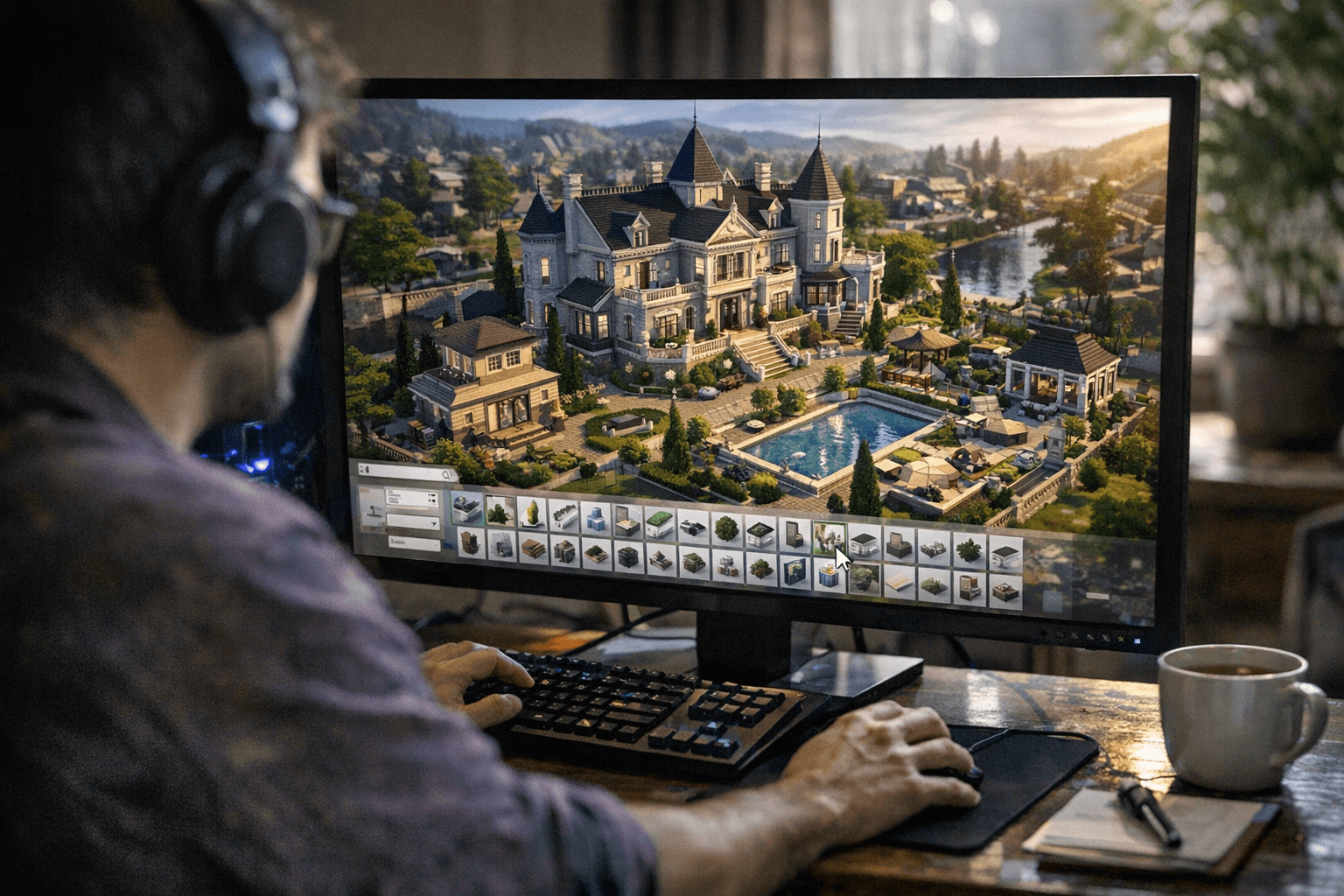
Heavy build lots packed with layered rugs, clustered decor, dozens of small lights and complex roofs are a frequent source of stutter and low FPS in The Sims 4. That matters because slowdowns break immersion, ruin routines like touring or screenshotting, and limit who can enjoy a creator's work. These optimizations focus on trade-offs that keep builds attractive while improving playability across a range of systems.
Start with structure. Complex tiered roofing and highly segmented rooms multiply roof edges and collision checks. Simplify rooflines and open up room layouts where possible to reduce processing overhead. Likewise, limit the number of small, separate floor textures and area rug overlays; each unique texture can increase draw calls and choke GPU performance. When a pattern is essential, use larger continuous floor textures rather than many tiny swatches.
Decor and clutter are major culprits. High poly decorative objects on lots with heavy foot traffic increase CPU and GPU work. Replace groups of unique trinkets with grouped containers or a single lower poly object, and use recolors that reuse the same base mesh to lower the number of unique assets. Convert strictly visual clutter into background objects when possible so they do not interact with Sims or pathfinding. That preserves the look without the cost.
Lighting and glass are common, easy wins. Avoid dozens of overlapping small lights. Use broader fixtures and strategic placement to light whole rooms with fewer sources. For screenshot builds, bake lighting techniques or use strategically placed larger light sources to simulate mood without dozens of individual lamps. Reduce the number of small panes of glass; fewer or larger window units cut down transparency rendering costs.
Terrain paints and complex terrain manipulation can also impact performance. Test after each major sculpt or terrain paint pass and keep terrain features moderate. If the lot starts to slow after heavy sculpting, consider simplifying slopes or reducing layered paints.
Custom content and mods are another area to check. Some CC items carry poor optimization. If a specific custom item seems to trigger lag, remove it and retest. Keep CC up to date and favor creators who list performance profiles or mesh reuse. Build in small increments and test often: walk through the lot, use the game’s FPS overlay or a third party monitor to note changes, and isolate problem areas early.
When exporting to the Gallery, include a low-poly screenshot set and add a performance warning tag such as "High object count, may affect performance" so players know what to expect. These practical trade-offs let creators deliver attractive, playable builds and expand the audience that can enjoy them. Expect smoother gameplay and wider accessibility when creators balance detail with optimization.
Know something we missed? Have a correction or additional information?
Submit a Tip