Practical streaming setup guide for Call of Duty broadcasters
A hands-on guide to OBS, encoder choices, bitrate and network tips to keep Call of Duty streams smooth and low-latency. Follow these settings to balance visual quality and in-game performance.
Streaming Call of Duty well comes down to one balancing act: keep your gameplay frames high while delivering a clean, low-latency feed to viewers. The simplest wins are hardware encoding, sensible bitrates, and a tight capture scene. Use NVENC on modern NVIDIA GPUs or AMF/AVC on AMD when available to offload encoding from your CPU and preserve in-game FPS. If you lack a capable GPU encoder, push x264 on a dedicated streaming PC or a CPU with six or more modern cores, using the veryfast or faster preset; drop to superfast if you need extra stability during firefights.
Match bitrate, resolution, and framerate to your upload and platform. Twitch caps non-partnered streams at 6000 kbps while platforms like YouTube and Facebook allow higher. Leave roughly 30 percent headroom on your ISP link and aim for upload speeds at least 1.5 times your target bitrate. For most Call of Duty streams, 1920x1080 at 60fps with NVENC at 4500–6000 kbps delivers excellent results; 720p60 at 3000–4500 kbps is a great fallback for constrained connections, and 720p30 at 2000–3500 kbps is the lowest practical option.
In OBS, choose NVIDIA NVENC H.264 (new) if present. Use CBR rate control, set keyframe interval to 2 seconds, and pick a profile of high. For NVENC, use the quality or performance preset; for CPU x264, use veryfast or faster. These settings keep encoder load predictable so you can avoid dropped frames or microstutters during gunfights.
Capture method affects latency and reliability. On PC, prefer Game Capture for best performance and fall back to Display Capture only when necessary. Console streamers should use a capture card such as the Elgato 60 S+, HD60X, or AVerMedia model and match capture resolution to your stream resolution. Keep scenes lean: a gameplay scene with game source, webcam, alert box, and overlays is usually enough. Avoid many frequently refreshing browser sources that spike CPU.
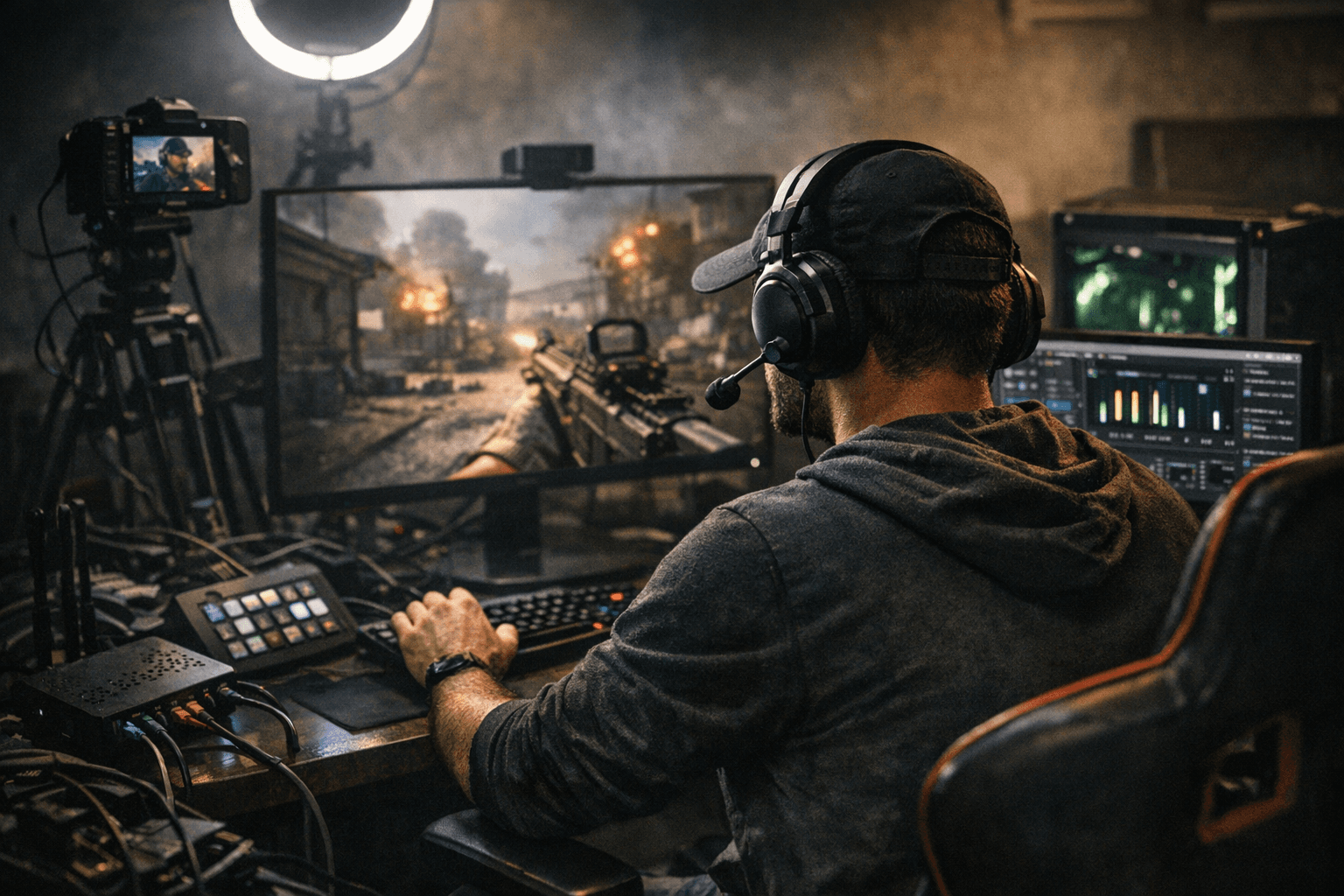
Network reliability matters as much as encoder choice. Hardwire your streaming PC or console to the router and enable router QoS to prioritize streaming traffic if your upload fluctuates. Configure OBS retry settings conservatively and consider a backup 5G mobile hotspot with a lower-bitrate encoder profile for emergency cutovers.
Audio needs the same attention as visuals. Use a dedicated USB or XLR mic, apply a noise gate and compressor, and prioritize voice clarity over immersive game volume so your callouts cut through during firefights. Test everything with a 10–15 minute private stream, monitor bitrate stability and CPU/GPU load, and record locally as a backup.
Good Call of Duty streaming means preserving in-game performance while delivering a crisp, low-latency viewing experience. Use NVENC on a modern GPU and aim for 1080p60 at 4500–6000 kbps when possible, keep overlays light, and test regularly. That discipline keeps your gameplay sharp, chat engaged, and highlights ready for clipping after the match.
Know something we missed? Have a correction or additional information?
Submit a Tip