Weekly and Monthly FDM Printer Maintenance Checklist for Reliable Prints
Failed prints cause over 80% of all FDM filament waste; a 15-minute weekly check kills the three biggest print killers before they ruin your next overnight run.

Failed prints are responsible for more than 80% of all 3D printing waste, according to Filamentive's industry research. The average hobbyist runs through up to 2 kg of filament a month, which means a consistent 10% failure rate quietly burns through around 200 g of material every 30 days, plus the print time lost on jobs that never finish. And nearly every one of those failures traces back to the same three culprits: poor first layers, under-extrusion or clogs, and layer shifts.
The math on prevention is blunt. Roughly 15 minutes a week covering those three failure modes, plus a 30-to-45-minute monthly deep service, adds up to about 105 minutes of maintenance per month. In exchange, you avoid potentially 5-plus hours of failed overnight prints and reclaim that 200 g of filament. Here is the full routine, organized by what it defeats.
Weekly Defense: 15 Minutes Every 7-10 Prints
Kill Layer Shifts: Motion System Inspection
Layer shifts do not happen at random. They happen because a belt stretched slightly, a pulley set screw worked loose, or filament debris built up on a lead screw just enough to cause a skipped step at a critical moment. Every seven to ten prints, run your fingers along the X and Y belts checking for visible slack or fraying, confirm each pulley is locked tight on its shaft, and wipe down lead screws and smooth rods to clear dust and filament debris. Snug any loose screws on carriage blocks and couplers, but avoid over-torquing. Marlin's firmware documentation flags this inspection as the single most reliable intervention for preventing skipped steps, which show up as that unmistakable staircase offset through a model's mid-section.
Kill Clogs Before They Start: Nozzle and Hotend Check
A clog rarely announces itself. Carbonized filament can sit inside a nozzle for weeks, showing up first as small nicks in outer walls or dark flecks in otherwise clean extrusion lines. Catch it early by running a cold pull after any filament switch or any time extrusion looks inconsistent. Bambu Lab documents the cold pull procedure for their P1 and X1 series as core maintenance: heat the nozzle to soften the filament, cool it to around 70°C so it partially solidifies, then retract to pull contaminants out like a plug. Clean the heater block and thermistor area carefully, and stick to conservative temperature profiles. Scorching fresh residue into the brass just adds to the problem next week.
Kill First-Layer Failures: Bed Surface and Z-Offset
The most frequent cause of wasted prints is a first layer that does not stick. Fingerprints and ambient oils degrade adhesion faster than most people expect, so wipe the print surface with isopropyl alcohol at the start of every session, not just when something goes wrong. Run a 20×20 mm first-layer grid test to verify Z offset and leveling. On printers with auto-bed leveling, including most Bambu Lab and Prusa machines, re-run the mesh any time you change filament type or swap nozzles. Cura's support documentation specifically recommends rechecking first-layer settings after nozzle or filament changes: a 0.05 mm Z-offset error is enough to turn a clean print into a detached blob by layer three.
Monthly Deep Service: 30-45 Minutes Every 50-100 Print Hours
Lubrication and Linear Motion
Light lubrication on smooth rods and lead screws once a month, or per the motion-hour guidance in Marlin's documentation, keeps your axes moving smoothly and quietly. Use a PTFE-compatible oil and apply it sparingly: over-lubrication attracts dust and creates a grinding paste over time. Inspect linear rails for grit and wipe rollers clean. Keeping a short maintenance log, even a phone note with the date and print-hour count, makes it easy to spot when your lubrication interval needs adjusting.
Extruder Gear and PTFE Liner
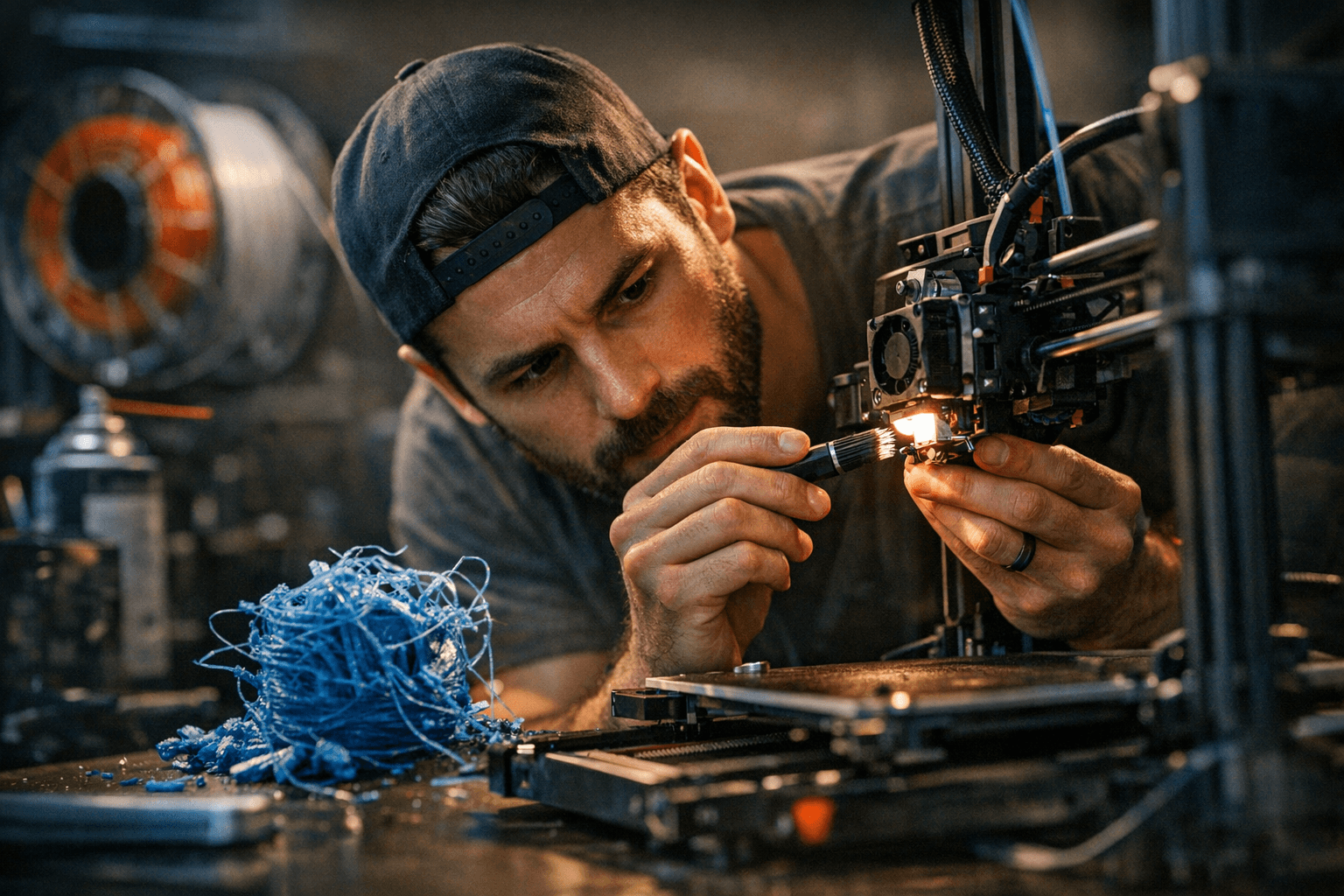
Filament dust accumulates in drive gear teeth with every print. A stiff brush clears it in 60 seconds, but leave it long enough and reduced bite force becomes the direct path to under-extrusion. While you are there, check idler spring tension, inspect Bowden tubes for micro-cracks, and replace worn PTFE liners. If your extruder is already slipping, check both tension and drive gear sharpness before assuming a firmware or temperature issue.
Firmware and Slicer Profile Backup
Before any firmware or slicer update, export your current Cura or PrusaSlicer profiles. Cura's documentation includes explicit profile backup guidance for exactly this reason: an update that quietly resets a dialed-in retraction distance or flow rate can cost more troubleshooting time than the update saves. Version your profiles with the date so you can roll back cleanly.
Print-and-Post Weekly Checklist
- Check belts, pulleys, lead screws, and carriage screws for slack or debris
- Run a cold pull if switching filament types or if extrusion looks inconsistent
- Wipe bed with IPA; run a 20×20 mm first-layer grid test
- Re-run ABL mesh after any nozzle or filament change
Print-and-Post Monthly Checklist
- Lubricate smooth rods and lead screws with PTFE-compatible oil (apply lightly)
- Clean extruder drive gear with a stiff brush; check idler spring tension
- Inspect and replace PTFE liner or Bowden tube if cracked or compressed
- Export and version Cura/PrusaSlicer profiles before any firmware update
Symptom to Fix: Quick-Reference Table
| Symptom | Most Likely Cause | Fix |
|---|---|---|
| Staircase offset mid-print | Loose belt or pulley set screw | Check belt tension; tighten pulley screws |
| Print detaches at layer 2-3 | Z-offset or bed contamination | IPA wipe, recalibrate Z offset, re-run ABL mesh |
| Dark flecks in extrusion | Carbonized nozzle residue | Cold pull with nylon filament |
| Grinding or slipping extruder | Worn drive gear or weak idler | Clean gear teeth; adjust or replace idler spring |
| Thin or gappy extrusion lines | Partial clog or cracked PTFE liner | Cold pull; inspect and replace PTFE/Bowden tube |
| Elephant's foot on first layer | Z offset too low | Raise nozzle height; re-run mesh calibration |
A pattern of recurring layer shifts every few weeks usually means a lubrication interval that needs shortening. A clog that returns after every filament switch usually means the cold pull is not being done thoroughly enough. The failure mode always leaves a trail; this checklist just makes sure you are looking at the right things before the print starts, not after it fails.
This article was produced by Prism’s automated news system from verified source data, official records, and press releases, then run through automated quality and moderation checks before publishing. The system is built and supervised by the people who set the standards it runs under. Read our full AI policy.
Did this article answer your question?