QMK Firmware Explained: What Every Mechanical Keyboard Hobbyist Should Know
QMK is the firmware that turns a mechanical keyboard into a fully programmable tool, and you don't need to be a developer to use it.
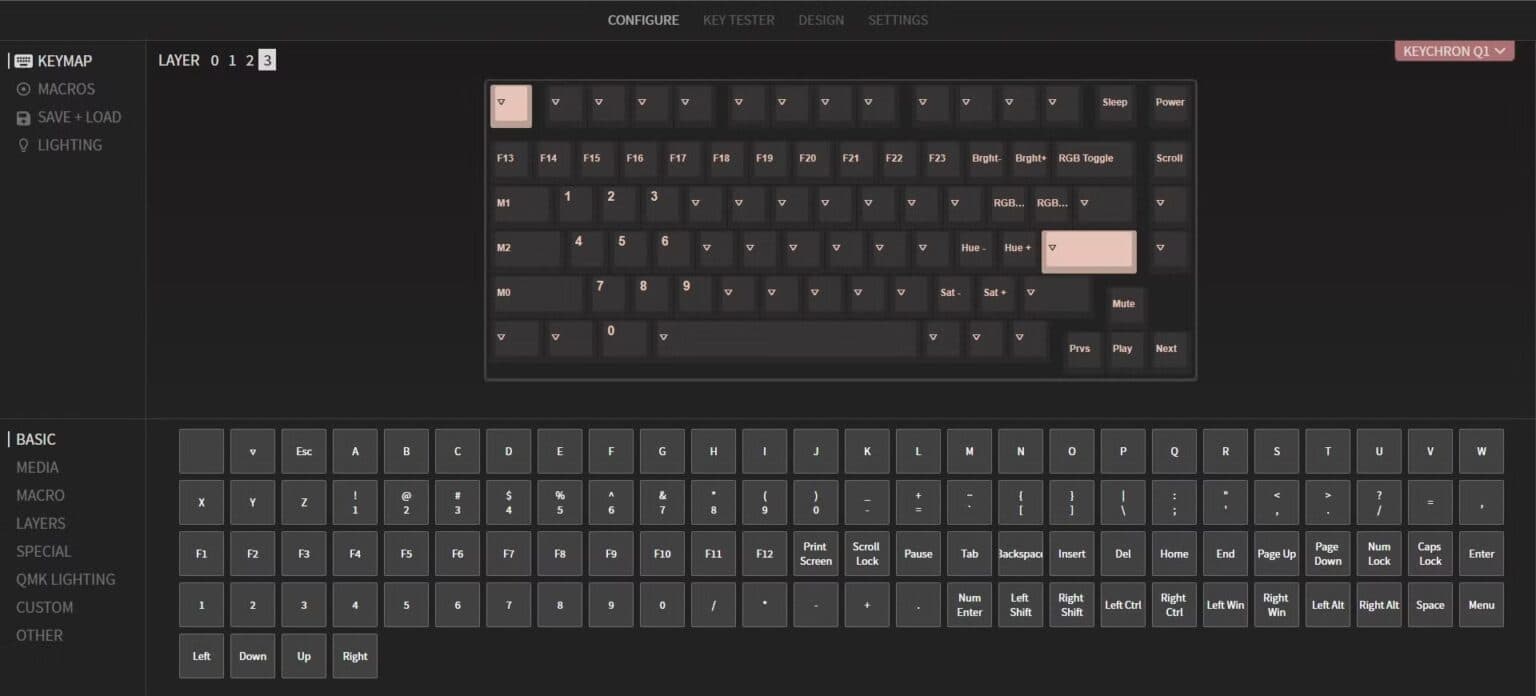
When you press a key on your keyboard, a processor inside the board detects that input and tells your computer what to do with it. QMK Firmware fills that role: it's the software running on your keyboard's processor, responsible for detecting keypresses and passing them to your host machine. As the official QMK documentation puts it, "when you build your custom keymap, you are creating an executable program for your keyboard." That framing matters. You're not just remapping keys in a settings panel — you're authoring firmware.
QMK, which stands for Quantum Mechanical Keyboard, is the largest open-source keyboard firmware project used by hobbyists, small manufacturers, and boutique PCB designs. The project's stated aim is to give developers and keyboard users enough knowledge to build unique firmware for customizing their boards. Before QMK existed, most keyboards shipped with firmware that was either locked down or so difficult to modify that mapping keys the way you wanted was effectively impossible.
What QMK Actually Does
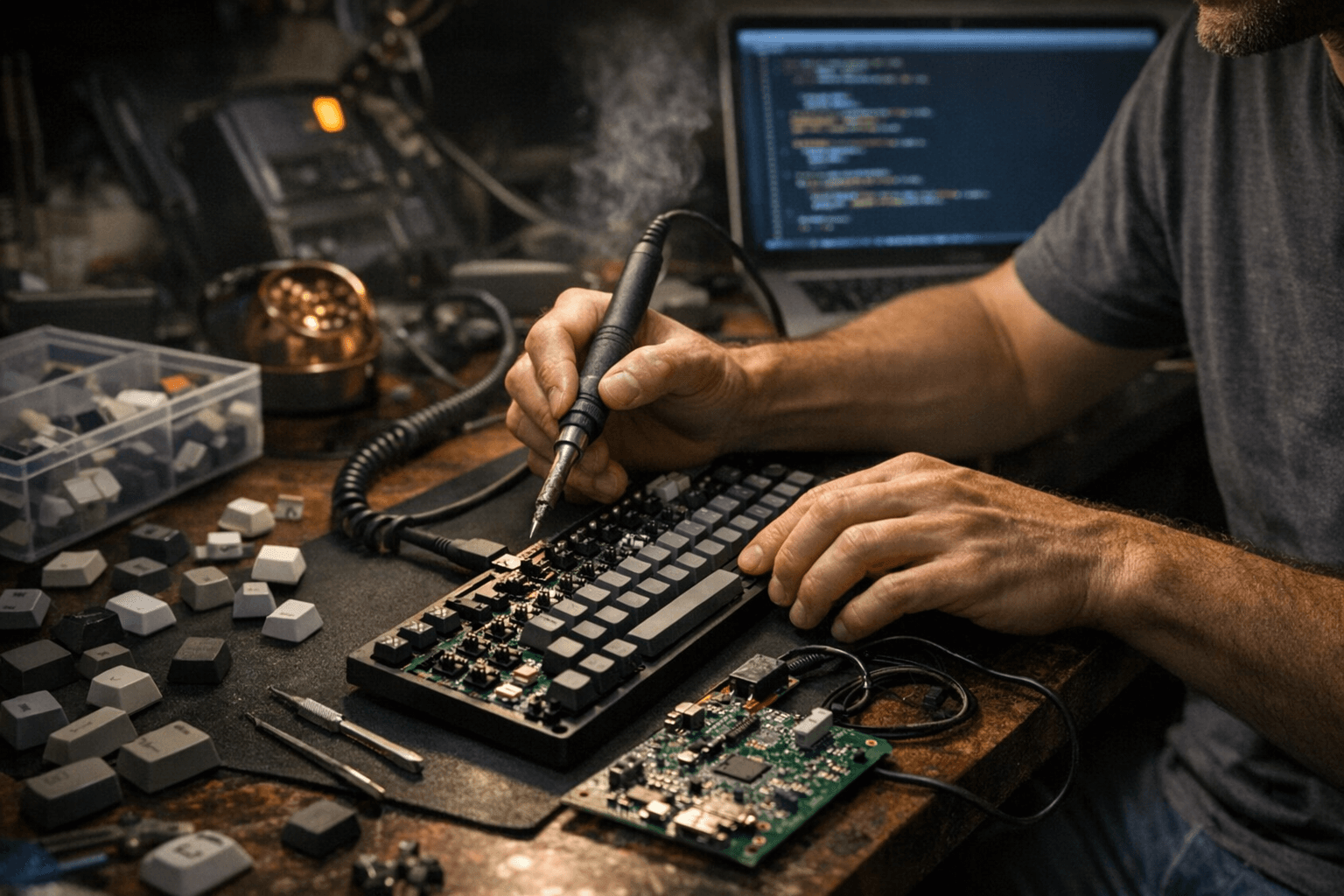
The firmware works as a suite. It doesn't just handle keypress detection — it bundles additional tools including QMK Toolbox, which handles the flashing process, and QMK Configurator, a browser-based graphical interface for building keymaps without touching any code. These aren't afterthoughts. They're integral to the two distinct workflows QMK supports: compile-and-flash for people who want deep control, and the GUI for everyone else.
The feature set goes well beyond basic remapping. QMK supports multiple layers, meaning you can store entirely different configurations within the same firmware and switch between them on the fly. A practical example: you can set up unique customizations for Windows and Mac in separate layers, letting you move between operating systems without reconfiguring anything. Beyond layers, QMK supports complex macro programming, full RGB lighting control, multimedia button assignments, and even mouse simulation — your keyboard can function as a pointing device if you configure it that way.
As the official docs describe it: "QMK tries to put a lot of power into your hands by making easy things easy, and hard things possible. You don't have to know how to program to create powerful keymaps — you only have to follow a few simple syntax rules."
Two Workflows: Build Environment vs. QMK Configurator
This is where most newcomers hit their first fork in the road. The QMK build environment requires you to set up a local toolchain, edit source files, compile the firmware, and flash it to your board using QMK Toolbox. Every change you make requires a new compile-and-flash cycle. It's more work, but it's also where QMK's full power lives: deep keymap customization, raw code access, and the ability to implement features that no graphical interface exposes.
The QMK Configurator is the low-friction alternative. It runs in your browser, lets you drag and drop key assignments, and generates a firmware file you can flash without writing a single line of code. The official QMK documentation is direct about this path: "If the thought of programming intimidates you, please take a look at our online GUI instead."
"Using a QMK build environment seems to be a complicated affair for some, but using the QMK Configurator is quite easy," as Kineticlabs notes. Both routes produce working firmware. The build environment gives you more customizability; the Configurator gets you running faster.
QMK vs. VIA: Understanding the Key Difference
VIA is the other firmware ecosystem you'll encounter constantly in this hobby, and understanding where it differs from QMK saves a lot of confusion. Both QMK and VIA determine how your keyboard runs its processes — what each keystroke does, how the backlight behaves, whether macros fire correctly. The philosophical split is in how you interact with them.
Here's how they compare across the dimensions that matter most:
- Operation process: QMK requires firmware to be compiled and re-flashed after updates. VIA allows real-time edits via a graphical interface with no re-flashing required.
- User experience: QMK is complex and suited for users with technical backgrounds. VIA offers a user-friendly interface aimed at beginners and non-technical users.
- Customizability: QMK provides extensive options for keymap, macros, and lighting control. VIA is limited to basic key remapping, simple macros, and lighting setup.
- Special function support: QMK supports advanced features including RGB lighting, multimedia buttons, and mouse simulation. VIA covers layout switching, basic macros, and lighting effects.
For most enthusiasts building custom boards or running boutique PCBs, QMK's depth is worth the steeper initial setup. VIA makes more sense when you need instant, frictionless adjustments and you're not trying to implement advanced features.
There's also TMK, an older reconfigurable firmware that technically offers similar capabilities. In practice, it's rarely used: "TMK is however so complicated that many never have fun using it and would just go for QMK and VIA instead."
Is Your Keyboard Compatible?
Not every board ships with QMK support. The QMK project's own documentation is reassuring on one front: "If it's a mechanical keyboard you built yourself chances are good it can [run QMK]. We support a large number of hobbyist boards." If your board can't run QMK, the docs note there are plenty of alternatives that do.
For keyboards you didn't build yourself, there are three practical ways to check compatibility:
1. Check the product description. Manufacturers who support QMK typically say so explicitly. Look for "QMK/VIA Support" in the specs or on the product box.
2. Check the QMK GitHub repository. Search for your keyboard brand and model in the repository's keyboard folder. If it's there, it's supported.
3. Check qmk.fm directly. The official site and its documentation pages serve as the authoritative technical reference for supported hardware and compiling custom firmware.
Many manufacturers have formalized their relationship with the QMK project: "Nowadays, many keyboard manufacturers collaborated with the QMK organization in order to provide optimum firmware support and programmability for the keyboards they produce." This means QMK support is increasingly a baseline expectation for quality hobbyist boards rather than a niche extra.
Where to Start Learning
The official QMK documentation at qmk.fm is built with a wide audience in mind. The tutorial is explicitly "focused on helping someone who has never compiled software before," and the guide is organized into three main sections that walk you through setup, keymap creation, and flashing. Experienced programmers will find the process familiar; everyone else has a clearly marked path to follow.
Beyond the core tutorial, the docs include a Syllabus and dedicated Learning Resources pages. For anyone who wants to understand what's happening under the hood, there are specific sections covering "How Keyboards Work," "How a Matrix Works," and "Understanding QMK." The docs also reference the info.json format, which defines keyboard metadata and is useful once you're building or contributing layouts.
The ecosystem QMK has built over its existence — open-source codebase, broad manufacturer support, two usable entry points depending on your technical comfort level — is why it's become the default firmware conversation in the mechanical keyboard hobby. Whether you're flashing a custom PCB for the first time or engineering a multi-layer setup across operating systems, qmk.fm is where that work starts.
This article was produced by Prism’s automated news system from verified source data, official records, and press releases, then run through automated quality and moderation checks before publishing. The system is built and supervised by the people who set the standards it runs under. Read our full AI policy.
Did this article answer your question?