NBA 2K PC Modding Guide: Back Up Files, Test Offline, Stay Safe
One Steam patch can wipe every mod you've installed; here's the damage-control workflow 2K PC veterans use to stay unbanned, survive updates, and never lose a roster again.
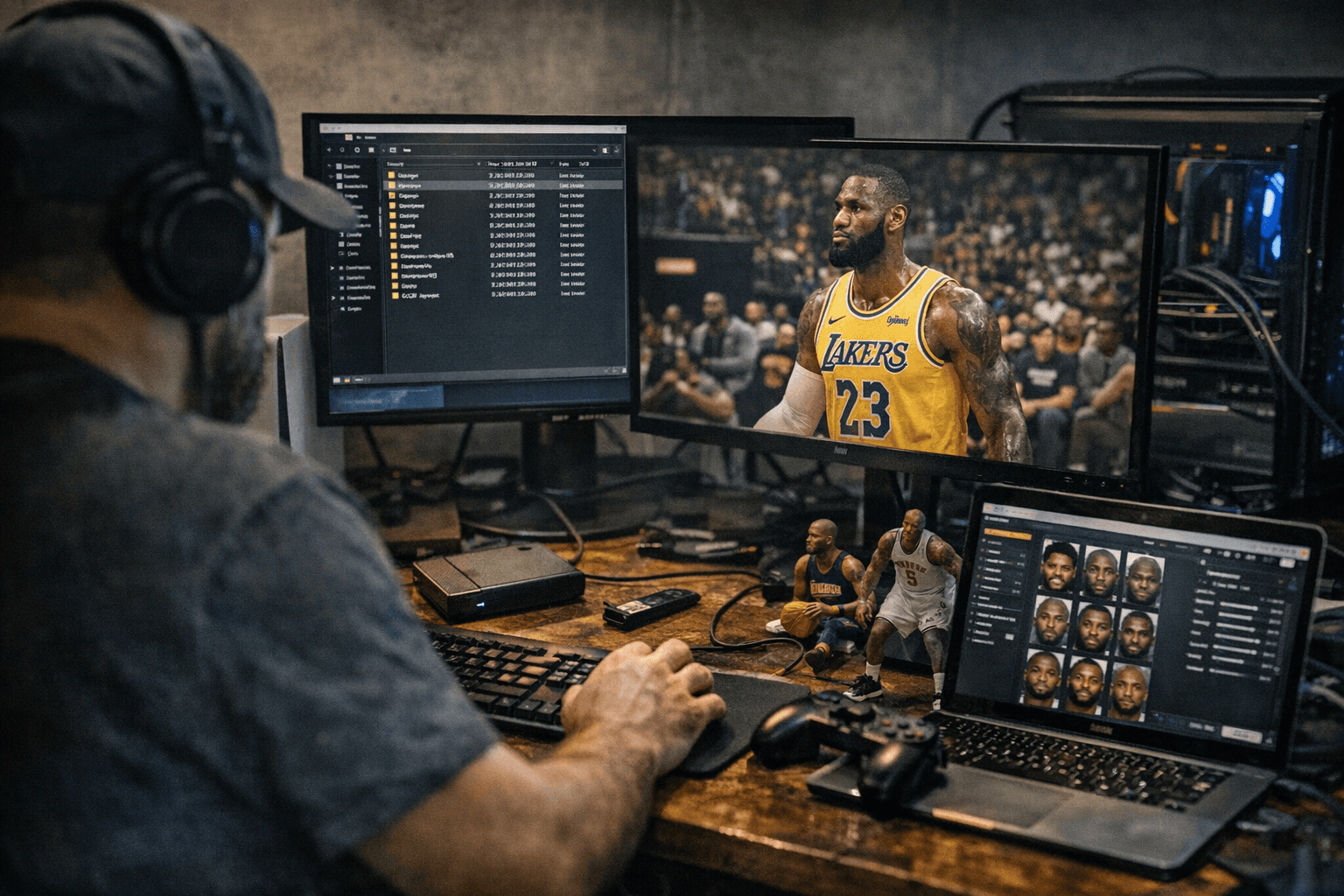
A background Steam update runs while you're at work. You come back, load NBA 2K26, and the cyberface pack you spent an afternoon installing is gone, replaced with stock files. Or worse: you installed a new roster last night, booted MyCAREER this morning, and your save throws an integrity error. Or you forgot to go offline before a session, and now you're reading 2K's enforcement policy wondering how your purely cosmetic court mod got flagged. These are not edge cases. They are the three ways experienced PC modders lose their work, their saves, or their accounts, and each one is completely preventable with the right preparation.
The Three Failure Modes You Need to Know
The NBA 2K PC modding community, centered on hubs like Shuajota, 2KSpecialist, and the NLSC forums, has refined its understanding of these risks across multiple game cycles. The same three failure modes keep surfacing regardless of which 2K title you're on. Knowing which one you're most likely to hit determines which safeguard matters most.
Failure Mode 1: Online Flags and the Anti-Cheat Trap
This is the most consequential failure because it's the one that can cost you your account. With NBA 2K25's Patch 3.0, released just before Season 3 launched on November 29, 2024, Visual Concepts rolled out Easy Anti-Cheat (EAC) on Steam. EAC is an industry-standard enforcement layer that monitors for unauthorized third-party software and file modifications that could affect gameplay integrity, and it carried forward into NBA 2K26.
The critical distinction is what EAC actually targets. 2K's published support guidance has confirmed that visual mods, including cyberfaces, jersey textures, courts, and scoreboards, are theoretically still supported. What triggers enforcement is anything that alters game logic, player attributes, or VC systems. A photorealistic cyberface for your favorite player is in a fundamentally different risk category than a modified file that adjusts shooting percentages or unlocks in-game currency.
The practical rule is absolute: never run mods in any online session. Park, Rec, Pro-Am, and ranked MyTEAM matchmaking are completely off-limits when mods are active. Steam's launch options give you a built-in solution. There are two options at startup: the first launches with EAC initialized and online capabilities enabled; the second launches without EAC and without online capabilities. When modding, you want the second option every single time. Think of it as a hard gate. If online is disabled at launch, you cannot accidentally drift into a competitive session with modified files running.
Failure Mode 2: The Patch Wipe
A 2K patch, especially a major one tied to a new season launch, will overwrite game files in your installation directory. If your mods live in those same folders with no backup, they are gone. This is the most common frustration reported across NLSC forum threads and Steam community discussions, and it is the easiest to prevent once you understand what causes it.
Steam's auto-update behavior does not differentiate between original 2K files and your custom .iff or .dds replacements. It sees a file, compares it to the patch manifest, and overwrites it. Version pinning is your primary defense. In Steam, go to Library, right-click your title, open Properties, then Updates, and set automatic updates to "Only update this game when I launch it." From that point, you control when the update runs, and you run it only after archiving your current mod folder.
Season start dates are reliable patch windows. Every time a new season is announced on official 2K channels, treat that as your signal to back up your mod directory before the update drops.
Failure Mode 3: Broken Saves and Roster Installs
Roster mods and MyCAREER-adjacent files carry a different kind of risk. A partial or incompatible install, such as a roster built for an earlier patch version, can break your save state or cause the game to crash on load. This scenario is especially common when players download roster files from unverified sources or skip the compatibility notes in a mod's changelog.
The one-at-a-time install rule exists precisely for this situation. Install a single mod, whether it's a cyberface, scoreboard, or roster file, then launch a local Play Now vs CPU game or a MyCAREER session and verify that animations, camera cuts, and textures are all loading correctly. If you batch five mods and your save breaks, isolating the problem takes hours. If you install one at a time, you know immediately which file is the culprit.
Author reputation matters significantly here. Established creators on Shuajota, 2KSpecialist, and NLSC publish detailed compatibility notes and respond to bug reports in their comment sections. A Ko-fi author whose comment thread is full of "works on Patch 5, breaks on Patch 6" feedback is far more reliable than an anonymous upload with no version history. NLSC provides free hosting for community mod files up to 150MB and maintains an active modding section covering everything from .iff repacking to .dds texture editing, making it one of the more trustworthy archives available.
The Repeatable Workflow: Your One-Page Checklist
These steps apply to every mod installation, regardless of which 2K title you're running. Make this the standard procedure every time:
1. Create a dated backup. Before touching any game file, copy your entire installation folder, or at minimum the specific files you're replacing (.iff assets, .dds textures, presentation files), to a directory labeled with the date and patch version.
Something like "2K26_backup_Patch5_April2026" is sufficient. This is your rollback point.
2. Pin your game version. Disable Steam auto-updates before you begin.
You do not want a patch running mid-installation or overnight while your mod files are in a transitional state.
3. Use a mod manager when one is available. Mod managers preserve file metadata, log every replacement, and make clean uninstalls straightforward.
If the mod requires a manual install, keep a running text log of every file you replace. You will need it if something breaks.
4. Install one mod at a time. After each install, run a local offline session and validate that animations, camera behavior, and textures are loading cleanly before adding anything else.
5. Launch offline only. Use the EAC-disabled launch option whenever mods are active.
There is no scenario where you need mods running during an online session, and the risk-reward calculation is never worth it.
6. Know your rollback path. If something breaks, copy your dated backup back into the install directory and use Steam's "Verify integrity of game files" option to restore any missing originals.
That process is only fast if step one was done properly.
Source Discipline and the Long Game
Where you get your mods matters as much as how you install them. The established hubs vet their releases and maintain active communities where compatibility problems surface quickly. Reading the changelog and community comments before downloading is not optional if you're serious about keeping your install stable across patches.
Mods that promise VC boosts, altered attribute caps, or any in-game advantage are a separate category entirely. Avoid them completely. Beyond the enforcement risk from EAC, they undermine the broader modding ecosystem's credibility with 2K, which has continued to treat visual modding as an acceptable practice. That implicit tolerance is worth protecting through responsible behavior. The install folder you keep clean and backed up today is the one you can still mod six patches from now.
This article was produced by Prism’s automated news system from verified source data, official records, and press releases, then run through automated quality and moderation checks before publishing. The system is built and supervised by the people who set the standards it runs under. Read our full AI policy.
Did this article answer your question?