Evergreen guide — Best practices for running Pathfinder on Demiplane, Roll20, and Foundry (VTT setup, content sync, and proof-of-ownership)
Stop rebuilding characters between platforms: the Demiplane + Foundry/Roll20 stack cuts GM prep time and satisfies Organized Play proof-of-ownership in one linked workflow.
Pick your stack first, configure second
Every wasted session-zero hour traces back to the same mistake: choosing tools in the wrong order. The default recommendation here is Demiplane Pathfinder NEXUS as your canonical rules and character hub, paired with either Roll20 (lower barrier to entry, browser-based) or Foundry VTT (higher upfront investment, dramatically more automation). You do not need all three running simultaneously. Decide which VTT fits your table, then let Demiplane do what it does best: serve as the single source of truth for licensed content, compendium lookups, and character options so your VTT only has to handle the actual play surface.
If your group includes players who own different books across different platforms, if you run Pathfinder Society sanctioned events, or if your table straddles the Remaster and Legacy rules divide, read every section below before touching any settings. The friction points are predictable, and almost all of them can be avoided upfront.
Setting up Demiplane Pathfinder NEXUS
Demiplane's Pathfinder NEXUS is the official digital toolset for PF2e and the closest thing the ecosystem has to a living rulebook. It hosts licensed Paizo content, searchable compendia, and character creation tools that update automatically when new books drop. The single most important habit to build: check your NEXUS library after every Paizo release cycle. Demiplane publishes release notes and patch logs that detail exactly what content has been added or corrected, so if a new book or errata batch doesn't appear in your library within a day or two of release, that's your cue to re-sync your account rather than assume the content is missing.
The Remaster vs. Legacy question resolves neatly inside NEXUS. If you unlocked a character option before the Remaster, Demiplane grants you access to the Remaster version at no additional cost when it becomes available. When you create a new character, NEXUS gives you an explicit choice between Remaster and Legacy rules at character creation. There is no manual migration required. For tables running mixed groups (some players on Remaster, some on Legacy), this matters enormously: you can maintain both character versions in the same NEXUS library without paying twice.
The Roll20 integration: what's live and what to verify
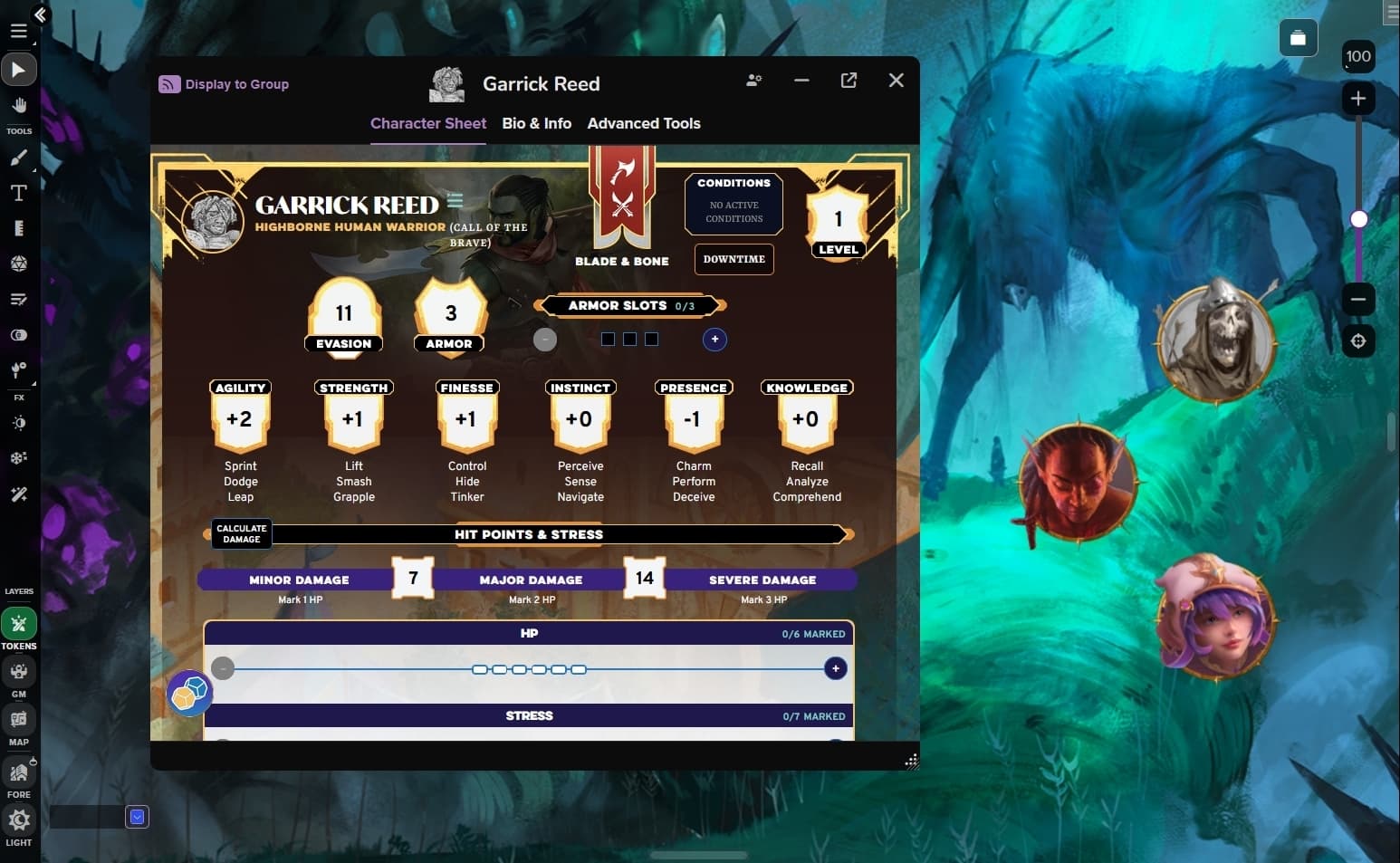
In the current public beta phase of the Roll20 x Demiplane integration, linking your accounts enables cross-platform content syncing, shared subscription benefits, and character sheet integration between Demiplane and the Roll20 VTT. That combination eliminates the single most common GM complaint about digital play: rebuilding a character from scratch every time you move between a character tool and a VTT.
The setup sequence, in order:
1. Log into both your Demiplane and Roll20 accounts.
2. Navigate to the Roll20 x Demiplane integration page and authorize the account link from the Demiplane side.
3. Inside your Roll20 game, confirm the game is configured to use the Demiplane-built Pathfinder character sheet (not the legacy Roll20 sheet).
4. Add your players to the game and have each of them complete the same account link so their characters sync correctly.
5. Verify that token linking and click-to-roll actions work for the most common PC actions (Strikes, Saving Throws, Recall Knowledge) before your first session.
One caveat that catches GMs regularly: the integration does not currently support games that include Demiplane characters when accessing a campaign through the Roll20 Discord Activity. If your table runs sessions through Discord's embedded app rather than a browser, plan accordingly and test that specific workflow before game day.
Foundry VTT: the setup sequence for PF2e
The PF2e system for Foundry VTT is a volunteer-developed project supported by an official partnership with Paizo, bringing robust mechanical support that enhances gameplay without getting in the way of roleplay. The system includes all rules content for Pathfinder Second Edition, covering creatures, hazards, items, actions, feats, and spells from all official sources, along with a fully featured character sheet that calculates modifiers and tracks feat choices automatically. That last detail is the headline reason experienced GMs choose Foundry over Roll20: the automation layer handles the math so you can handle the story.
The setup sequence for a new Foundry PF2e world:
1. Install Foundry, then install the PF2e game system from the official package browser inside Foundry.
2. Create a new world using the PF2e system. Do not add modules yet.
3. Launch the world, confirm the system version, and verify that the built-in compendium packs load correctly.
4. Add modules one category at a time: start with quality-of-life tools, then combat automation, then visual/audio enhancements. Test after each addition.
5. Before your first live session, run at least one full encounter in a throwaway sandbox world with your module set active to catch conflicts.
Module conflicts after updates are the leading cause of mid-session Foundry crashes. The fix is a staging world: a duplicate of your campaign world where you update modules and test before pushing changes to your live game. Foundry's official knowledge base documents the backup process; treat versioned backups as non-negotiable, not optional.
Decision tree: which stack fits your situation
- Organized Play / Pathfinder Society events: Use Demiplane as your character source and Roll20 or Foundry as your VTT. Both satisfy digital proof-of-ownership requirements (see below). Avoid mixing character-sheet platforms within the same table; it creates ownership verification headaches at check-in.
- Mixed-owned content (some players own different books): NEXUS is your best tool here. Because Demiplane tracks individual entitlements per account, players only see options they've unlocked. The VTT surface stays neutral.
- Remaster vs. Legacy divide: NEXUS handles this at character creation with an explicit rules-version selector. No additional configuration needed at the VTT level provided you're using the Demiplane-sourced character sheet.
- Self-hosting concerns or low tech tolerance: Default to Roll20. The browser-based approach removes server administration entirely. Foundry's power is real but so is its maintenance overhead.
Proof-of-ownership for sanctioned play
Paizo's April 2026 Organized Play update explicitly states that any digital adaptation of Paizo content fulfills the ownership requirements, including official VTT adaptations for Foundry, Roll20, Fantasy Grounds, and similar platforms. That ruling removes the ambiguity that plagued convention tables for years. In practice, implement a consistent check-in process regardless:
- Screenshot your Demiplane library entry showing the title and your account name.
- If using Roll20 or Foundry digital content, screenshot the purchase confirmation or the in-app library view.
- For venue coordinators: define your fallback policy in advance. A common working rule for friendly tables is to allow play with post-event verification; for fully sanctioned events, require immediate visible proof.
Physical books remain valid proof and some venues still prefer them. If your event skews toward convention-style enforcement, advise players to bring either the book or a purchase confirmation screenshot, not just a character sheet.
Session prep checklist
Use this before every session, especially after a platform update.
- Check Demiplane release notes for library changes or compendium patches
- Update Foundry system and modules in your staging world; confirm no conflicts
- Verify all player characters are synced and showing correct entitlements in NEXUS
Before session (48+ hours out):
- Run a 10-15 minute tech check with all players
- Confirm token linking and macro functionality in your VTT
- Pin a shared journal entry or chat message with the three to five rules you reference most often
- Have players confirm they can access required compendia or display ownership proof if it's a sanctioned table
Day of session:
- Export or back up your Foundry world if you made map or journal changes
- Note any rules-reference gaps that slowed play and add those to the shared journal for next time
- If a content sync failed mid-session, file a support ticket with Demiplane or Roll20 the same night while details are fresh
After session:
The friction points that will trip you up
Missing entitlements after a platform update almost always resolve with an account re-link. Both Demiplane and Roll20 publish helpdesk articles specifically for cross-platform sync failures; check those before assuming content is missing from your purchase. For Foundry, a module that worked perfectly last week can break silently after a system update, which is exactly why the staging world is not optional. The ten minutes you invest in testing before a session is worth more than any amount of post-crash troubleshooting during one.
The cross-platform ecosystem connecting Demiplane, Roll20, and Foundry has matured to the point where a well-configured stack genuinely reduces administrative overhead rather than adding to it. The GMs who struggle are almost always the ones who skipped the account-linking step, assumed module compatibility, or left ownership verification to the last five minutes before a table fills. Front-load the setup work once, maintain the checklist habit, and the tools stay invisible in play, which is exactly where they belong.
This article was produced by Prism’s automated news system from verified source data, official records, and press releases, then run through automated quality and moderation checks before publishing. The system is built and supervised by the people who set the standards it runs under. Read our full AI policy.
Did this article answer your question?