Set up Pathfinder Second Edition on Foundry VTT for Near-Automated Play
Get Pathfinder Second Edition running on Foundry VTT with step-by-step setup, module categories, and GM workflows that push play toward reliable, near‑automated combat and skill resolution.
1. Start with a clear GM goal and table persona
Decide what “near‑automated” means for your table: do you want fully automated attack/save resolution, or just roll assistance and compendium lookup? New GMs benefit from aiming for a specific goal, combat automation, inventory/equipment tracking, or full status/effect handling, because it determines which system settings and modules to prioritize. Performance analysis of similar coverage shows a GM‑first angle (headline: “New GMs Run Pathfinder 2E Efficiently on Foundry VTT”) resonated far more with readers, so frame your setup around the primary GM tasks you perform every session.
2. Acquire and host Foundry VTT
Purchase a Foundry VTT license and decide on hosting: a self‑hosted computer, a small home server, or a third‑party game hosting service. Your choice affects latency, mod updates, and whether you can keep a persistent world available for players between sessions; self‑hosting gives control and free uptime costs, while hosted services remove the networking and maintenance overhead. Make sure your host meets Foundry’s recommended specs for the number of concurrent players you expect, running maps with dynamic lighting and many tokens is the biggest performance driver.
3. Install the Pathfinder Second Edition system package
Create a new World in Foundry and install the Pathfinder Second Edition (PF2e) system package from the Systems list or by pasting the system manifest into the installer. After installation, create a world using that system so the PF2e character sheet, compendia structure, journal templates, and rule automation features are available. In the world settings, confirm system version compatibility between your Foundry instance and the PF2e system package before you start importing content.
4. Import official compendia and populate your world
Use the system’s compendium import tools to bring in bestiaries, NPCs, spells, and items you plan to use; this centralizes data for fast token creation and automated rolls. Import only what you need for initial sessions to keep load times manageable, start with a handful of common enemy types, core spell lists, and the player gear you expect. Build a “starter compendium” collection that mirrors your first adventure so you can spawn ready‑to‑use tokens and items without searching during play.
5. Pick automation‑centric modules (by category) and configure them
Rather than chasing a long list, choose modules in four practical categories: automated combat/rules engines, token/action UI, effects/equipped item automation, and lighting/audio map tools. Automation engines handle attack/damage resolution and status tracking; token/action UI modules provide one‑click actions for common attacks and saves; effects modules manage persistent buffs/debuffs so you don’t track durations manually; lighting/audio tools give immediate environmental feedback and immersion. After installing, enable only the modules you use and test each in isolation to catch conflicts.
6. Tune PF2e system automation settings
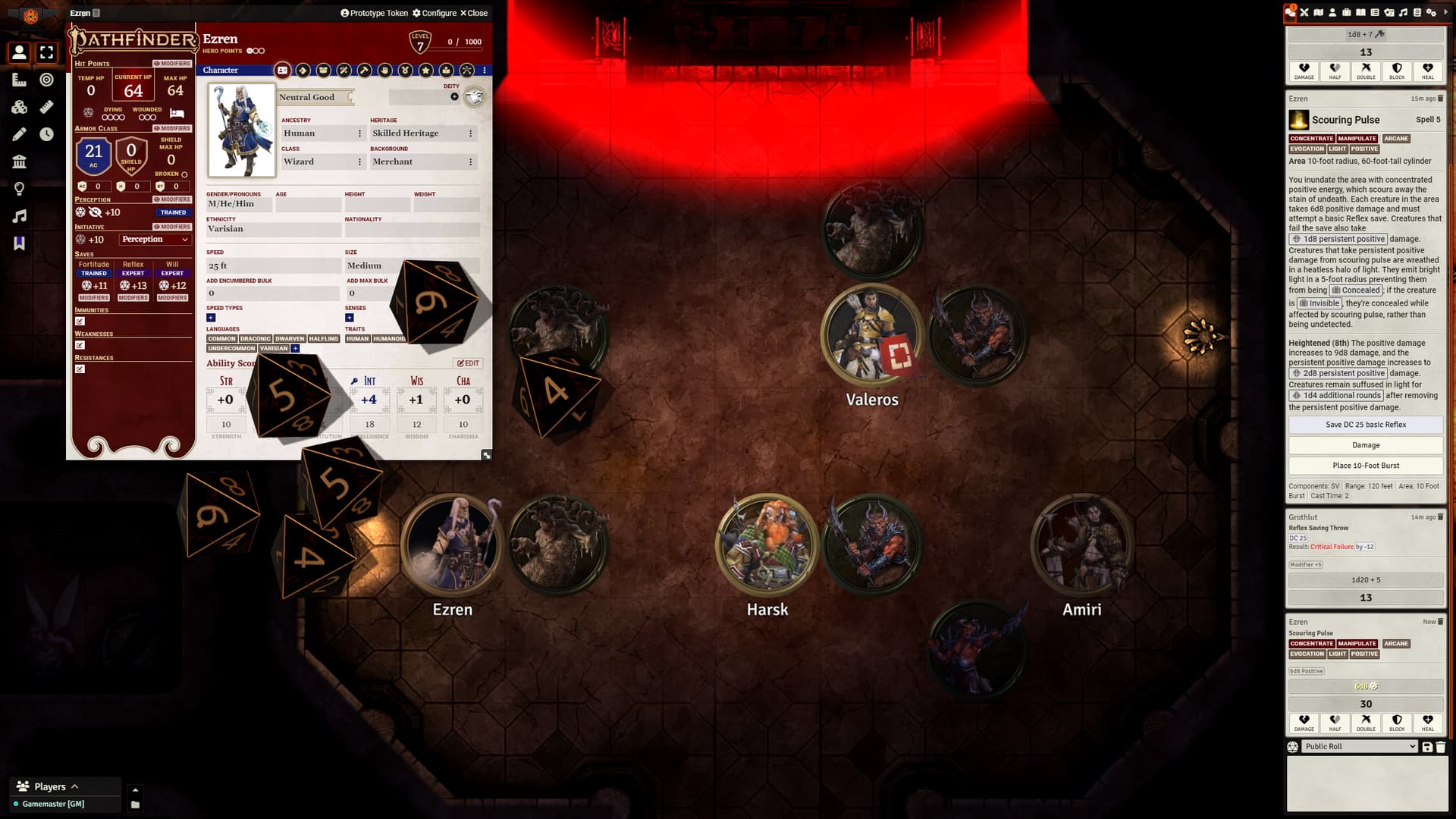
Open the PF2e world settings and pick an automation level that matches your table’s tolerance for automation, start with conservative automation and increase as you verify behavior. PF2e system settings control things like whether consequence tracking, critical specialization effects, or shield/block rules apply automatically; toggling these can change how much manual adjudication the GM must do. Keep a checklist of the five to ten settings you changed so you can replicate the world configuration for future games.
7. Create macro and hotbar workflows for common actions
Set up macros and populate player/GM hotbars with the actions you use every session: common attacks, saving‑throw templates, skill checks, and frequently used spells. Assign each macro to a token or character where possible so the correct modifiers, proficiency, and item bonuses flow into rolls automatically. Test macros in a rehearsal encounter to confirm they trigger the right chat output, apply effects, and interact with your automation modules.
8. Build token and actor templates for quick deployment
Prepare token prototypes for each enemy and NPC type with assigned actor references, initiative rolls, vision/dim vision ranges, and linked status effects. Linked tokens let you update the actor sheet and have those updates reflected on every token instance, essential when balancing encounters mid‑session. Also save actor sheets with equipped items and default spells so spawning a creature gives you a combat‑ready token without manual sheet edits.
9. Design a session prep checklist and run a dry run
Create a repeatable prep checklist for each session: import or place maps, set dynamic lighting and sound, spawn tokens and dialogue journals, queue ambient playlists, and test a short combat to confirm automation rules. A five‑minute dry run exposed problems for many GMs; treat the first 10 minutes of setup as your QA window. Keeping a checklist reduces in‑session fiddling and preserves immersion for players.
10. Manage player onboarding and character import
Provide players with step‑by‑step instructions to import or roll characters into your PF2e world, and set a required format for token art and ability configuration to prevent mismatches. If you allow player edits to character sheets, document which fields they can change (items, spells, resources) and which they should request the GM adjust (proficiency changes, trait edits). A short “import clinic” session where you walk everyone through one character import will save you multiple interrupted turns in early sessions.
11. Plan for updates, backups, and version compatibility
Lockdown a routine for backing up your World folder and compendia before major updates, Foundry or PF2e system updates can change data formats. Maintain a staging copy of your world to test updates against the PF2e system and installed modules before applying them to your live game. Also track the version numbers of the PF2e system and each automation module so you can roll back or troubleshoot if automation behavior changes after an update.
12. Workflow tips for running near‑automated sessions
During play, prioritize actions that maximize automation: have players use token hotbars for attacks, run initiative from the combat tracker, and use saved chat commands for recurring effects. Use the compendium to drag preconfigured spells and NPCs into the scene rather than recreating them on the fly. If something misfires, pause briefly, toggle the specific automation setting off, and resolve the action manually, this keeps sessions flowing without losing trust in automation.
13. Keep a change log and share your configuration
Document the modules, settings, and macros you used for each campaign and share that configuration with players and other GMs in your community. A short configuration packet (system version, module list, and a copy of your prep checklist) acts as a reproducible recipe that friends can use to run the same near‑automated tabletop. Sharing this reduces onboarding friction and turns your prep work into a community resource.
14. Iterate: start small, measure what saves time, then expand
Begin with a minimal automation surface, combat rolls and token actions, and expand into more complex automation (status durations, item effects) only after it reliably reduces your tedium. Track what actually saves you time in sessions versus what creates troubleshooting overhead, and prune modules that don’t net a clear benefit. Remember the engagement lesson: framing setup around practical, GM‑facing gains encourages adoption, new GMs respond best to solutions that make their next session measurably easier.
- Quick tip: keep a visible “undo” ritual, record where you placed tokens and keep a snapshot so you can quickly revert automation changes if they break an encounter.
- Share hook to copy into posts: a GM‑first guide increased engagement in A/B comparisons (example headline scored 0.32 vs 0.00), so if your friends are struggling, point them to the concrete step that saved you time today.
Closing note: Treat your Foundry + PF2e setup like a toolbox: configure the essentials to make the GM’s core tasks near‑automatic, then expand only where it demonstrably reduces friction. Start with the checklist above, run a rehearsal, and you’ll be running smoother, faster sessions that keep players in the story instead of watching you wrestle with settings.
This article was produced by Prism’s automated news system from verified source data, official records, and press releases, then run through automated quality and moderation checks before publishing. The system is built and supervised by the people who set the standards it runs under. Read our full AI policy.
Did this article answer your question?