AYANEO Pocket Ace setup guide turns premium Android handheld into retro machine
The Pocket Ace feels far less like stock Android once you lock in a frontend, hotkeys, and per-system emulation profiles.
Why the first hour matters
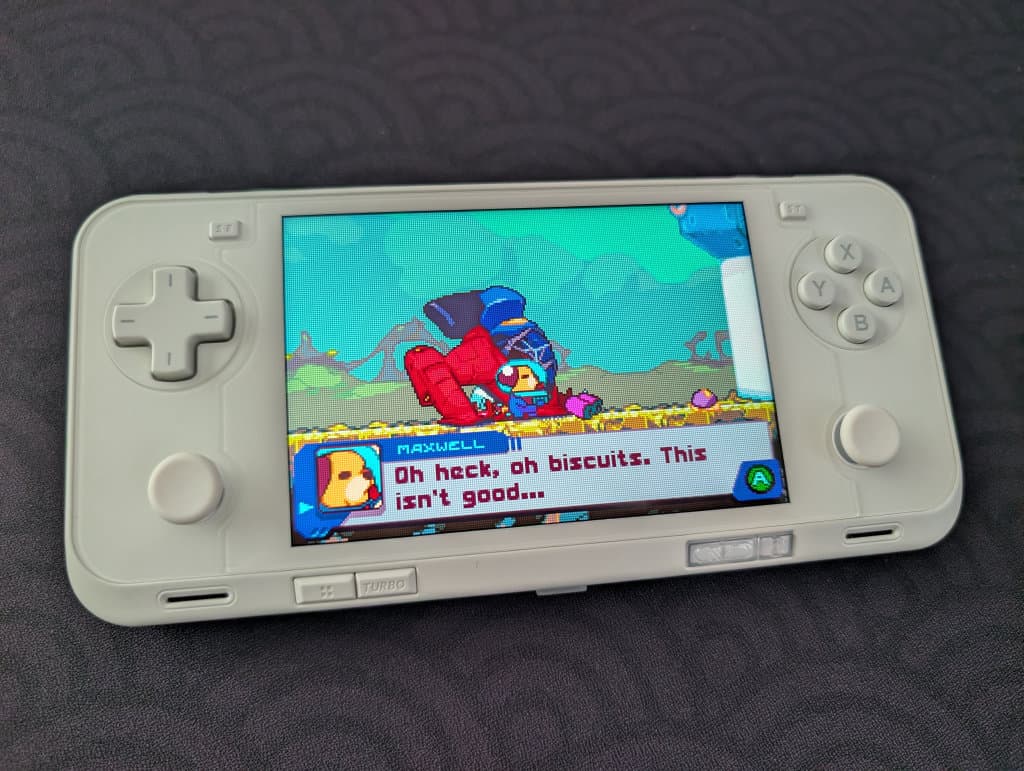
The AYANEO Pocket Ace stops feeling like a premium Android slab the moment you set it up like a real handheld. Its 4.5-inch 1620 x 1080 3:2 IPS display makes it an obvious fit for Game Boy Advance, but the Snapdragon G3x Gen 2 platform, 6000mAh battery, and 310-gram body also give it room to pull double duty as a streaming box or compact PC-game machine.
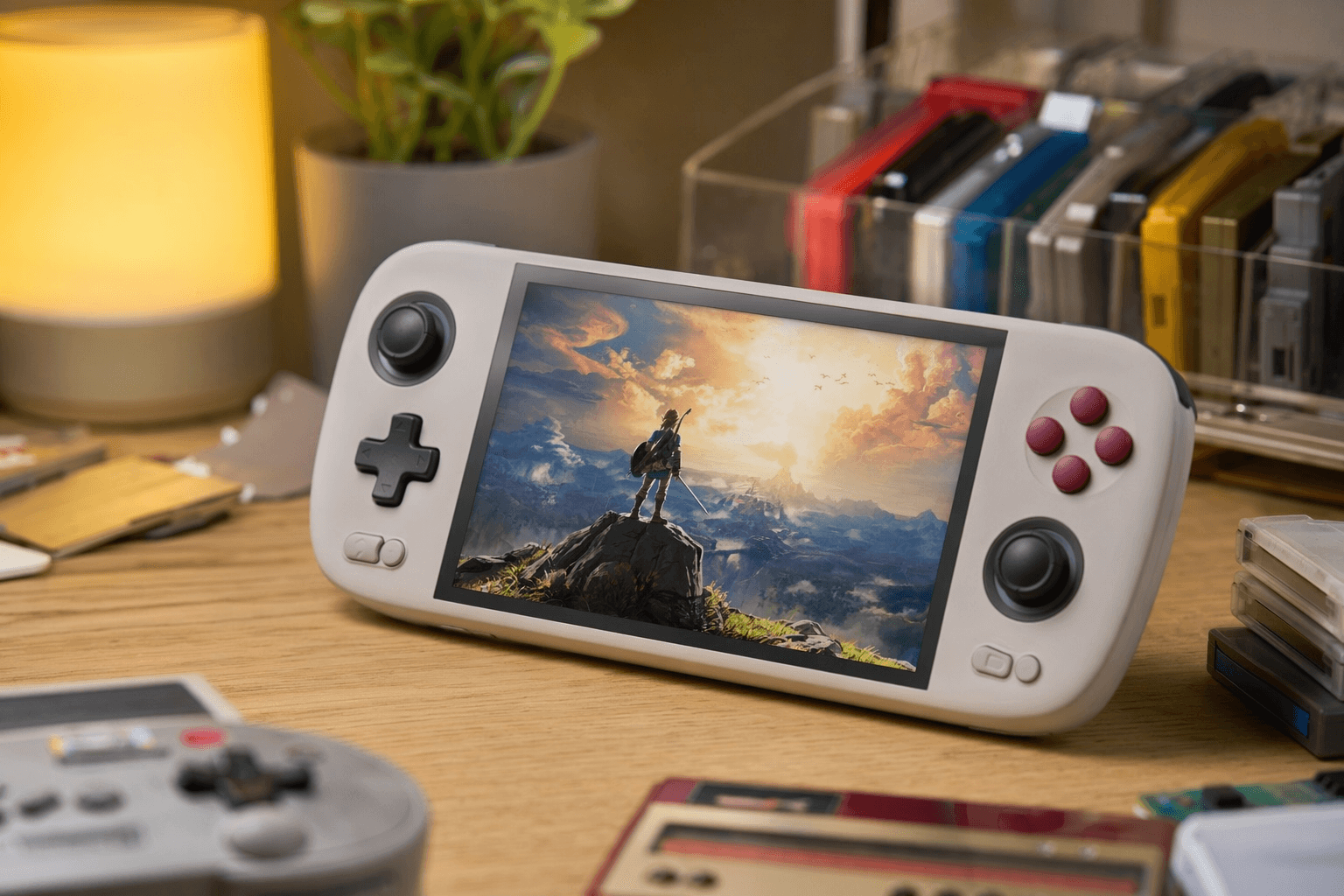
That blend is exactly why the Pocket Ace drew attention in the retro scene when AYANEO officially unveiled it in 2025 as a horizontal, retro-style Android handheld. Retail and review coverage place it in a range of Light Blade White, Shadow Dance Black, and Retro Power editions, with configurations from 8GB/128GB up to 16GB/1TB depending on retailer and region, plus a microSD slot for extra storage. With direct availability now thinner and secondhand markets doing more of the work, a good setup is what turns an expensive buy into a finished machine.
Start with a frontend that makes the device feel deliberate
The first big decision is the launcher or frontend. A stock Android home screen makes the Pocket Ace feel like a phone with buttons attached, while a proper frontend turns it into a library you actually want to live in. Retro Handhelds’ setup guide puts this early for a reason: once your frontend is in place, every other choice, from emulator shortcuts to art scraping, starts to feel organized instead of improvised.
AYANEO’s own software framing helps here. The company says the Pocket ACE includes customizable UI and retro library management, so you are not fighting the hardware to make it look like a console. The payoff is immediate: boot straight into your games, hide the app drawer from view, and make the 3:2 screen read like a deliberate retro display rather than a generic Android panel.
Lock in controls and hotkeys before you start collecting systems
If you want the Pocket Ace to feel finished in the first hour, set your controls before you spend time on content. AYANEO says the handheld ships with Free feel Key Mapping 1.5, and its new Free Button mode is meant to remap certain keys, which is exactly the kind of built-in flexibility a retro setup lives on. That is the difference between an emulator you can technically launch and a handheld you can use without thinking.
The useful goal here is not just button remapping, it is consistency. Give yourself the same muscle memory for menu, save state, fast-forward, and escape actions across your emulators and frontends, then keep AYANEO’s own mapping tools in the loop so the device behaves the same way every time you pick it up. Once that is set, the Pocket Ace feels like a handheld instead of a collection of apps.
Handle files and BIOS the clean way
The least glamorous step is also one of the most important. Retro Handhelds’ guide calls out Solid Explorer as a practical file-transfer tool, and that is the kind of detail that saves time immediately when you are moving ROMs, BIOS files, artwork, and saves around the device. A neat folder structure matters more than people admit, especially when you are juggling multiple emulators and system profiles.
BIOS files are the other half of the setup that people rush past. Some systems will run badly or not at all without the right BIOS in place, so getting those files sorted early is worth more than spending an hour chasing prettier themes. Once the file plumbing is handled, the Pocket Ace stops acting like a blank Android install and starts acting like a real multi-system box.
Tune each system for the screen in front of you
This is where the Pocket Ace’s 3:2 panel earns its keep. GBA is the obvious showcase because the aspect ratio is so friendly to that library, but the same screen also leaves room for overlays and interface elements without feeling cramped. Instead of applying one universal display preset, set per-system scaling, aspect ratio, and visual tweaks so each console gets the treatment it deserves.
That matters because the Pocket Ace is not just a niche GBA box. The Snapdragon G3x Gen 2 gives it enough overhead for a wide range of Android emulation use, and the 1620 x 1080 display gives you more flexibility than a standard 16:9 handheld. Set the GBA profile to feel native, then let other systems use their own scaling rules so nothing looks stretched or awkward.
Use streaming and PC emulation only after the retro core is solid
The Pocket Ace can do more than old consoles, and that is where memory and storage choices start to matter. Coverage around the device points out that 8GB is more than enough for pure GBA emulation, but higher-memory models make more sense if you plan to use the handheld for streaming or compact PC gaming. Retail and review specs also show variants up to 16GB RAM and 1TB storage, which tells you the device was built for broader ambitions than a single-system setup.
That is where the setup guide’s sections on streaming apps and PC emulation become useful. Add those tools after your basic frontend, controls, and emulation library are stable, not before. The payoff is a handheld that can move from retro library to cloud gaming to light PC play without losing the clean, console-like feel you built at the start.
Finish inside AYANEO’s own tuning tools
AYANEO’s launch materials make clear that the Pocket ACE is meant to be adjusted, not just used. Alongside the customizable UI and retro library management, the company highlights system-level tuning and the fact that the Snapdragon G3x Gen 2 platform can run at full 15W performance. That gives you room to decide when to lean into speed and when to keep things quieter or more efficient.
This is the last step because it ties the whole setup together. If the frontend makes the Pocket Ace feel like a console, AYANEO’s own settings make it feel like your console. By the end of the first hour, the device should no longer read as a premium Android shell at all, just a pocketable retro machine that finally looks as intentional as its hardware specs promised.
Know something we missed? Have a correction or additional information?
Submit a Tip