Dolphin texture packs bring GameCube games to life on Android handhelds
Texture packs can make a GameCube classic look freshly remastered on Android, but only if you nail Dolphin’s folder path and game ID.
Texture packs are the closest thing to a remaster on a handheld
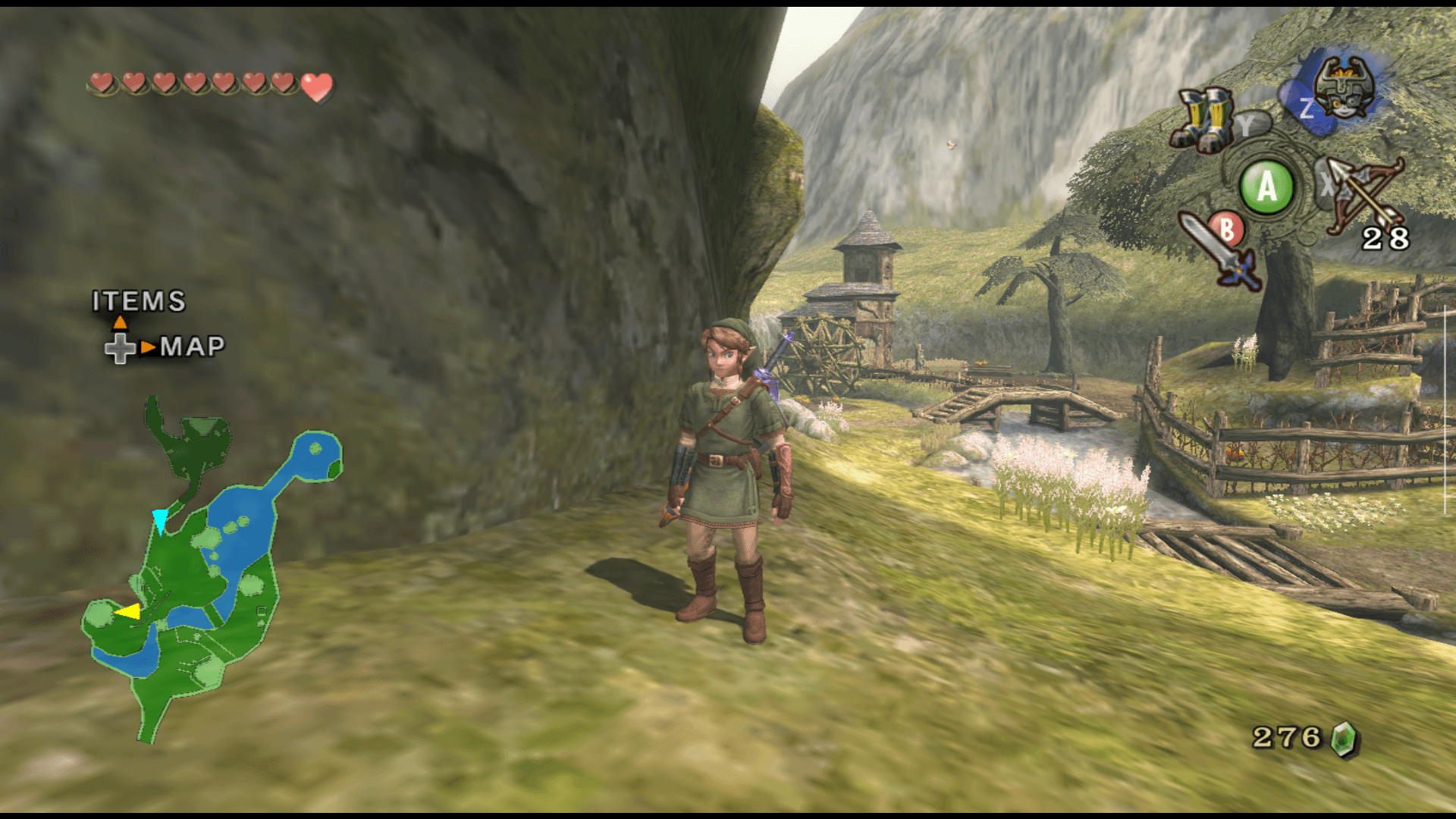
Texture packs are the quickest way to make a familiar GameCube game on an Android handheld feel newly dressed for 2026. They keep the gameplay intact while replacing low-resolution art with cleaner assets that read better on the bright, high-DPI screens built into modern handhelds, so menus, character details, and environments stop looking so obviously of another era.
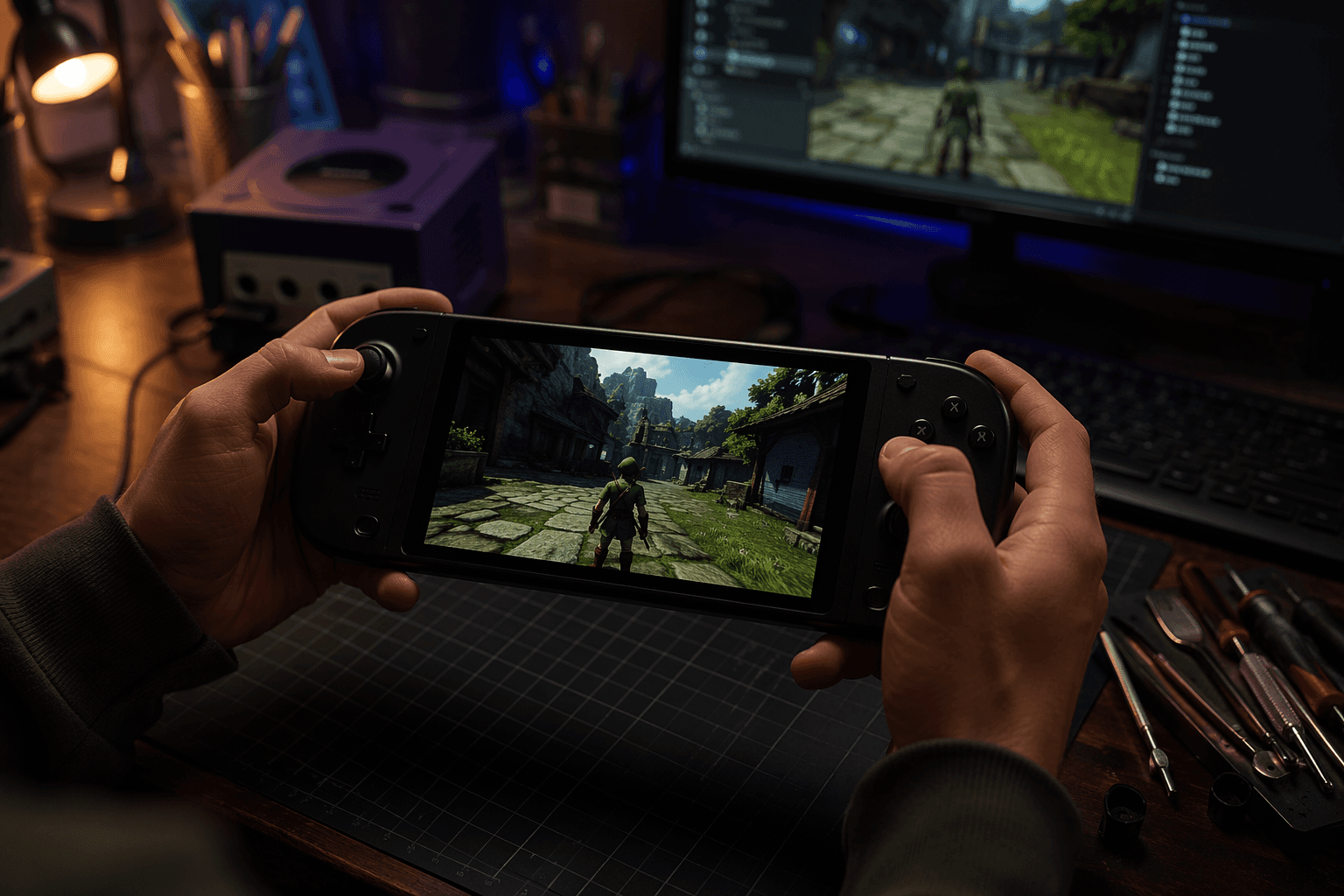
That is the appeal in plain language: the game still runs like the game you remember, but the visual surface gets a lift that feels closer to a curated remaster than a vanilla emulator session. On a small Android screen, that difference matters even more, because the rough edges that a CRT once softened are now right there in your face every time a HUD or menu loads.
Put the files where Dolphin on Android actually looks
The first friction point is location. Dolphin’s Android support thread makes it clear that the folder is not literally named User on Android, and the place to check is the Load Path in Config, then Paths. That is the route that tells you where Dolphin expects its `load` directory to live, which is the piece that matters more than copying a folder into whatever seems logical on the phone.
The second friction point is naming. JosJuice, one of Dolphin’s developers, notes that the texture pack folder needs to match the game ID, and that the ID is normally three or six characters long. If the folder name is off, Dolphin will happily ignore the pack, which is how people end up staring at a game that boots normally while the textures never appear.
If you downloaded a resource pack instead of a plain texture pack, the Android build still does not give you a separate resource pack manager. The official forum advice is simple: extract the zip and install it like a regular texture pack, then let Dolphin load it from the same texture directory structure.
Use a current Dolphin build, not guesswork
The cleanest baseline is a current Dolphin release or development build. Dolphin’s own configuration guide is written for the latest release or development version, and its Android guidance assumes a 64-bit Android device, with Android 9 or higher recommended. That gives you the best shot at having the current paths, graphics options, and per-game settings that texture packs expect to work alongside.
In practice, that means texture packs are not some hidden club reserved for a special fork. They are part of Dolphin’s broader customization flow, and they work best when the emulator build is modern enough to expose the relevant load path, graphics controls, and per-game configuration knobs that the rest of the setup depends on.
Storage and file count are the real price of the upgrade
The visual payoff can be large, but the storage burden can be even larger. One Dolphin forum example described a Twilight Princess 4K pack as 3.1 GB spread across 15,000 files, and copying it to a Galaxy Tab S11 Ultra took 5 to 10 hours. That is the part most people do not think about until they are already watching a file transfer crawl across the screen.
Android file access makes that pain worse. Another user found the `android/data` directory so slow to work with that they used an older MMJ build just to move files more comfortably, which is a useful reminder that the bottleneck is not always Dolphin itself. On handhelds with limited internal storage and an SD card split between ROMs, saves, shaders, and packs, every gigabyte matters.
Format choices can help or hurt
Texture format matters as much as file size. When Dolphin developers discussed DDS packs on Android, the answer was blunt: mobile GPU support is uneven, compressed DDS formats do not usually give you a free win, and PNG is often the safer route unless a pack was released in DDS for a specific reason. There are exceptions, especially on some Adreno devices, but the practical lesson is to think about compatibility before you fill your storage with a format your phone handles awkwardly.
That is why texture packs are best treated as a quality-of-life upgrade, not just a graphics mod. If the pack is well made, the file structure is right, and the format suits your device, Dolphin’s texture loading turns into one of those tiny emulation features that changes the whole mood of a game without touching the gameplay underneath.
The best setups stack the little wins
Once a pack is installed correctly, it stops being a one-off tweak and becomes one layer in a fuller handheld profile. Dolphin’s configuration guide points to per-game GameINI settings, and that is where texture packs, widescreen behavior, upscaling, controller profiles, and other game-specific tweaks start to feel like part of the same build instead of separate experiments.
That is the real difference between knowing the feature exists and actually using it well. When the folder path is right, the game ID matches, and the pack is small enough to live comfortably on the device, an Android handheld stops looking like a generic emulator box and starts feeling like a premium GameCube machine that just happens to fit in your hand.
This article was produced by Prism’s automated news system from verified source data, official records, and press releases, then run through automated quality and moderation checks before publishing. The system is built and supervised by the people who set the standards it runs under. Read our full AI policy.
Did this article answer your question?