RetroArch Guide Turns Apple TV 4K Into a Living-Room Emulation Box
Apple TV 4K now has a real RetroArch path, and Ryan Musante’s guide makes the couch setup far less guessy with a conservative baseline and 77-key config.
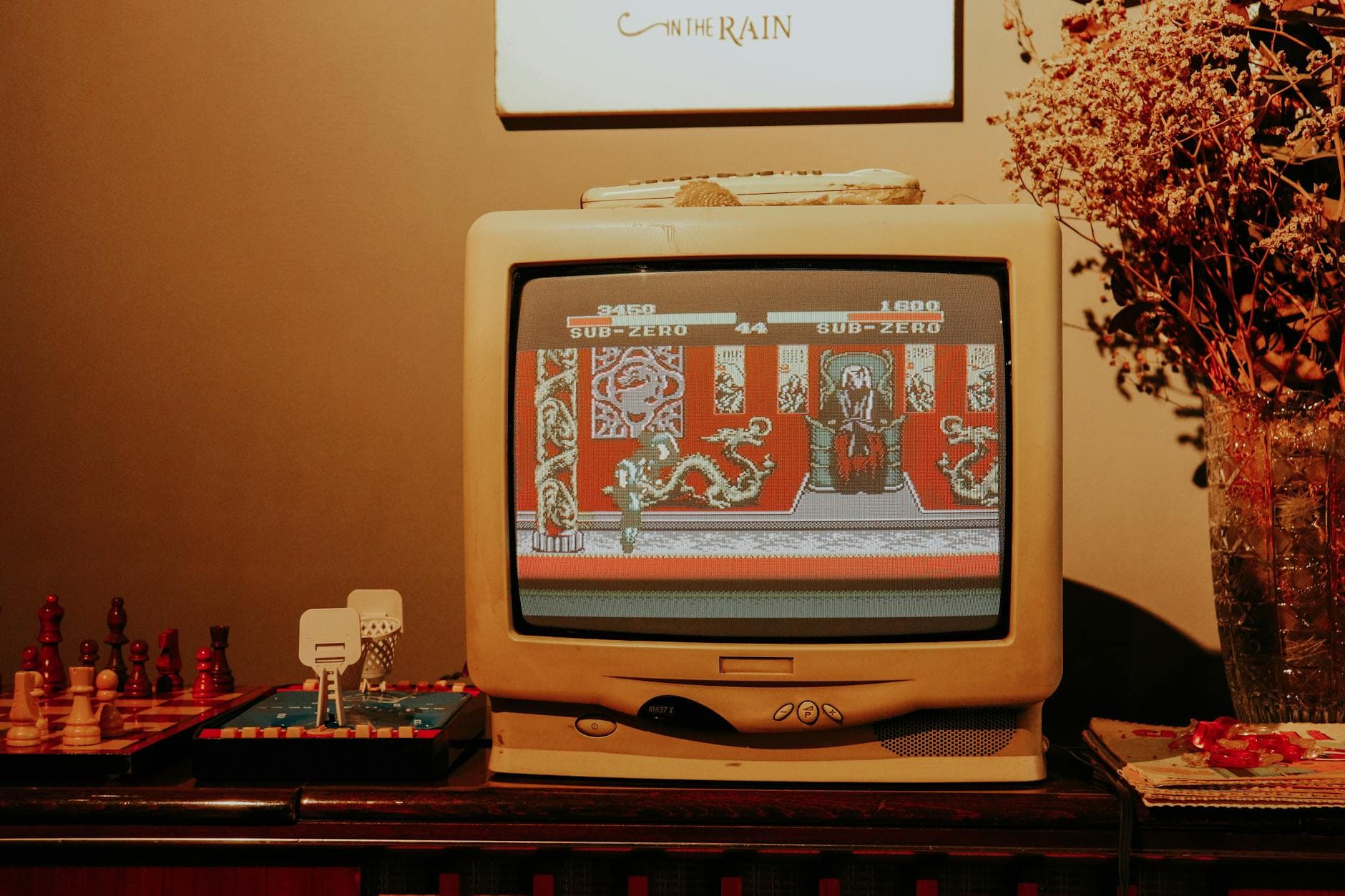
Apple TV 4K finally makes sense as a RetroArch box
Apple’s living-room streamer is no longer a weird edge case for retro gaming. With RetroArch available on tvOS and a fresh Apple TV 4K guide built around tvOS 26, the box in your media cabinet can now do something that used to require a mini PC, a handheld dock, or an Android box with more tinkering than polish.
That shift matters because the hardest part of emulation on Apple TV has never been raw power, it has been friction. Controller pairing, content permissions, shader selection, and performance tuning can turn a simple setup into a small weekend project. Ryan Musante’s guide is useful because it cuts through that with a known-good starting point instead of forcing you to build everything from scratch.
What the guide actually gives you
The package is aimed at RetroArch v1.22.x on the Apple TV 4K third generation running tvOS 26, and it arrives with a companion 77-key retroarch.cfg. That sounds like a small detail, but it is the kind of detail that saves hours, because a good baseline config often determines whether a setup feels clean and repeatable or stubborn and inconsistent.
The repository says it now ships with a conservative baseline configuration, which is exactly what a living-room setup needs. Rather than chasing every possible tweak on day one, the guide gives you a stable foundation for installation, ROM and BIOS setup, controller pairing, performance tuning, and optional CRT shaders. For everyday players, that makes the Apple TV feel less like a hobbyist experiment and more like a finished appliance.
How to get from blank box to playable library
The simplest path starts with the app itself. Apple changed its App Review Guidelines on April 5, 2024 to explicitly permit games from retro game console emulator apps, and RetroArch followed by announcing App Store availability for iPhone, iPad, and tvOS worldwide on May 15, 2024. That policy shift is the real turning point here, because it lets an Apple TV 4K owner build a legitimate emulation setup without depending entirely on side-loading.
From there, the flow is straightforward:
1. Install RetroArch on the Apple TV 4K.
2. Launch it once so the sandbox is created.
3. Use the Apple Files app to add your content, which Libretro’s official iOS and tvOS docs describe as the easiest way to get files into RetroArch.
4. Point RetroArch at legal game dumps and BIOS files you already own.
5. Pair a controller, then tune performance and visuals to taste.
Libretro also supports sideloading, so the App Store version is not the only route, but the official release is available worldwide and fits the most mainstream setup. That makes the whole process feel much closer to a normal media-app install than the old emulation workflow of certificates, device profiles, and repeated rebuilds.
Why the hardware matters more than you might think
Apple TV 4K is a far more credible emulation target than the streaming-stick category suggests. The third-generation model was introduced in 2022, and Apple’s tech specs list an A15 Bionic chip, Wi-Fi 6, Bluetooth 5.0, HDMI 2.1, and either 64GB or 128GB of storage depending on the model. That is enough hardware to make the device feel like a compact set-top computer rather than a throwaway dongle.
Controller support is also better than many people expect. Apple Support lists Bluetooth compatibility for the DualShock 4, DualSense, Xbox Wireless Controller, Xbox Elite Wireless Controller Series 2, Xbox Adaptive Controller, and MFi-compatible controllers. At the OS level, Apple TV supports up to four simultaneous Bluetooth controllers, though RetroArch on tvOS currently recognizes a maximum of three, so couch multiplayer has real potential but still comes with one app-level limitation to plan around.
Where CRT shaders and polish make the biggest difference
The guide’s inclusion of CRT shaders is not cosmetic fluff. For many retro players, the point of a living-room setup is not just to boot a game, it is to make it look right on a television. Shaders are the missing layer that brings scanlines, phosphor feel, and softer presentation back into the experience, especially when modern panels make pixel art look harsher than intended.
That is where this Apple TV approach becomes surprisingly strong. The combination of a conservative RetroArch config, a polished tvOS interface, and a modern set-top box creates a setup that feels tidy in a way a lot of emulation hardware does not. You get a cleaner couch experience than many bargain mini PCs, and far less setup noise than an Android box that needs constant app wrangling.
The tradeoff versus a mini PC or Android box
The Apple TV route is best understood as a convenience play, not a maximum-flexibility play. A dedicated mini PC still gives you more room to experiment, and Android boxes can sometimes offer broader sideloading freedom and a more open file-handling culture. Apple’s advantage is that the whole stack feels more like a living-room appliance, with fewer moving parts once the baseline configuration is in place.
The cost of that polish is constraint. RetroArch’s tvOS sandbox, the current three-controller ceiling inside the app, and the need to work within Apple’s permission model mean you are optimizing for a smooth, curated experience rather than an endlessly configurable one. But for an Apple household that wants console-free emulation without buying another machine, that tradeoff is often the right one.
Musually, the simplest setups are the ones people actually keep using. This one works because it turns an Apple TV 4K into a real RetroArch living-room box, with enough hardware, enough controller support, and enough configuration discipline to make retro gaming feel native instead of improvised.
This article was produced by Prism’s automated news system from verified source data, official records, and press releases, then run through automated quality and moderation checks before publishing. The system is built and supervised by the people who set the standards it runs under. Read our full AI policy.
Did this article answer your question?