Plumeria's Sims 4 Build Mode Tutorial Covers Everything Beginners Need
Plumeria's build mode tutorial is the fastest path from empty lot to furnished house: every chapter timestamped, the 5 boxy-build mistakes explained, plus a full hotkey cheat sheet.
Start Here, Not at the Gallery
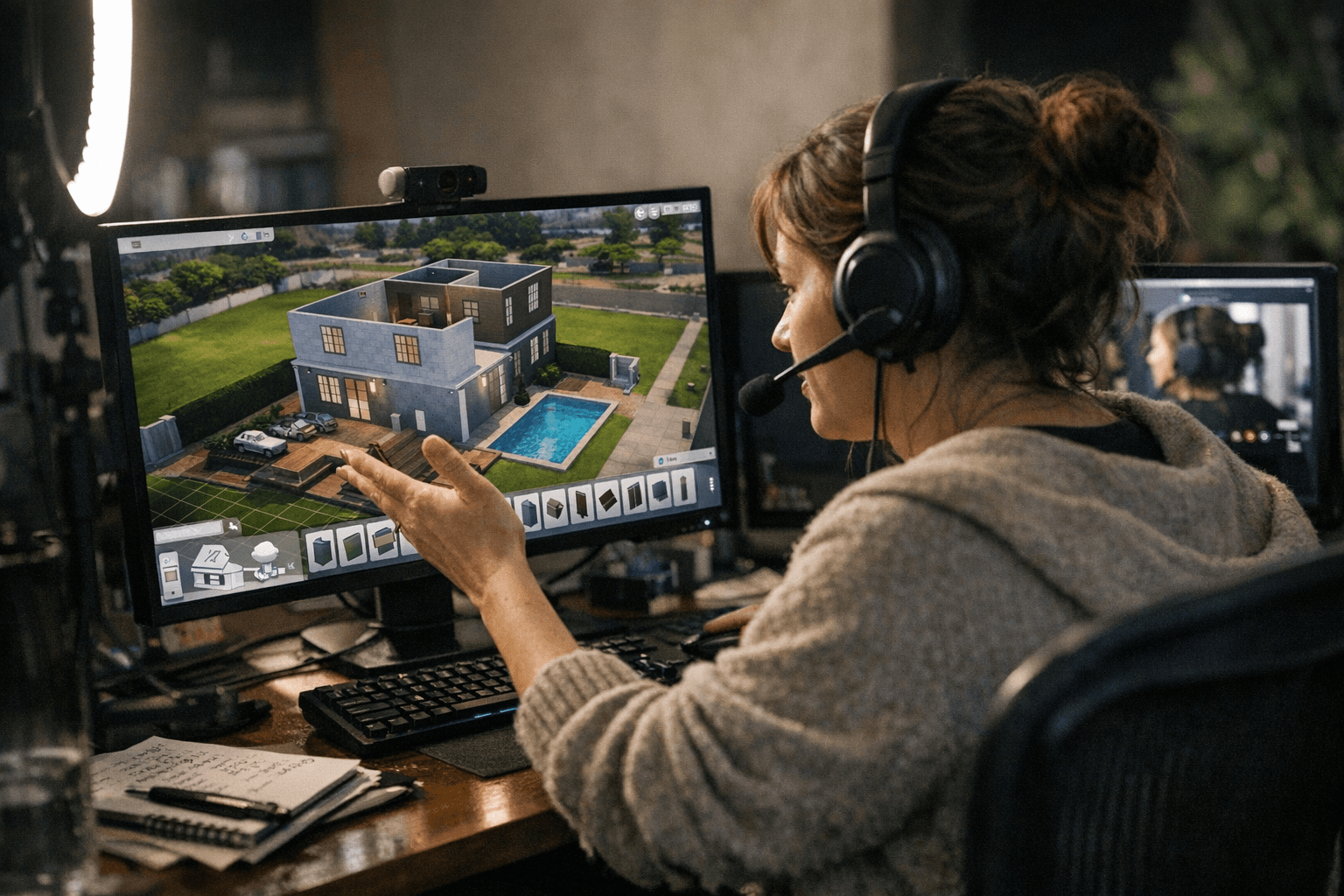
Most new builders open The Sims 4, stare at an empty lot, and immediately tab over to the Gallery to download someone else's house. That's not building; that's decorating someone else's work. If you want to actually understand Build Mode, Plumeria's beginner tutorial is the structured walkthrough that changes that. The video covers every stage of constructing a house from scratch using only base-game assets. No expansion packs, no premium content required, just the tools every Sims 4 player already has.
The Timestamped Chapters: What to Watch and When
Plumeria structures the tutorial into eight clearly marked segments, with timestamps listed in the video description so you can jump directly to whichever stage is giving you trouble. Watch the whole thing once before touching your own build, then use those chapter markers as a reference deck while you work:
1. Lot setup - Choosing the right lot size and clearing the terrain before a single wall goes down.
2. Basic room layout and floor plan - Building the initial footprint using the wall tool, sizing rooms relative to each other.
3. Roofing - Placing roof segments and adjusting pitch; the single most intimidating section for newcomers.
4. Windows and doors - Placement logic, heights, and how to create a facade that doesn't read as bare.
5. Painting and foundations - Applying exterior and interior finishes, plus raising the foundation for immediate curb appeal.
6. Furnishing - Moving from empty shell to functional, lived-in rooms.
7. Cluttering - The step most beginners skip, which is exactly why their interiors still look like a showroom.
8. Simple landscaping - Completing the exterior with terrain paint, plants, and pathing.
The on-screen arrows and methodical pacing throughout mean you can pause, replicate what's on screen, and continue without losing your place. That's what separates this from text guides that assume you can fill in the gaps yourself.
What to Learn First
The wall tool (hotkey: B) and undo (CTRL+Z) are the two skills to get comfortable with before anything else. Build a room. Delete it. Rebuild it with different proportions. Do that five times. You won't understand what "too small" feels like until you've furnished a room and realized your Sim can't path between the bed and the dresser.
After those, learn the eyedropper (E). It copies any object's finish and style across the catalog, letting you match materials across a room without manually hunting for the same swatch. These two tools alone cut build time dramatically in a first session.
What to Ignore For Now
Skip the Debug catalog, skip Gallery room presets, and skip complex multi-angle roof intersections until single gable roofs are working reliably. Builders who try to rescue a bad roofline by layering more roof segments on top typically end up more confused than when they started. Plumeria's roofing chapter shows a methodical, one-section-at-a-time approach that is the only reliable method at the learning stage.
Also skip the mods for the first build. The video description lists Better BuildBuy, T.O.O.L, and UI Cheats as part of Plumeria's standard toolkit, and those are genuinely powerful tools. But installing T.O.O.L before you understand base-game object placement means adding variables to a system you don't yet know. Finish one clean base-game build first. The mods will still be there afterward.
The 5 Mistakes That Make Builds Look Boxy
These five problems show up in nearly every first build, and most players don't notice any of them until they pull back to the street view and wonder why the house looks flat.
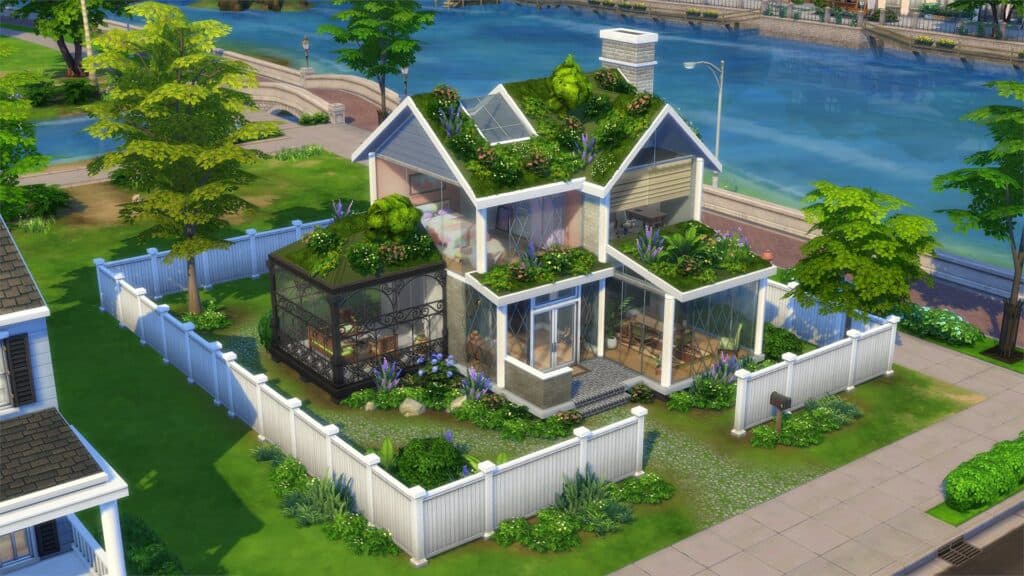
1. Single rectangular footprint. A house that's one rectangle reads as a box no matter what roof or interior you put on it.
Add a small offset protrusion on one side, pull a corner forward, or indent a section. Any break in the flat perimeter makes the silhouette read as intentional rather than default.
2. One roof type, wall to wall. A single roof pitch over a rectangular base produces a shape that looks like a storage shed.
Combine two or more roof shapes; even a small secondary pitch over a bay or porch immediately adds visual complexity to the roofline.
3. Uniform window height on every wall. When every window sits at the same elevation across every wall, the facade looks like a spreadsheet.
Vary placements, group windows differently on the front versus the sides, and leave some wall sections without windows deliberately.
4. No raised foundation. A house sitting flush with the ground has no visual weight.
Even a one-step foundation height gives the structure presence from the street and is one of the fastest fixes for a build that reads as unfinished.
5. Bare exterior. A landscaped build and an unlandscaped one at the same construction quality look completely different.
Terrain paint, a few plant clusters near the entry, and a defined path to the front door transform a lot placeholder into something that looks lived-in. Plumeria's tutorial covers this as the final chapter for exactly this reason: landscaping is the finishing layer that resolves almost all remaining bareness in a single pass.
Cheat Sheet: Tools, Camera Settings, and Essential Hotkeys
Before the first session, go into Game Options and switch to The Sims 3 camera mode. It handles rotation far more intuitively for building than the default camera, which is why it's the standard recommendation across the builder community.
- F3: Enter Build Mode
- B: Wall building tool
- E: Eyedropper (copies an object's style)
- G: Toggle the grid on/off
- ALT: Place objects off-grid or freely rotate while dragging
- CTRL+Z / CTRL+Y: Undo / Redo
- , / .: Rotate selected object left or right
- [ / ]: Scale a selected object smaller or larger (requires bb.moveobjects active)
- CTRL+F: Half-tile flooring mode (produces a triangle tile for angled floor patterns)
- Numpad +: Cycle through all color swatches on a selected item
Essential hotkeys
- testingcheats true (enables cheat entry)
- bb.moveobjects on (off-grid placement and object scaling)
- bb.showhiddenobjects (unlocks Debug catalog items)
- bb.ignoregameplayunlocksentitlement (unlocks career reward furniture)
Essential build cheats
Mods to add after your first base-game build
Better BuildBuy expands catalog sorting and filtering so you spend less time hunting. T.O.O.L gives precise object manipulation well beyond what base-game placement allows. UI Cheats speeds up routine cheat entry so you're not opening the console console every time you need to toggle moveobjects. All three appear in Plumeria's tutorial description as part of the creator's standard toolkit.
Why This Tutorial Holds Up
Build tutorials in video form are among the most durable content in the Sims space. Unlike patch notes or news, they don't become obsolete when the base game updates, as long as the core tools remain intact. Plumeria's focus on tool fluency and design principles rather than specific catalog items means everything here transfers across expansion releases.
More experienced builders can use the eight-chapter structure as a refresher: run the roofing or cluttering segments when a specific part of a build isn't clicking, or share the video during co-play with someone newer to the game. The play-by-play format and on-screen guidance make it accessible to a co-viewer in real time without explanation.
The first build is always the hardest. Following all eight stages in sequence, rather than improvising and troubleshooting from scratch, cuts that learning curve significantly. Open the lot, press B, and start with a single room.
This article was produced by Prism’s automated news system from verified source data, official records, and press releases, then run through automated quality and moderation checks before publishing. The system is built and supervised by the people who set the standards it runs under. Read our full AI policy.
Did this article answer your question?