Quick Sims 4 Build Workflow Tips for Creators: Templates, Lighting, Performance
Small build-mode workflow changes, templates, smarter lighting, and trimmed clutter, can speed creation and reduce stutters for creators and builders in The Sims 4.
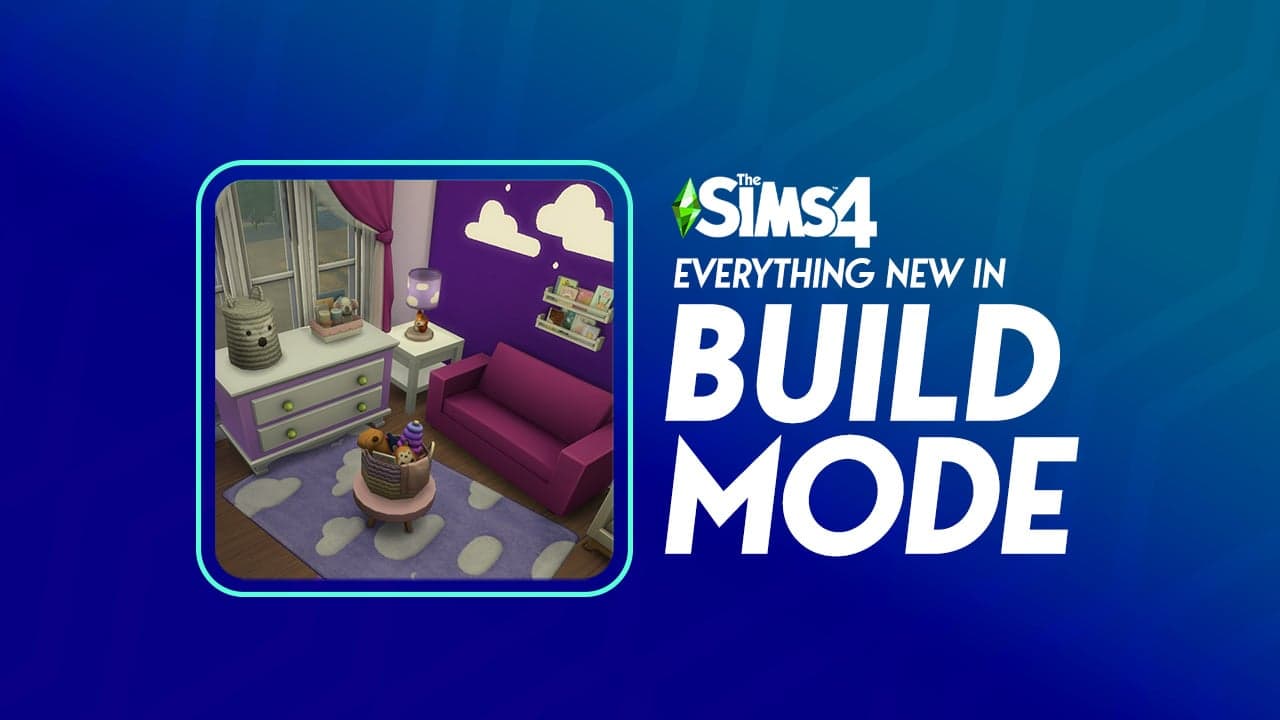
Small decisions in Build Mode often determine whether a project finishes in an afternoon or drags on for days. For creators and builders, adopting a few targeted habits, saving templates, grouping reusable decor, tuning lighting, and managing lot clutter, delivers immediate gains in speed, polish, and performance.
Start with structure. Use the Room tool for fast, clean rooms when you need to block out a floor quickly, and switch to the Wall tool when you want custom shapes and niche layouts. Foundations are more than cosmetic: they let you place stairs and create elevated landscaping, which opens up split-level designs and raised patios without juggling cheats. Save empty lots or rooms as build templates; having templates for studios, kitchens, or starter homes removes repetitive layout work and gets you straight to detailing.
Placement finesse matters. Hold Alt to temporarily toggle grid snapping for finer object placement and micro-adjustments. That trick is invaluable for lining up small decor, aligning posters, and fixing offsets that look fine in build view but slide visually during live play. For frequently used decorative objects, group them into a household or room file and upload to the Gallery for reuse. That workflow beats hunting through the catalog and ensures consistency across uploads or speed builds for streams.
Lighting affects both aesthetics and playability. Place at least two light sources per room to avoid dark patches during play. Combine ambient ceiling fixtures with a secondary fill light such as a floor lamp or wall sconce to keep sims and cameras lit while preserving mood. Proper lighting reduces complaints about screenshots and viewer feedback, and it prevents gameplay issues where sims struggle to navigate dim corners.

Performance is the practical bottom line for creators who run multiple mods or populate lots with many sims. Keep large lots trimmed of excessive decorative clutter to reduce stutters. Heavy clutter and thousands of small props can bog down simulation and recorded sessions; pruning or consolidating details into grouped objects helps maintain a smooth framerate without sacrificing style. If you use CC, consider optimizing high-poly pieces or replacing them with lighter alternatives for builds intended for wide download.
These techniques are low-friction and plug right into typical build sessions. Save a few templates, organize assets in the Gallery, use Alt for micro-placement, double-up lights, and trim clutter before uploading. The result is faster workflow, cleaner screenshots, and builds that play nicely for downloaders and stream viewers alike. Keep iterating on templates and lighting setups so each project starts with the best possible foundation.
Know something we missed? Have a correction or additional information?
Submit a Tip