Simmers Guide to Batch Fixing Broken Object CC With Sims 4 Studio
Sims 4 Studio's batch fix tool can repair broken build/buy CC in minutes — here's the exact workflow, from opening S4S to clearing your cache.
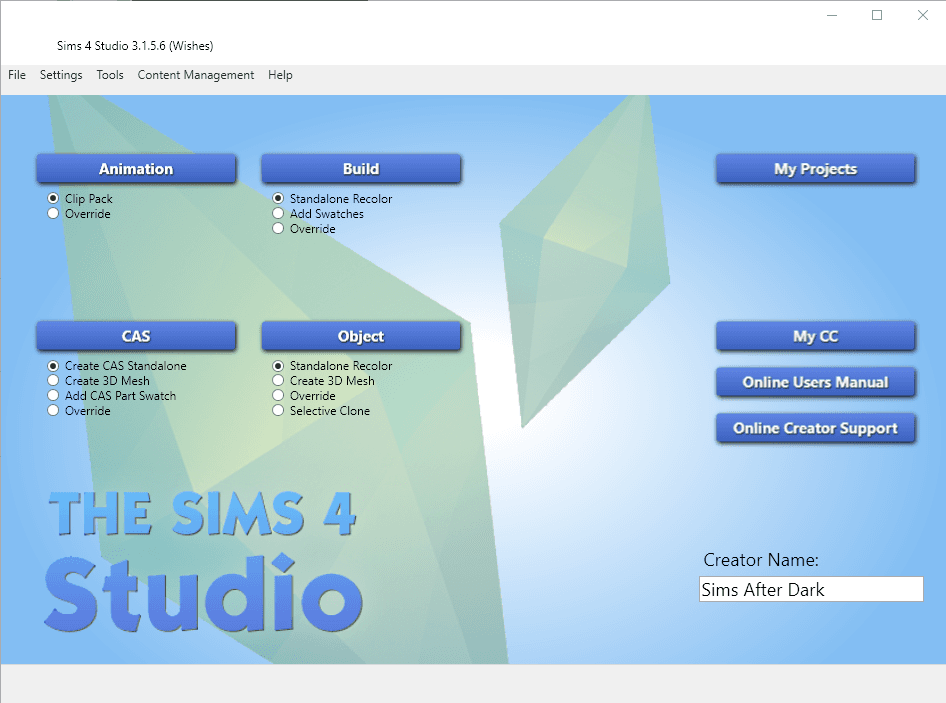
Every Simmer who runs a heavily modded game knows the dread: a new patch drops, you load up your save, and half your build/buy objects are broken, invisible, or behaving like they've forgotten what they are. The fix, in most cases, is faster than you'd expect. Sims 4 Studio (S4S), the free tool built by Andrew and orangemittens, contains a batch fix feature that updates package files across your entire Mods folder in a single operation. This guide walks through that process from start to finish, specifically for object CC and build/buy content.
What the batch fix actually does
A batch fix is, at its core, a Sims 4 Studio operation that updates package files. When EA pushes a game patch, it often changes how the engine reads certain object data — tuning, slot definitions, interaction references — and CC built against the old format stops working. Rather than manually opening every .package file and rewriting it, S4S reads through your entire Mods folder and applies the relevant corrections automatically. The tool is designed for Simmers who rely on package-based custom content, whether that's object CC, build/buy objects, or older CAS items, and who encounter broken CC after a game update or when converting content.
Beyond batch fixing, S4S does a lot of other things: you can use it to see what CC looks like on a Sim, delete CC you no longer want, remove swatches, change tags, and create mods and CC from scratch. But for the purposes of getting your broken objects working again, the batch fix workflow is what matters here.
Before you start: install and update S4S
The first requirement is having the latest version of Sims 4 Studio installed. As S4S Global Moderator inabadromance put it in a forum post: "Please download the latest version of S4S and have your game up to date." Running an outdated version of the tool against a recently patched game can produce unpredictable results, so this step is not optional.
Once you open S4S, the program will index your game files if this is your first launch after a game update. This is nothing to worry about, but it can take a little while. It won't do it every time — only when game files have changed. Once indexing finishes, you'll see the main S4S screen. You can add your name to the Creator Name field if you like, but the tool works fine without it.
Navigating to the batch fix tool
With S4S open and indexed, go to the top navigation panel and follow this path: Tools > Content Management > Batch Fixes. You'll see three categories listed: CAS, Objects, and Misc. These are the three categories of fixes currently available for The Sims 4. For broken build/buy content, you want the Objects category. The Misc category handles things like pose pack compatibility and thumbnail regeneration, which are covered in more detail below.
Understanding the color coding
Inside the batch fix menus, each available fix is color-coded. The rule here is simple: run all of the batch fixes shown in green. Only run the batch fixes in red if you are 100% sure you want to use those items. Green fixes are safe to apply broadly; red fixes carry a higher risk of changing something you didn't intend to change.
One important note that Srslysims flags explicitly: even if you don't own a pack referenced in a particular batch fix, run it anyway. The game still makes base-game edits to items related to packs you don't own, so skipping a fix because you don't have, say, Discover University installed can leave objects in a broken state regardless.
The named object fixes and what they address
The object batch fixes are specifically designed to repair errors caused by game updates to Build/Buy mode objects. Here's what's currently available:
- A fix that allows CC to be used on mermaids while in the bathtub and addresses missing tuning on bathtubs.
- Fix CC Showers (Discover University): repairs showers that broke with the Discover University update.
- Fix Windows and Doors (Star Wars Patch): fixes windows that don't work after the Batuu update.
- Fix Chairs (March 2021 Patch): addresses broken CC chairs introduced by that patch cycle.
- Fix Bed Slots (High School Years EP): repairs broken bed slots tied to the High School Years expansion.
The Misc category contains two additional fixes worth knowing about: "Update Pose Packs," which addresses pose packs that aren't working properly with pose player, and "Delete CC Thumbnails," which removes custom thumbnails from CC and regenerates EA-standard ones in their place.

It's also worth noting that the library of available fixes grows over time. As S4S Administrator orangemittens explained in a forum post: "There isn't a batch-fix yet for all types of objects that were affected by the patch. As reports have come in, more batch-fixes have been added, but there are still more that are in the works."
Running the fix
Once you've selected the batch fix you want to run, a dialog box will appear. By default, Sims 4 Studio will run the batch fix on your entire Mods folder, which is the right choice for most situations. If you've already isolated the broken object CC into one particular sub-folder, you can click Browse and navigate to that folder instead, which speeds up the process and limits the scope of changes.
When you have the correct folder chosen, make sure the game is closed before clicking Run. Running the fix while the game is open can cause conflicts. Once you click Run, let the tool work. If you have a lot of CC, this step can take a while — just let it do its thing. The process can take quite some time with a large library, so don't close the program or assume something has gone wrong.
When the fix finishes, a Results box will appear. According to the tool's documentation, there can be three possible results displayed, though the exact label for each outcome isn't something to second-guess if you're seeing everything complete without errors.
The built-in backup and how to use it
One of the most reassuring features of the batch fix tool is that it automatically backs up every file it changes before modifying it. If you run a fix on something you didn't intend to change, the original .package files are stored at Documents\Sims 4 Studio\Batch Fixes. As orangemittens confirmed: "Studio will also make a backup folder of all files that were fixed. This folder contains the files in their original (un-batch-fixed) state should you need them for anything." Simply copy the originals back from that folder to undo any unintended changes.
After the fix: clear your cache
Once the batch fix has run, clear your game cache before loading The Sims 4. This step matters because stale cache data can prevent fixed objects from displaying correctly even after the package files have been updated. If you're not sure how to clear the cache, Srslysims maintains a tutorial called "How to ensure a Healthy Game!" that walks through the process step by step alongside other tips for running a CC-heavy game smoothly.
If problems persist: troubleshooting tools
If objects are still misbehaving after running the batch fix and clearing your cache, the next step is checking your game logs to identify which file is likely causing the problem, then seeing whether there's a batch fix in S4S that addresses it. If no fix exists, remove any mods or Build/Buy CC you recently downloaded and test whether the problem clears.
Three tools are particularly useful at this stage:
- Better Exceptions, made by TwistedMexi, alerts you when your game generates a LastException error and can identify the likely offending file with an estimated accuracy percentage, for example flagging that a specific .package is 75% likely to be the cause.
- Sims 4 Mod Manager, made by RaxDiam, lets you enable and disable large groups of CC at once without deleting anything, making it much faster to narrow down a problem file through elimination.
- Organized Mods folders make all of this faster. Sorting CC by creator, by category, or by theme means you can isolate a suspected folder immediately rather than sifting through a flat list of hundreds of packages. A quarantine folder for newly downloaded CC is especially useful: anything new goes in there first, and if issues appear, you know exactly where to look.
For Simmers using merged packages, inabadromance on the S4S forum confirmed the batch fix works on merged files: "I haven't had issues doing it in the past. You can test it out by only leaving the merged file in your mods and moving the rest of your CC elsewhere. Run the batch — it will tell you how many items were fixed — and test it in game."
The batch fix workflow won't solve every CC problem that a game update can cause, and the S4S team continues to add new fixes as new issues are reported. But for the most common post-patch object failures, it remains the fastest and most reliable first step available to Simmers with a library of package-based CC.
This article was produced by Prism’s automated news system from verified source data, official records, and press releases, then run through automated quality and moderation checks before publishing. The system is built and supervised by the people who set the standards it runs under. Read our full AI policy.
Did this article answer your question?