Essential Firmware Update Checklist to Protect Custom Keymaps and Prevent Bricking
Firmware updates can add features but also risk bricking boards and wiping custom keymaps. Follow a compact checklist to back up profiles, verify release notes, and prepare recovery tools.
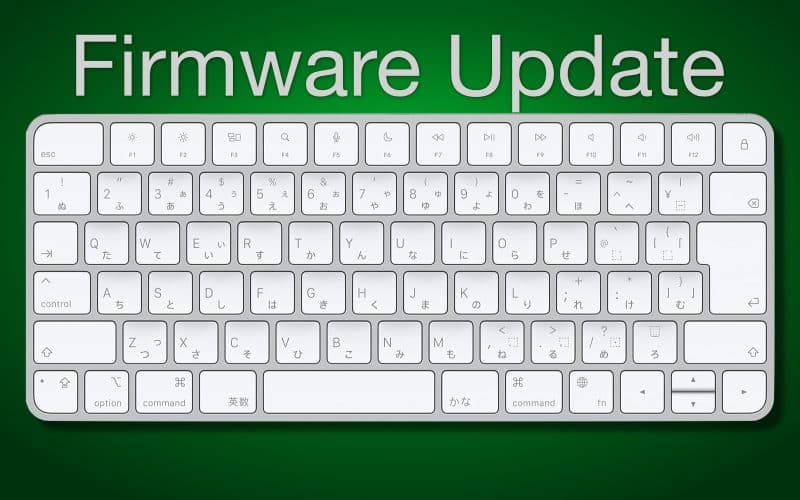
Firmware updates are routine, but they carry real risk: a failed flash can brick a board or overwrite carefully tuned keymaps. Protecting your layouts and avoiding a rescue mission starts before you hit "update" and continues through post-flash verification.
Back up your current keymaps and profiles to a file and record the active firmware version before you begin. Export every relevant layout, macro file, and configuration so you have a restorable copy if the update changes behavior or a rollback is required. Read the firmware release notes and scan community reports on Discord and Reddit for regressions or bricking issues before applying changes. Community threads often flag platform-specific problems and early regressions faster than official channels.
For wireless boards, ensure the battery is at least 50 percent charged. For any device, keep wired power connected during flashing when possible. Use the vendor-recommended USB cable and the host operating system the vendor lists as supported - some update tools are platform-specific and can fail or behave unpredictably on unsupported hosts. If a vendor provides an offline USB updater, prefer that over cloud-only flashing to reduce dependency on network or server-side failures.
Have a recovery plan mapped out ahead of time. Know your board’s DFU or bootloader procedure, and keep the step-by-step instructions and any required USB drivers on hand, ideally on a separate device or USB stick. If something goes wrong, recovery steps and rollback tools are often available from the community; search for unbrick procedures and proven rollback utilities before you need them.

After flashing, immediately test essential keys and macros before returning a board to full use. Confirm layer switching, media keys, custom macros, and lighting presets behave as expected. If problems occur, contact vendor support and consult community fixes - many firmware issues already have posted recovery steps or rollback tools.
This checklist keeps the focus on practical defense: back up, check notes and community signals, secure power and the right cable, use offline updaters when available, understand DFU procedures, and test after flashing. Following these steps reduces the chance of a costly unbrick and preserves the countless hours invested in custom keymaps, so you can update with confidence and get back to typing, tweaking, and trading layouts with the community.
Know something we missed? Have a correction or additional information?
Submit a Tip