How to Cut Call of Duty Storage Use and Avoid Massive Updates
Learn practical steps to trim Call of Duty installs, avoid giant patches, and keep progress when you prioritize the modes you actually play.
1. Use the game’s launcher or console install manager to select only the modes you play
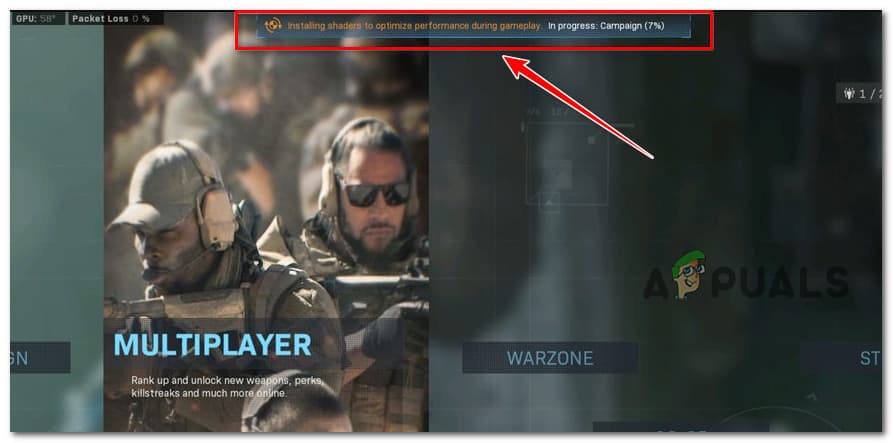
Modern Call of Duty titles let you pick which modes to install, Multiplayer, Zombies, and Campaign are often modular. On PC, open your platform client (Battle.net, Steam, or other) and use the game options to deselect modes or components you don’t need; on console, go to the game’s Manage Game/Installed Content menu and remove specific mode packs. This immediately cuts the base install size and keeps future updates smaller because you won’t be downloading assets for modes you never touch. Community tip: treat your install like a loadout, equip only what you plan to use.
2. Before big updates, clear unneeded legacy content and empty temporary files
Patch days and seasonal drops often chain-install leftover DLC and legacy game builds if disk space is tight. Manually uninstall old Call of Duty installs, unused map packs, or single-player DLC you haven’t launched; then clear your platform’s temporary/cache folders to remove stale update files. Doing this before major updates prevents the launcher from trying to re-download gigabytes of legacy assets and reduces install conflicts that can bloat update sizes. For consoles, use the storage management tools to erase temporary data and remove unused game versions; for PC, clear the client’s download cache and delete temp folders.
3. Use an external NVMe SSD for consoles or an internal NVMe for PC
Speed matters as much as space. A fast external NVMe SSD for PS5, Xbox Series X|S, or an internal NVMe for PC reduces install friction, shrinks load times, and makes moving or reinstalling modes painless. External NVMe drives let you keep less-used modes offline without sacrificing performance when you reconnect them, ideal for players juggling limited internal SSD space. Community value: investing in storage is often cheaper than repeatedly re-downloading huge patches, and it keeps you in the action rather than watching progress bars.
4. On PC, exclude high‑res texture packs and other optional downloads in your client
PC launchers often expose granular install options: high-res textures, language packs, or optional cinematics. Use Battle.net, Steam, or the game’s installer to uncheck high-res texture packs unless you need them for a 4K monitor; those packs can be tens of gigabytes. Excluding these optional assets slashes both initial install size and the scale of future updates that touch those files. If you upgrade graphics later, you can add the packs back, but for most players, standard textures are perfectly serviceable and far less space-hungry.
5. Schedule large updates overnight, enable auto‑updates, and watch region release windows
Large patches can monopolize bandwidth and slow installs when servers are congested during peak hours. Schedule downloads overnight and turn on auto-updates so your system grabs patches while you sleep, avoiding the rush and minimizing interruption. Keep an eye on regional release windows, major drops are often staggered and servers can throttle traffic at peak times, so timing your update to low-traffic hours speeds things up. This routine also helps clans and teammates remain ready for raids or resets without last-minute scrambling.
6. Prioritize Multiplayer and Zombies if space is tight; add Campaign later (progress carries over)
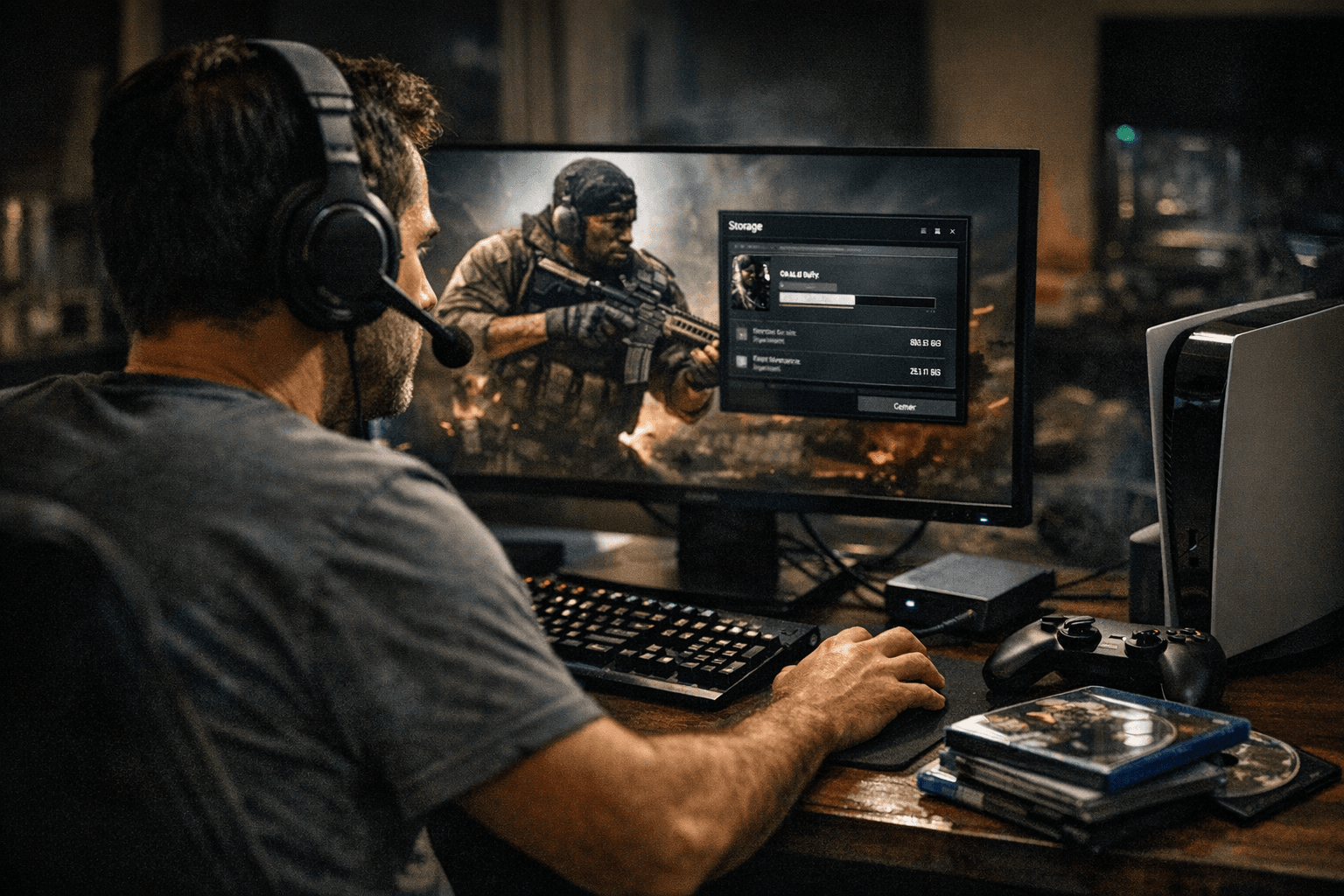
When storage is limited, prioritize the modes you play most: install Multiplayer and Zombies first, then add Campaign if you want the single-player experience later. Progress and unlocks generally carry across modes and persist once you reinstall Campaign or add other components, so you won’t lose progression by deferring an install. This staged approach keeps your disk lean during seasonal drops and lets you join matches quickly without downloading every cinematic and map upfront. Practical community note: many players rotate Campaign installs between seasons to free space for new seasonal content.
- Quick housekeeping tips:
- Regularly audit installed CoD components after each season to remove unused packs.
- Use platform tools to move lesser-used modes to external storage rather than deleting them.
- Monitor your download queue and pause large nonessential downloads before a major CoD patch.
Closing practical wisdom: Trim the fat, schedule smart, and treat storage like part of your gear setup, not an afterthought. By picking only the modes you play, clearing legacy junk, using faster storage, and managing optional assets and update timing, you’ll dodge the surprise megabytes and stay match-ready. Keep your installs lean and your nights update-free so you can spend more time in the lobby and less on the loading screen.
Know something we missed? Have a correction or additional information?
Submit a Tip