Pro Blackmagic Camera Settings and Workflow for Cinematic iPhone Video
Lock shutter to 180°, shoot Log at 24fps, record ProRes/HEVC to an external SSD, and use a preview LUT only—this preset gives cinematic, gradeable iPhone footage every time.
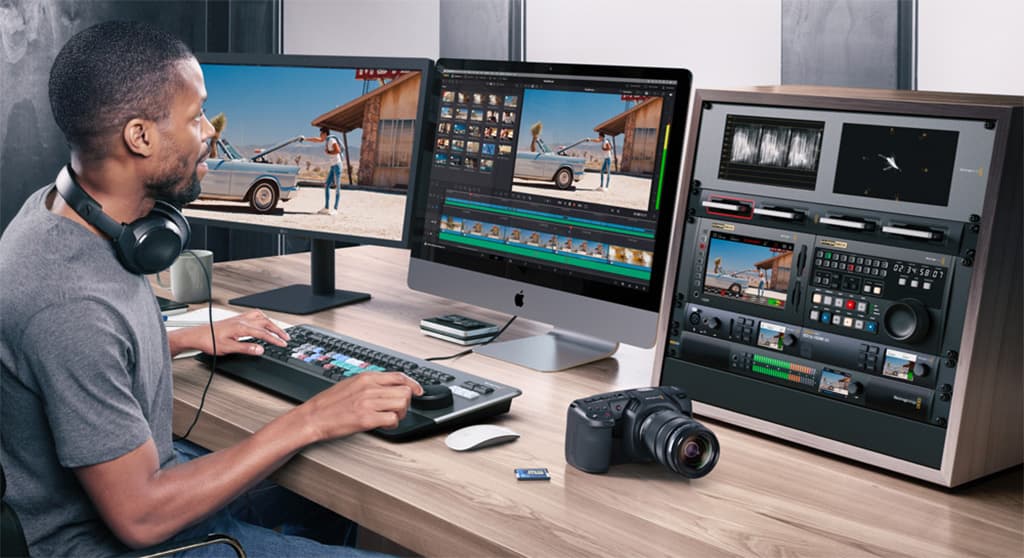
If you want cinematic iPhone video from the Blackmagic Camera app, start with three operational constraints: ProRes RAW on iPhone 17 Pro requires an external USB‑C SSD, 4.2K Open Gate disables stabilization, and preview LUTs are for monitoring only. Those three facts change how you plan every shoot—packing a gimbal or tripod and a fast external drive is not optional if you want maximum flexibility and sensor area. “You must record to external SSD,” and remember: “LUT — Display only — don’t burn in.”
- 24fps, shutter locked to 180° (cinematic motion blur)
- Log color (Apple Log / Apple Log 2), preview LUT only
- Lowest clean ISO + ND 5–8 stops in daylight
- Lock white balance with a reference card and lock focus (manual/peaking)
- Record ProRes family for quality-first; HEVC (H.265) Max Bitrate for space-first
- Save a preset and enable Preserve Settings; map the Camera Control Button to Blackmagic for instant access
Key takeaway (quick checklist)
Device‑specific codec and resolution rules
On iPhone 17 Pro / Pro Max the quality-first path is ProRes RAW in Apple Log 2 at 4.2K Open Gate—this unlocks the full sensor and maximum latitude in grading but enforces two realities: external SSD recording is required and stabilization is disabled, so “a tripod or gimbal is a must.” If storage is the constraint, the 17 Pro can use H.265/Open Gate to preserve the larger sensor readout while cutting file sizes. On iPhone 15 Pro and 16 Pro, ProRes 422 is the recommended maximum‑quality codec; HEVC → Max Bitrate is the practical 10‑bit alternative to keep files smaller. Android users should default to HEVC → Max Bitrate.
Concrete app paths and settings to set now
Open Settings → Record to choose Codec, Colour Space and Resolution—this is where you select ProRes RAW + Apple Log 2 + 4.2K Open Gate on a 17 Pro. In Settings → Camera set Reference Source → Internal to ensure a constant frame rate. In Settings → Media, set Save Clips To → Files → External SSD so the app writes directly to attached storage. Tap the current shutter speed to bring up the shutter speed controller and lock to the 180° equivalent; tap the focus area then long‑press to lock focus, or use the manual slider with Focus Peaking for the tightest results.
Exposure, shutter, ISO, ND and frame rate
Shoot cinematic motion at 24fps by default and lock your shutter to a 180° equivalent for natural motion blur. For action and sports, switch to 4K/60fps; Action Mode provides heavy stabilization but drops you to 2.8K. Control exposure with the lowest “clean” ISO available and ND filtration—typical daylight recommendations are 5–8 stops—so you don’t chase ISO noise while holding the 180° shutter rule.
White balance, focus and LUT workflow
Set white balance with a reference card then lock it; this removes color drift across takes. For focus, “tap to focus → long press to lock Or enable Focus Peaking and use manual slider for pro results.” Record in Log (Apple Log, Apple Log 2, or Samsung Log where available) and use a preview LUT on the display for creative reference—do not bake the LUT into the file so you retain grading latitude. As one guide put it: “Use Log, lock shutter to 180°, control exposure with ISO + ND, lock white balance, and lock focus. Then remember to use a LUT in the Preview Only so you can apply it in post for greatest flexibility.”
Storage, SSDs and workflow ergonomics
External USB‑C storage is essential for extended 4K sessions and mandatory for ProRes RAW on the 17 Pro. Record directly to the drive by setting Save Clips To → Files → External SSD; this avoids juggling phone storage mid‑shoot. Freewell’s practical note: “Pro Tip: On iPhone 15 Pro and newer, offloading footage directly to external storage using Freewell's Pro SSD Hub lets you shoot longer without managing space mid‑session.” The Blackmagic app’s ProRes implementation produces smaller ProRes files than Apple’s native path while keeping broadcast‑quality footage, but plan for large files nonetheless and save a dedicated preset after dialing in settings.
Audio, monitoring and technical audio settings
Choose internal or external mic depending on the capture—external mics give a clear advantage. Set audio format to AAC for convenience or Linear PCM IEEE Float for a lossless option, sample rate Auto, and monitor with headphones during capture. The app’s audio meter is calibrated at -18 dBFS; watch it and use headphones for live checks. Stereo external mics are supported and the app provides headphone or speaker output for playback.
UI notes, ergonomics and known quirks
The app’s camera picker lives in the top corner to show the current lens; you can tap to switch lenses and the lens menu was moved to the bottom of the screen to aid vertical shooting. Be aware of a reported bug: switching to the front camera while recording reportedly yields an upside‑down image on some devices. You’ll also see frame rate options like 29.97fps in the menu and Timecode and Time Lapse options are available. One user‑interface observation: the iris field looks greyed out but the app shows the aperture number per lens—“At the moment, it’s f1.8 because that’s the main camera aperture. If I switch to the ultrawide, it now changes to f2.2. The telephoto is f2.8. So it’s not a totally redundant feature.”
Trade‑offs to accept and plan for
Open Gate gives the broadest image but disables stabilization; use a tripod or gimbal and expect bigger files. Higher frame rates and Action Mode stabilization consume battery and storage and may force resolution compromises (Action Mode is 2.8K). ProRes RAW yields the most flexibility but demands external recording and more storage. For a mid‑ground, HEVC with Max Bitrate provides 10‑bit capture with much smaller files while retaining Log color for grading.
- Settings → Record: set Codec → ProRes RAW (17 Pro + external SSD) OR ProRes 422 (15/16 Pro) OR HEVC → Max Bitrate; Colour Space → Apple Log 2 (or Apple Log/Samsung Log); Resolution → 4K baseline or 4.2K Open Gate on 17 Pro.
- Settings → Camera: Reference Source → Internal.
- Settings → Media: Save Clips To → Files → External SSD.
- FPS: 24fps baseline; switch to 4K/60 for action; Action Mode for stabilized handheld at 2.8K.
- Shutter: tap to set and lock to 180°.
- ISO: lowest clean value.
- White balance: set with reference card, then lock.
- Focus: tap-lock or manual + peaking.
- ND: 5–8 stops daylight.
- LUT: preview only.
- Audio: choose mic, AAC or Linear PCM IEEE Float, Sample Rate → Auto, monitor with headphones, watch VU at -18 dBFS.
- UI: enable Preserve Settings, assign Camera Control Button to Blackmagic (“The most impactful change? Set your Camera Control Button to launch Blackmagic instead of the default camera app for instant professional access.”), save preset.
Before you shoot: journalist‑ready preset checklist
Epictutorials summed it bluntly: “These are the best Blackmagic Camera settings for cinematic results on iPhone and Android… not theory, not hype, just the correct setup to get clean, professional results.” Follow the app paths above, respect the storage and stabilization trade‑offs, and the Blackmagic Camera app becomes a repeatable cinematic tool rather than a toy. “Use these settings in the Blackmagic Camera app to shoot professional quality - and dare I say - cinematic video on an iPhone.” Save the preset, pack the SSD and gimbal, and you’ll consistently shoot footage that grades like it came from a small cinema camera.
Know something we missed? Have a correction or additional information?
Submit a Tip