Ten-step checklist to stop NBA 2K26 stutter and input lag on PC
pc players can reduce NBA 2K26 stutter and input lag with a ten-step checklist focused on drivers, in-game settings, input, storage, and network.
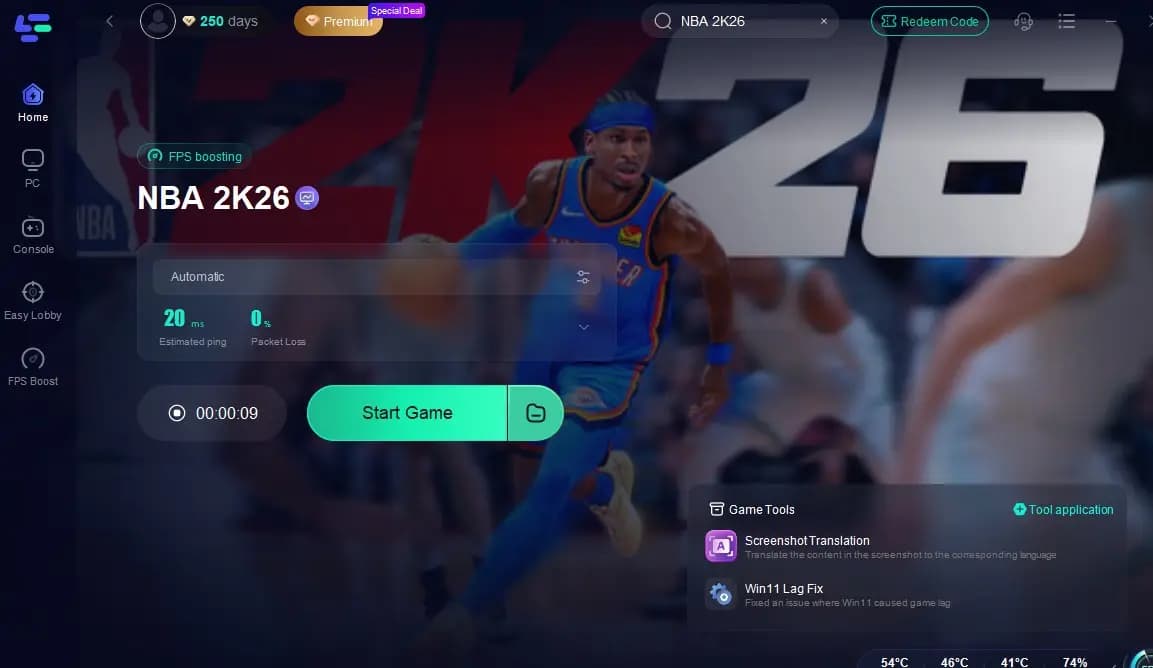
NBA 2K26 can run buttery smooth on PC, but a few system and settings missteps are the usual culprits when players hit stutter, FPS drops, or input problems. Start with the basics: fully update Windows 10 or 11 and your GPU drivers from NVIDIA or AMD, set your power plan to High Performance or use Balanced with high-performance GPU settings, and close unneeded overlays and recording tools that are known to cause microstutter.
In-game graphics choices are where you get the most bang for your time. Begin with medium or high presets and tune from there. Use your monitor’s native resolution, and test Windowed Fullscreen against Fullscreen to see which yields steadier frames. Turn VSync off while benchmarking, then enable it only if you see tearing and have an unlocked FPS. Cap frame rates to your monitor refresh or a stable target such as 60 or 120 FPS to avoid the microstutter that comes from wildly fluctuating framerates. Lower texture quality if you’re tight on VRAM, and reduce shadows and ambient occlusion first since those hit FPS hardest. Crowd and detail distance deserve attention when you’re in The City or navigating large MyTEAM menus.
Controller and input choices matter. Use a wired controller for the lowest latency or enable controller smoothing in Windows. If you use third-party mapping tools, test the game without them to rule out input conflicts. If crashes or hangs appear, verify the integrity of game files through Steam or your launcher; corrupted files are a common source of instability.
Storage and system memory play a role too. Install NBA 2K26 on an SSD for fast loads and ensure you keep 10 to 20 percent free drive space. Let Windows manage the pagefile unless you have special needs. For online modes, favor wired Ethernet; if you must use Wi-Fi, pick 5 GHz and get the router closer. Forward NAT or ports when you see persistent matchmaking problems, and enable UPnP where possible.

When troubleshooting, disable overlays like Discord, GeForce Experience, and Steam overlay, then re-enable one at a time to find the culprit. Capture DxDiag and the game’s logs before reinstalling so you can provide useful data to support. Run a clean, unmodded install to test stability, add mods gradually, and keep a clean backup of your vanilla saves. If a new GPU driver causes regressions, roll back to the last stable version and store driver installers for quick recovery.
After every official NBA 2K patch, verify files and test core modes; in MyCAREER, start a quick session to confirm progression and objectives are tracking correctly. Small regular maintenance such as monthly driver updates, periodic file verification, and backups will keep play sessions smooth and protect your progression. The takeaway? Treat performance tuning like any lineup tweak: make one change, test a game, and stick with what shows consistent gains. Our two cents? Start with drivers and overlays, wire up the controller, and cap your FPS, those moves fix most game-day headaches.
Know something we missed? Have a correction or additional information?
Submit a Tip