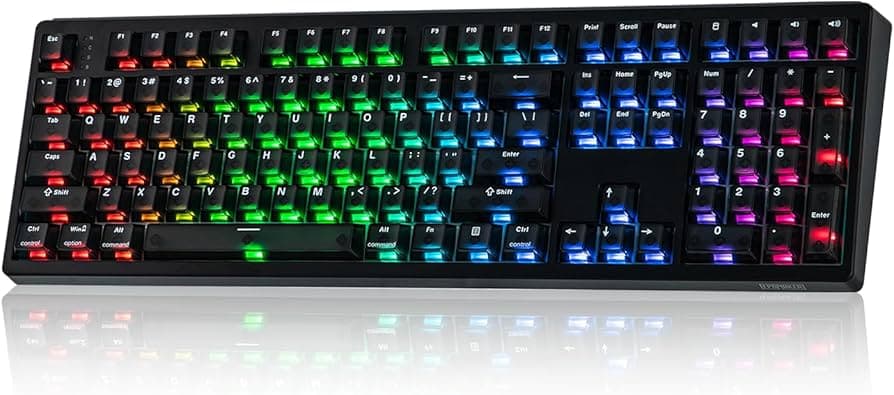
Keychron guide shows how to reset and update keyboard firmware safely
A Keychron reset is often safer than a flash, and Launcher only works cleanly when you use the right browser, cable, and firmware file.

If a Keychron starts acting weird, the first move is often the least dramatic one. A factory reset can clear the problem before you gamble on firmware, and Keychron’s own Launcher guide makes that path dead simple: turn the board on, hold fn + J + Z for 4 seconds, then watch for the backlight to flash red quickly for three seconds.
Reset before you reach for firmware
That reset step matters because keyboard owners tend to treat firmware like a cure-all. It usually is not. Keychron’s firmware pages repeat the same warning in plain language: if the keyboard is already working fine, do not update the firmware, because there is a chance it can damage the board.
That is the right instinct for this category of gear. A factory reset is a low-risk first pass, while a flash is a real maintenance job. If your layer map is scrambled, a macro is acting haunted, or the board is behaving like it has forgotten itself after a bad setting change, the fn + J + Z reset is the sensible place to start.
Run Launcher on the right setup
Keychron’s Launcher is a free web app, not a desktop utility you install and forget. The company uses it for remapping keys, macro creation, shortcut editing, lighting control, key testing, and firmware updates, and on supported boards it also handles Hall-effect tuning.
The practical catch is that Launcher wants the right environment. Keychron recommends the latest version of Chrome, Opera, or Edge, and its documentation says the web app works across Windows, macOS, Linux, and more. For firmware work, the company also tells users to run it over a wired connection, which is the kind of detail people skip right before they blame the keyboard for a bad flash.
This is also where a lot of confusion gets avoided. The support guide spells out the order of operations instead of leaving you to guess about pairing mode, connection mode, or recovery steps. That makes Launcher feel less like a gimmick and more like the maintenance console modern custom boards actually need.
Choose the right file, not the latest one
The biggest enthusiast mistake is assuming newer firmware is automatically better. On Keychron boards, that can be the wrong instinct entirely, because the company is explicit about choosing the correct firmware for the correct model and layout. That warning matters for ANSI, ISO, and regional variants, where a file that looks close enough can still be the wrong fit.
Keychron’s archived B Pro series guide gives one of the most useful pieces of troubleshooting advice in the whole support stack: go into Launcher, open Device Info, and use the keyboard’s PID and VID to identify the correct firmware. That is the kind of detail that saves time when you own more than one board, swap layouts, or keep a drawer full of nearly identical Keychron hardware.
The broader lesson is simple. Match the firmware to the board you actually have in front of you, not the one you think you own from memory. If the layout, revision, or regional version is off, the flash can become the problem instead of the fix.

What to verify after a reset or flash
Once the board comes back, do not assume every setting survived the trip. Some Keychron product pages say Launcher changes are stored in onboard memory, which means your customizations should follow the keyboard across devices, but that is exactly why it pays to verify the important stuff after recovery.
- Key remaps
- Macro assignments
- Shortcut layers
- Lighting behavior
- Any Hall-effect settings on supported boards
Check the basics first:
Those are the settings most people notice when a board comes back from a reset looking “fine” but feeling wrong. A quick key test inside Launcher is worth doing too, especially if you just flashed firmware and want to confirm that every switch is registering cleanly.
When the update goes wrong
Keychron does not pretend every flash is clean. Its support site has separate recovery instructions for specific models, including the K2, K3, K4, and K8, when an update goes sideways. That tells you everything you need to know about where the pain points have been in the real world.
If you own one of those boards, it is worth knowing that recovery is already part of the support map. The practical implication is not that firmware is dangerous by default, but that you should treat it like a controlled procedure, not a casual click.
Why Launcher matters beyond recovery
Launcher is doing more than rescue work. It is part of the broader move in mechanical keyboards toward browser-based configurators and open-source firmware ecosystems like QMK and VIA, where software is as much a part of the product as the PCB or case. That shift is why Keychron’s support pages feel important even when they are just explaining a reset combo.
It also explains why Launcher now sits at the center of so many Keychron and Lemokey workflows. Once your board is configured, the appeal is obvious: one web app for remaps, macros, lighting, testing, and firmware, with settings that can live on the board itself instead of disappearing with the next machine you plug into.
The simplest path is still the best one. Reset first, use a wired connection in a modern browser, pick the exact firmware that matches your board, and verify the remaps and lighting before you call the job done. That is how you turn a scary firmware afternoon into a routine bit of keyboard maintenance.
This article was produced by Prism’s automated news system from verified source data, official records, and press releases, then run through automated quality and moderation checks before publishing. The system is built and supervised by the people who set the standards it runs under. Read our full AI policy.
Did this article answer your question?