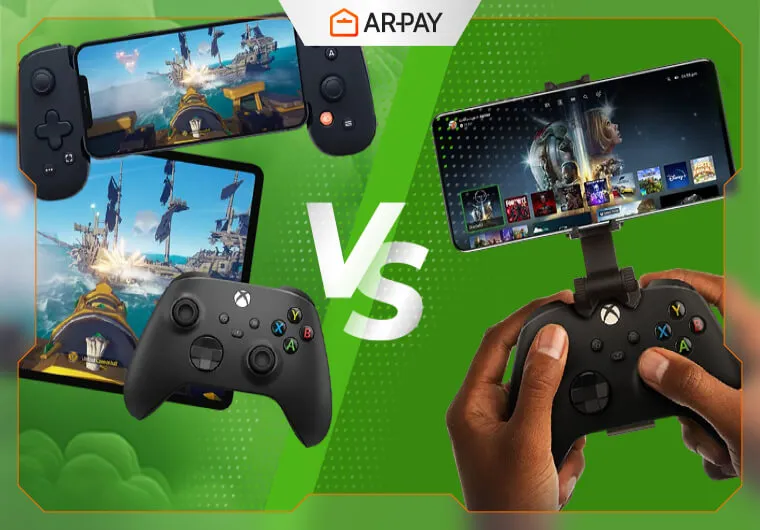
Apple expands wireless game controller support across iPhone and Mac
A paired controller can still fail you in-game. Apple’s latest support map shows which models, OS versions, and modes actually work across iPhone, Mac, and more.
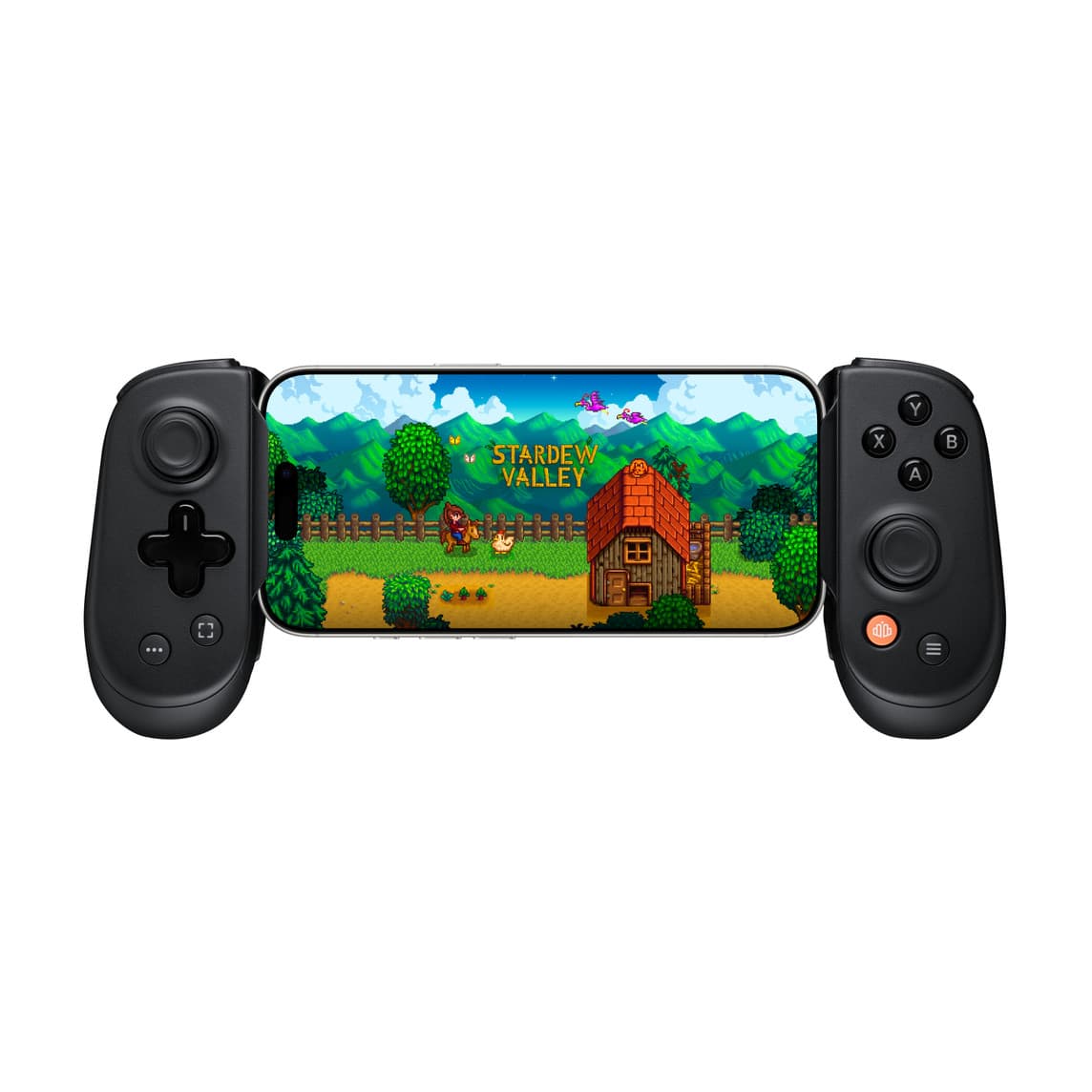
The bad news is familiar: a controller connects, the pairing light stops blinking, and then the buttons feel off, the game ignores half the inputs, or everything works in one title and falls apart in another. Apple’s current support pages make the real issue clearer, wireless Xbox, PlayStation, and other Bluetooth controllers can work across iPhone, iPad, Apple TV, Mac, and Apple Vision Pro, but model support, software version, and game-by-game implementation still decide how well it plays.
How Apple’s pairing flow works now
Apple’s basic setup is straightforward: put the controller into pairing mode, then connect it from the device’s settings. That simple Bluetooth workflow applies across the company’s hardware lineup, and Apple separates the guidance into a general wireless controller page plus dedicated pages for Xbox and PlayStation controllers.
That split matters because “compatible” is not the same as “all controllers are the same.” Apple’s Xbox page lists support for the Xbox Wireless Controller with Bluetooth, Model 1708, the Xbox Wireless Controller Series S, Xbox Wireless Controller Series X, Xbox Elite Wireless Controller Series 2, and the Xbox Adaptive Controller. Its PlayStation page lists DualShock 4, DualSense, and DualSense Edge, and it also notes that PlayStation VR2 Sense controllers work with Apple Vision Pro when you are running visionOS 26 or later.
Apple TV is part of the same picture, not an afterthought. The Apple TV 4K user guide includes game controller instructions, which is a useful reminder that living-room play on Apple hardware now sits on the same controller ecosystem as the phone and laptop side of the platform.
What to check before you buy
This is where buyer beware really comes in. A controller can be well made and still be the wrong buy if it depends on a mode your Apple device does not use, or if your software version is too old for the support list you are relying on. 8BitDo’s compatibility page is a good example of how specific this gets, with support called out for iOS 16.3+, iPadOS 16.3+, macOS 13.2+, tvOS 16.3+, and visionOS 1.1+, plus a requirement to use D-Input mode on Apple devices.
Before you spend, check these details first:
- The exact controller model, not just the brand name
- Your OS version on iPhone, iPad, Mac, Apple TV, or Vision Pro
- Whether the controller needs a special mode such as D-Input on Apple devices
- Whether the game you play actually supports controller input
- Whether the platform you use most is native mobile play, Apple Arcade, cloud gaming, or console streaming
Apple’s own developer documentation makes the broader point: controller support is both hardware and software. The GameController framework exists so developers can support third-party controllers and custom haptics, and Apple’s WWDC20 session on game controllers says developers can bring third-party gamepads and custom haptics to games on iPhone, iPad, Mac, and Apple TV. In other words, a controller may pair correctly and still feel inconsistent if the game never exposes the right mappings or features.
Why some games feel better than others
This is the part many mobile players run into after the purchase: the controller works, but not every game uses it the same way. Apple’s WWDC21 session says the platform now includes a virtual on-screen controller, controller sharing features, and support for adaptive trigger technology in DualSense controllers, which tells you how uneven support can be from game to game and device to device.
Apple also says users can customize controller mappings in Settings and Preferences through Game Controller capabilities. That helps when a game exposes the right options, but it also means you should not assume every title will give you the same level of control. If you spend most of your time in action games, shooters, or cloud-streamed titles, test for responsiveness and mapping behavior first rather than buying on brand reputation alone.
The Mac side of the ecosystem is especially useful here. Apple’s App Store editorial coverage says most MFi and console controllers work with Mac out of the box, and it also points to extras like rumble feedback, custom button mapping, and screen recording. That combination is exactly why Mac has become a serious controller platform instead of just a fallback for casual play.
Where controller support matters most in today’s mobile gaming stack
If you live in Apple Arcade, controller support is part of the pitch from the start. Apple says the service has hundreds of games, works across Apple devices, and includes no ads and no in-app purchases, so a single controller can carry from iPhone to iPad to Mac without changing your setup every time you switch screens.
If you split time between mobile and console ecosystems, compatibility becomes even more important. Xbox promotes Xbox Cloud Gaming and Remote Play on mobile devices, while PlayStation says PS5 and PS4 games can be streamed to iPhone, iPad, Mac, Android, and other devices through PS Remote Play. That makes controller choice a practical decision, not an accessory impulse buy, because the same pad may need to carry native mobile games, cloud play, and remote console sessions.
The history behind all this explains why the advice has changed so much. Apple’s third-party controller support goes back to the iOS 7 era, then expanded again with iOS 13, tvOS 13, and macOS Catalina. What used to feel like a niche add-on is now part of the standard mobile-gaming setup, but the old problems have not vanished entirely, they have just moved from “will it pair?” to “will it map right, run cleanly, and work in the games you actually play?”
That is the real buying test now. If you can verify the controller model, the Apple OS version, the pairing mode, and the games you care about, you are far less likely to end up with a controller that connects beautifully and disappoints the moment the match starts.
This article was produced by Prism’s automated news system from verified source data, official records, and press releases, then run through automated quality and moderation checks before publishing. The system is built and supervised by the people who set the standards it runs under. Read our full AI policy.
Did this article answer your question?