Batocera guide explains manual upgrades, downgrades, and branch switching
When Batocera’s update button is too blunt, manual branch switching, rollbacks, and config edits keep a good build alive.
MAIN MENU UPDATES & DOWNLOADS UPDATE TYPE lets Batocera users switch between stable and beta, roll back after a regression, or pin a machine to the branch that works with its hardware, controller mapping, and display setup. When the menu is unavailable, the same control lives in `/userdata/system/batocera.conf`. That manual path is useful when a stable build is better than beta or a custom build needs to be installed without blowing up a known-good cabinet.
Why manual version management matters
Batocera is built for machines people trust to just turn on and play, which is exactly why version changes can feel risky. A living-room box, a handheld PC, or a micro-console setup can all be running a carefully tuned mix of emulator cores, controller configs, and display tweaks that stop feeling generic the moment an update changes one small thing. Manual upgrade and downgrade tools matter when the simple update button is not enough.
You may need to switch from stable to beta, move back from beta to stable, roll back to a prior revision after a regression, or install a custom build that does not follow the normal release path. Manual control is also useful when Batocera refuses to cooperate with the usual menu route, which can happen on systems that are not booting cleanly or on setups where remote maintenance is easier than standing in front of the machine.
Know what lives where before you change anything
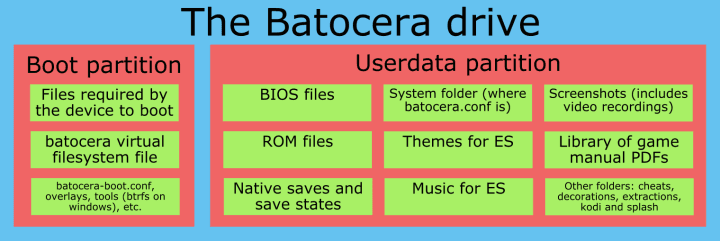
The first thing to understand is Batocera’s drive layout. Knowing where the system files live and where user data is stored lets you change versions without overwriting the parts of the system that hold your saves, configurations, and personal setup.
On a desktop PC, the files that define the operating system are not the same as the user data you care about keeping. On a handheld or a mini-console style setup, that distinction becomes even more important because these devices are often treated as finished appliances rather than maintenance-friendly computers. Knowing what gets overwritten during an update helps you decide whether you can move ahead confidently or whether you should freeze the current state first.
When to upgrade manually, and when to hold back
A manual upgrade makes sense when you want access to a feature or fix that has not yet reached your usual branch, or when you are testing a custom build. It also matters when you are deliberately moving between stable and beta because you want the behavior of one channel rather than the other. Branch choice lets you match the software to the job your machine is actually doing.
If a newer build introduces a regression in one emulator, breaks a controller mapping, or changes how a display setup behaves, the latest version is not the best version for your use case. Batocera’s manual path lets you choose stability over novelty for a cabinet that already works, a handheld you take on the road, or a living-room machine that other people expect to behave exactly the same every time.
How branch switching works in practice
Branch control is available directly through the main menu path:
MAIN MENU UPDATES & DOWNLOADS UPDATE TYPE
From there, you choose the branch you want, such as stable or beta, then reboot and apply the new version. That menu path is the cleanest route when the system is booting normally and you want to change the update channel without touching files by hand.
For more advanced control, you can edit the relevant line in `/userdata/system/batocera.conf`. That file-based route is useful when you are troubleshooting remotely, doing scripted maintenance, or recovering a system that no longer boots cleanly into the menu. It also gives you a direct way to manage a system when the interface itself has become unreliable.
A straightforward decision process
1. Check whether the current build is actually the one you want to keep. If your machine is stable and your games launch the way you expect, you may want to stay put.
2. If you need a different channel, use the menu path first: MAIN MENU UPDATES & DOWNLOADS UPDATE TYPE.
3. If the system is not booting cleanly or you need repeatable control, edit the update type in `/userdata/system/batocera.conf`.
4. Reboot and apply the version change.
5. If the new build causes a regression, move back to the prior revision or return to the branch that was working.
When rolling back saves the machine
In Batocera, downgrading is a maintenance tool. If a build introduces a broken controller mapping, a problem in a specific emulator core, or a display change that makes a previously tuned setup look wrong, rolling back can restore the machine faster than troubleshooting every dependency one by one. That is especially valuable on systems built for comfort and reliability, where the cost of losing a known-good state is higher than the appeal of the newest feature.
The same logic applies to custom builds. If you are testing something outside the normal release path, manual version control gives you an exit ramp when the experiment does not land cleanly. It also protects dedicated machines, especially cabinets and living-room setups, where preserving a working state matters more than chasing every update as it appears.
This article was produced by Prism’s automated news system from verified source data, official records, and press releases, then run through automated quality and moderation checks before publishing. The system is built and supervised by the people who set the standards it runs under. Read our full AI policy.
Did this article answer your question?