How MAME finds ROMs, CHDs, and other game files
Missing ROMs in MAME usually means the paths, ZIP names, CHDs, or BIOS files are wrong. Fixes start in Directory Configuration, not random file hunting.
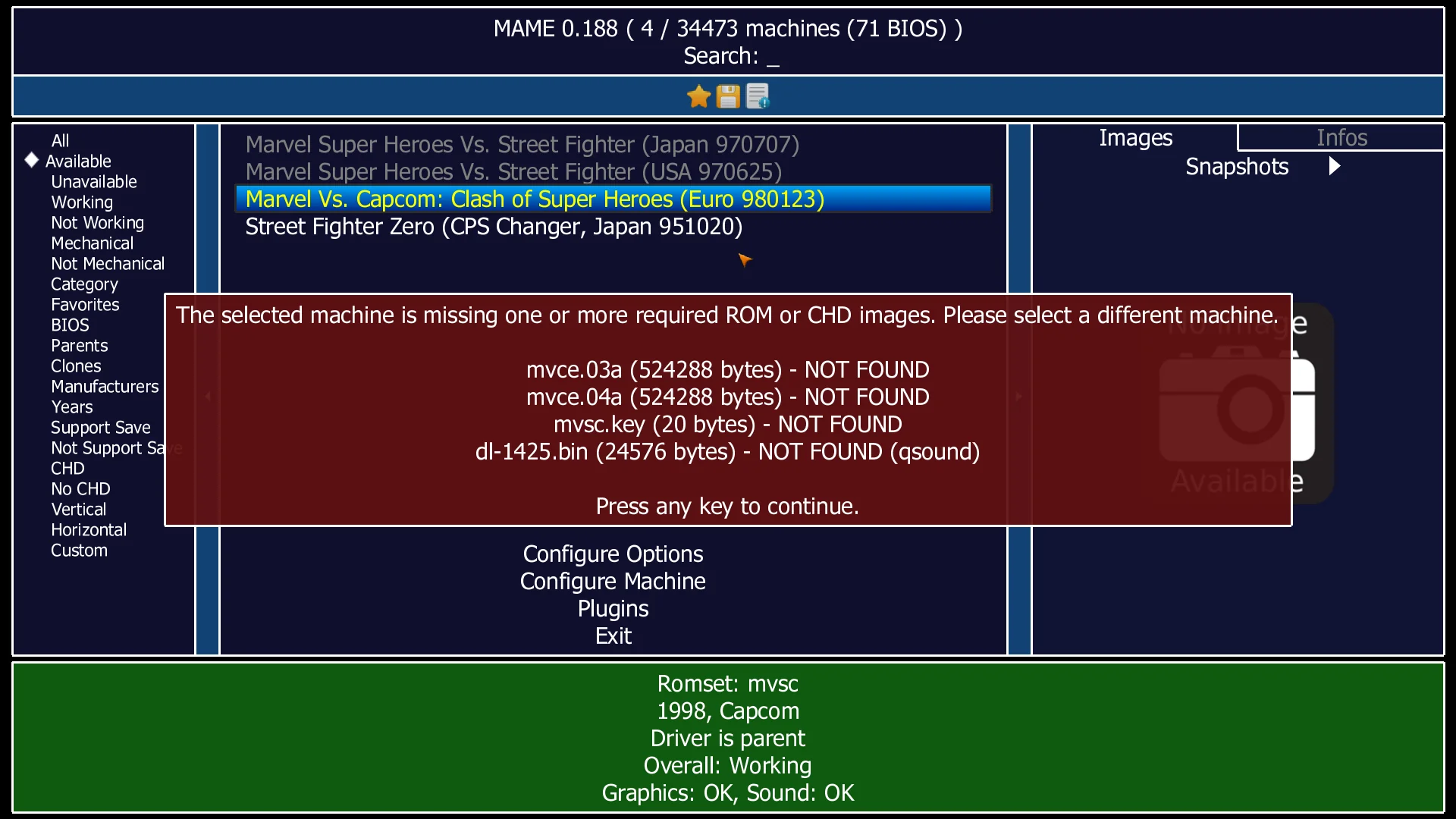
When MAME throws a missing-file error, the emulator cannot find the ROMs, CHDs, BIOS files, or software-list media it is configured to look for. Your game usually is not “bad.” Once you understand that MAME uses search paths and lookup rules instead of a simple file picker, the most common launch errors become much easier to pin down.
Why MAME feels so strict
MAME is a “multi-purpose emulation framework,” built to preserve decades of software history by documenting hardware and how it functions. That preservation-first design is why file handling is so exacting, and its documentation calls ROM and set handling the biggest area of confusion and frustration users run into.
That strictness is also part of the project’s culture. The naming-conventions page exists to promote consistency and readability in source code, and the same mindset shows up in how MAME expects your files to be organized. The project traces its history back to the first official release in February 1997.
How MAME actually looks for files
MAME does not work like a typical desktop app where you browse to a file each time you launch something. Instead, you tell MAME where to search, and it checks those locations in its configured order. You set this up by starting MAME without selecting a system, choosing Configure Options, and then opening Configure Directory.
That search model matters because MAME treats different assets differently. It looks for system ROMs, device ROMs, software-item ROMs, CHD disk images, and loose software as separate categories, and those categories do not always live in the same place. A file can exist on your drive and still be invisible to MAME if it is in the wrong folder, under the wrong name, or stored in a path MAME is not scanning.
Archive files are part of that system too. ROM sets often live in ZIP archives, but the archive name and the contents inside it still have to match what MAME expects. That is why a set can look complete in Explorer or Finder and still produce a missing-file error in MAME.
A clean folder blueprint
A practical layout is easier to manage when you keep each asset type separate and point MAME at those locations through Directory Configuration. A simple setup looks like this:
MAME/ roms/ chds/ <set-name>/ <set-name>.chd hash/ <software-list>.xml software/ bios/
Use those folder names as a blueprint, not a rulebook. The important part is the separation: ROM ZIPs stay in one place, CHDs stay in their own disk-image area, and software-list XML files stay in MAME’s `hash` folder. If you keep BIOS files in a dedicated folder, make sure MAME is pointed there too, because a shared BIOS file still has to be where MAME expects it to be.
This separation reduces confusion when you are working with arcade sets, CD-based systems, or anything that depends on support files. CHDs are a separate organization problem from ROM ZIPs and BIOS files.
The fastest diagnostic flow when a game will not launch
1. Read the exact error first. If MAME names a file, that is your clue.
A missing ZIP points to a ROM problem, a missing CHD points to a disk-image problem, and a missing BIOS points to a shared-support problem.
2. Check the configured search paths. If you have not set Directory Configuration correctly, MAME can miss files even when they are sitting on the drive.
This is the first place to check if you can see the file in your file manager but MAME insists it is absent.
3. Match the file type to the asset type. A CHD is not a ROM ZIP, and a software-list image is not the same thing as an arcade set.
MAME’s software-list system uses XML files in the `hash` folder to identify media image files, verify their integrity, and load them for emulation.
4. Watch for split-set dependencies. Split sets often rely on parent files plus shared BIOS or device data.
If you only have the clone or only have part of the parent relationship, the game can fail even though the ZIP exists.
5. Check BIOS and device files separately. BIOS files are often shared across multiple machines, but MAME still needs the correct version in a scanned path.
A BIOS mismatch can look like a broken game when the real issue is that the support file does not match the driver.
6. Confirm your software-list setup. If you are working with consoles, computers, or other software-list systems, MAME needs to find the XML files in `hash` before it can even recognize the media correctly.
Without those XML files, the emulator cannot identify or validate the software image the way it is supposed to.
Software lists are the other half of the puzzle
Software lists describe known software media for emulated systems, and they are used to identify media images, verify integrity, and load them for emulation. That is a very different workflow from arcade ROM sets, and it explains why so many setup problems show up when people move from games to consoles, handhelds, or older computer systems.
The good news is that the logic stays the same once you learn it. MAME is not ignoring your files, and it is not asking for magic folder names. It is following its own path rules, reading its own XML software lists, and looking for exactly the ROM, CHD, BIOS, or loose media image that matches the system you asked it to run.
This article was produced by Prism’s automated news system from verified source data, official records, and press releases, then run through automated quality and moderation checks before publishing. The system is built and supervised by the people who set the standards it runs under. Read our full AI policy.
Did this article answer your question?