How RetroArch auto-configures controllers across Windows, Mac and Linux
RetroArch’s auto-config turns controller setup into plug-and-play across Windows, Mac and Linux, cutting remaps and saving time every time you swap pads.
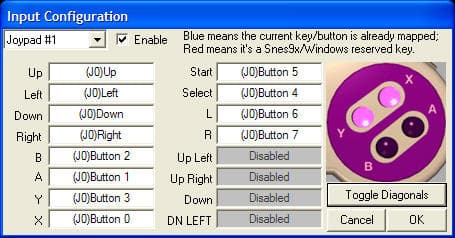
On Windows, Mac and Linux, the same physical gamepad can be enumerated differently by the host OS and driver, so the button map that looks correct on one machine can land wrong on another. RetroArch recognizes common controllers when you plug them in, then loads a profile that gives you a usable layout right away.
Why the same pad behaves differently
RetroArch runs on many platforms, and each platform has one or more input systems. Those input systems differ widely in the way they enumerate pad buttons, which is why a controller can appear under a different device name, with a different button order, on one machine than it does on another. If you have ever moved the same setup between a desktop, a handheld PC, and a living-room machine, you already know the pain: the emulator is not failing so much as the host is presenting the pad differently every time.
That is where manual remapping becomes a drag. Traditional per-emulator setup means repeating the same work over and over, and even a solid map on one machine can stop making sense on the next. In RetroPie, RetroArch and libretro let you configure controllers once for many emulators instead of configuring each emulator individually.
What RetroArch’s auto-config actually does
RetroArch calls the feature “Automatic Controller Mapping”: common game controllers are automatically configured when plugged in, just like on a real game console. Plug in a pad, load a game, start playing. Under the hood, RetroArch provides configuration files for the most common controllers, and depending on the platform those autoconfig profiles are either distributed with RetroArch or downloaded through the Online Updater.

In Libretro, those profiles are generated as .cfg files, which means the system is not guessing blindly every time. It is matching the controller against a stored profile and applying a known layout. That is why auto-config works so well with the controllers most people actually use, from an SNES-style pad to modern Xbox and PlayStation controllers to the random USB pad that otherwise shows up with a weird name and a strange button order.
Why this matters when you use more than one system
Retro game setups rarely stay put, and most of the hassle comes from rotating across platforms, not from the first controller you ever set up. If you keep one RetroArch library on multiple machines, auto-config keeps the experience consistent enough that the muscle memory survives the hardware swap.
It also helps when your setup is social instead of solitary. Auto-configuration is useful for multiplayer when a friend brings their own controller, because common pads are configured automatically when they are plugged in.
When auto-config gets it right, and when it needs help
Auto-config handles common controllers well, but oddball hardware can still expose edge cases: unusual D-pads, extra shoulder buttons, analog triggers, or vendor-specific mappings that do not line up cleanly with RetroArch’s stored profile. In those cases, manual overrides are still worth doing, especially if one button is crucial for a specific system or you are trying to get a niche pad to behave exactly the way you want.
Community forum threads keep turning up the same themes: multiple controllers being assigned in unexpected ways, confusion over how autoconfig profiles work, and profiles that do not save cleanly on every platform. Auto-config gets you to a working baseline quickly, but some setups still need a little hands-on tuning.
Android is a good example of where the details matter. In one GitHub issue, some controllers may require changing the default controller-profile directory to "/storage/emulated/0/RetroArch/autoconfig". In another RetroArch issue, the input_device setting is used by the android and sdl2 controller drivers, which is a reminder that autoconfig still depends on the input driver underneath it. If the profile lives in the wrong place, or the driver is not reading it the way you expect, the feature can look broken even when the pad itself is fine.
A practical way to use it without fighting it
The cleanest workflow is simple:
1. Plug in the controller and let RetroArch try the matching autoconfig profile first.
2. Check whether the buttons land where you expect before you start remapping by hand.
3. If the profile is missing or the pad behaves oddly, confirm the controller-profile directory and, on Android, watch for the "/storage/emulated/0/RetroArch/autoconfig" path.
4. Only then make manual overrides for the buttons that actually need correction.
This article was produced by Prism’s automated news system from verified source data, official records, and press releases, then run through automated quality and moderation checks before publishing. The system is built and supervised by the people who set the standards it runs under. Read our full AI policy.
Did this article answer your question?