How to Match MC Command Center to Your Sims 4 Version
Wrong MCCC version after a patch breaks your save's progression systems. Here's exactly how to match every module to your Sims 4 build.
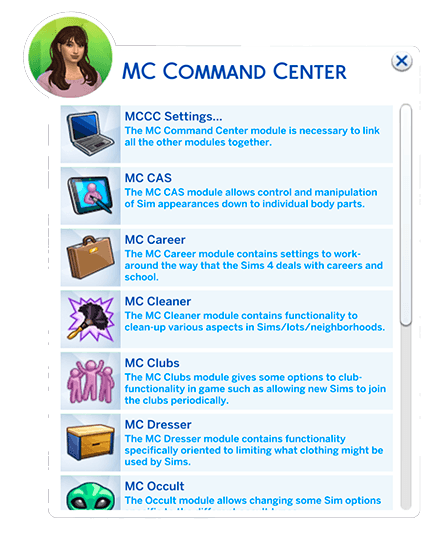
MC Command Center is one of the most widely used script mods for The Sims 4, and for good reason: it adds story progression management, sim settings, world population, pregnancies, autonomy, and dozens of technical parameters that in the base game are either unavailable or heavily limited. But because MCCC touches gameplay systems that can change after an official patch, matching your MCCC release to your installed Sims 4 build number is critical. Run a mismatched version and you're not just risking crashes — you're risking silent, broken behavior across the systems you installed MCCC specifically to control.
Understanding MCCC's modular structure
MCCC is a modular system: the core is required, and the rest of the parts can be installed as needed. The core file is named mc_cmd_center, and that name matters. Without mc_cmd_center, the other files don't work at all. More importantly, the versions of all modules must match the version of the main file. This is directly stated in Deaderpool's official documentation on the official website, and it's not a soft recommendation — it's a hard requirement.
In practice, this means you can't update just the core and leave older module files sitting in your Mods folder. Every file in your MCCC installation needs to be from the same release. When a new Sims 4 patch drops and Deaderpool releases a compatible MCCC update, replace the entire set: pull out all your existing MCCC files and install the new ones together. Mixing versions, even between minor releases, risks the kind of subtle dysfunction that's hard to diagnose because the mod technically loads.
Where to check your Sims 4 build number
Before downloading any MCCC update, confirm which Sims 4 build you're running. In the base game, you can find the build number on the main menu screen, typically in small text at the bottom corner. Cross-reference that number against the MCCC release notes in Deaderpool's official documentation to confirm you're grabbing the correct version for your specific game state. Deaderpool's release pages are the authoritative source for this mapping — don't rely on third-party sites that may lag behind official updates.
How to open MCCC in-game
Once MCCC is correctly installed and version-matched, you access its settings through three distinct in-game entry points, each of which opens a different type of menu.
- Computer: Click any in-game computer to access global settings that apply to the entire save file. This is where you configure world-level behavior: population, story progression, pregnancy rules, and similar systems.
- Click on a Sim: Clicking directly on a Sim opens commands and individual settings for that specific character, letting you adjust behavior, relationships, or personal overrides without touching global defaults.
- Mailbox: Clicking the mailbox opens primarily global cheat commands through the MC Cheats module, making it the fastest entry point for one-off interventions.
You can also open MCCC without touching any object at all. Deaderpool's documentation confirms the mod responds to three console commands: type mc_settings, mccc, or mc_cheats into the cheat console to open the corresponding menu directly.
Quality-of-life toggles worth knowing
Beyond story progression, MCCC includes a set of technical convenience settings that make everyday play noticeably smoother. You can make the game always load on pause — a small thing, but useful if you get pulled away mid-load and come back to chaos. There's automatic enabling of testingcheats, so you're never locked out of debug actions mid-session. Full edit mode in CAS can be toggled on automatically, saving you from typing cas.fulleditmode every single time.
For builders, MCCC offers quick settings for build mode, including moveobjects and BuyDebug, accessible without opening the cheat console. And if you find the mod's interaction buttons cluttering your pie menus, MCCC menu display settings let you suppress those buttons so they don't flash in regular interactions.

Notification customization
A separate and underrated feature is MCCC's flexible notifications system. You can configure exactly which events MCCC will show, selecting from moves, pregnancies, aging, deaths, and relationship changes. Beyond event type, you can filter by source: receive alerts only from NPCs, only from played Sims, only from the active household's friends, and so on. This is particularly useful when running a large save with story progression active across multiple neighborhoods — you stay informed without drowning in alerts every in-game day.
Pregnancy and reproduction settings
MCCC gives detailed control over how pregnancies work across the world population. The key options:
- Flag Gender Preference: If enabled, MCCC will permanently change the gender preference of Sims to match their pregnancy partner. For example, if a Sim becomes pregnant by someone of the same sex, MCCC will change that Sim's gender preferences to only prefer the same sex.
- Male Pregnancy: Enable or disable male pregnancy outright.
- Pregnancy Percentage: Set the percentage of Sims that will become pregnant during an MCCC pregnancy check.
- Use Gender Preference: Instructs MCCC to take gender preference into account when setting up pregnancies, so the story progression respects existing preferences rather than overriding them.
- Valid Target Ages: Choose which life stages are eligible for pregnancy.
Spouse and marriage controls
MCCC's marriage system, listed under Spouse Sim Selection, gives you granular control over who the story progression can pair off. The options work as filters layered over the automatic marriage checks:
- Allow Multiple Spouses: Permits Sims to have multiple spouses at a time.
- Enforce Family: Prevents Sims from marrying their family members.
- Bypass Played Households: Stops MCCC from marrying off Sims in households you actively play.
- Bypass Robots: Prevents servos from getting married through story progression.
- Bypass Active Sim Romances: Prevents MCCC from marrying off Sims who are already romantically involved with someone else in your game.
- Days to Run Checks: Sets how many days per week MCCC will run its marriage eligibility checks.
- Flag Gender Preferences: If enabled, MCCC will permanently change the gender preference of Sims to match their spouse, using the same logic as the pregnancy version of this setting.
Populating your world from the library
If you use the Tray to store custom Sims, MCCC's import settings let you use that library to populate your world rather than relying on randomly generated townies. The controls give you precise influence over how that import works:
- Import Tray Sim Percent: Sets what percentage of world Sims MCCC will pull from your library.
- Import Tray Sim Type: Defines what types of Sims MCCC should select from the library.
- Limit Import by Tags: Lets you exclude library Sims by tag, keeping specific creations out of the random pool.
- Include Gender Options: Customizes gender options for imported Sims.
- Include Clothing: Decides whether imported Sims keep their saved outfits or receive new ones.
- Import Sim Name: Choose between keeping the Sim's original name or generating a random one on import.
- Import Bypass Appearance: Controls whether imported Sims retain their saved appearance or receive a new look.
The version rule, one more time
Every feature listed above depends on one foundational requirement: the entire MCCC file set must match your Sims 4 build. Run mc_cmd_center from last month's release alongside modules from two patches ago and none of these settings behave predictably. Deaderpool's official documentation is explicit on this point, and it's the first thing to check any time MCCC behavior feels off after a game update. Match the versions, confirm against the official release notes, and the rest of the configuration falls into place.
This article was produced by Prism’s automated news system from verified source data, official records, and press releases, then run through automated quality and moderation checks before publishing. The system is built and supervised by the people who set the standards it runs under. Read our full AI policy.
Did this article answer your question?