Your Complete Guide to Installing and Managing Sims 4 Mods Safely
Mods can make or break your Sims 4 experience — here's how to install, organize, and troubleshoot CC without torching your save files.
Mods and custom content are half the reason most of us still play The Sims 4 in 2026. The base game is a foundation; the real experience gets built on top of it with script mods, gameplay overhauls, alpha CC hair, and a Mods folder that, if you're being honest, has probably grown into something you're a little embarrassed by. The problem is that every EA patch has the potential to break things, and if you're not managing your mod setup with some intentionality, one Tuesday update can turn your carefully curated game into a crash loop.
This guide pulls together the community-backed best practices that actually hold up across patches and long play sessions. Whether you're new to modding or you've been doing this since Get to Work dropped, there's something here worth locking in.
Understanding the difference between mods and CC
These two terms get used interchangeably, but they're not the same thing, and the distinction matters when you're troubleshooting. Custom content (CC) refers to cosmetic additions: clothing, hair, furniture, build items, skin details. It changes how the game looks without touching how it plays. Mods, particularly script mods, actually alter game behavior. Something like WickedWhims or UI Cheats Extension is a script mod. MCCC (MC Command Center) is a script mod. These interact directly with the game's code, which means they're far more vulnerable to breaking after a patch and far more likely to cause instability if something goes wrong.
Knowing which category something falls into tells you where to start when your game acts up.
Getting the folder structure right before you install anything
The Mods folder lives at Documents/Electronic Arts/The Sims 4/Mods. EA allows subfolders up to one level deep, meaning you can organize your CC into folders like Mods/Hair or Mods/Furniture, and the game will still read those files correctly. What it will not read is anything buried two or more levels deep, so Mods/Hair/Alpha/Conversions is a dead end. Files sitting that deep simply won't load, and you'll spend an hour wondering why your CC hair isn't showing up in CAS.
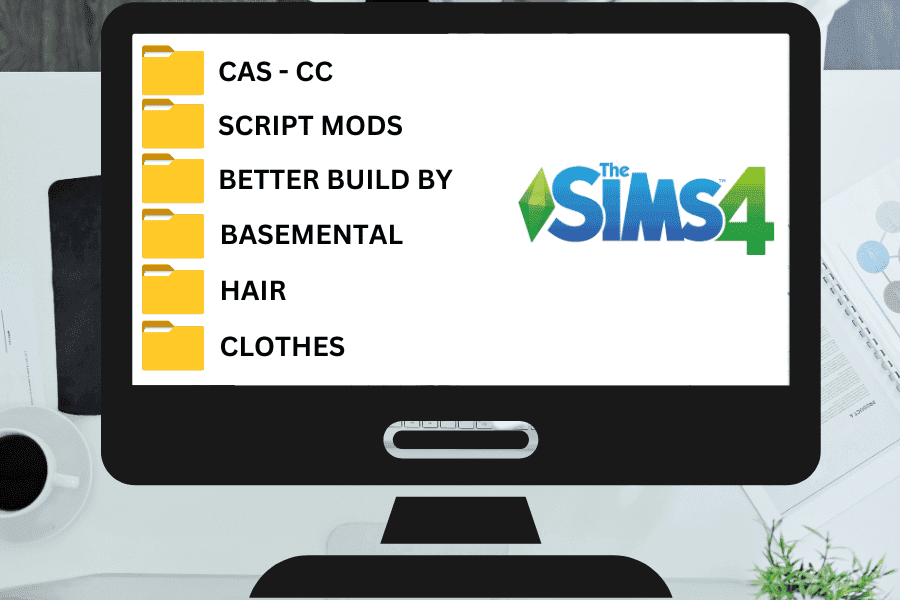
Before you drop a single file in there, build a folder structure that makes sense for how you play. A practical starting setup looks something like this:
- Mods/Script Mods (keep all .ts4script files here, top level only)
- Mods/CC-CAS (clothing, hair, skin details, accessories)
- Mods/CC-Build (furniture, walls, floors, windows)
- Mods/CC-Gameplay (non-script gameplay tweaks, tuning mods)
This separation pays off immediately when you need to isolate a problem.
Installing mods correctly
Most CC and mods come as .package files. Script mods come as .ts4script files, sometimes bundled inside a .zip with a .package companion file. The install process itself is straightforward, but the details matter.
1. Download the file from the creator's page (always go to the original source, not third-party repack sites).
2. Unzip any .zip archives before moving anything into your Mods folder. Never leave zipped files sitting in Mods and assume the game will handle them.
3. Place .package files in the appropriate subfolder.
4. Place .ts4script files in the top-level Mods folder or one subfolder deep, no further.
5. Launch the game and confirm in Settings > Other that both "Enable Custom Content and Mods" and "Script Mods Allowed" are checked. The game resets these after some patches, so verify every time.
6. The game will prompt you to restart after enabling mods. Do it. Don't skip this.
After the restart, check the notification that appears in the top-left of the main menu. It lists every mod and CC file the game has loaded. If something's missing from that list, it didn't load, and you need to figure out why before you start playing.

Keeping things stable across EA patches
Patches are the number one enemy of a stable mod setup. EA releases updates regularly, and script mods in particular can break silently, meaning the game won't crash outright but your gameplay will behave strangely. MCCC might stop populating households. UI Cheats might stop responding. Worse, a broken script mod can corrupt a save over time.
The discipline here is simple but requires actually doing it: when a patch drops, disable all mods before launching the game. Move your Mods folder to your desktop temporarily, run the game once to confirm it loads clean, then add mods back in batches after checking whether your major script mod creators have pushed updates. Carl's Guides, the MCCC Discord, and individual creator Patreons are the fastest places to check compatibility status.
Never load a save with unverified mods after a patch. The few minutes it takes to check is worth it.
The 50/50 method for troubleshooting
When something goes wrong, whether it's a crash on load, a broken interaction, or a save that won't open, the 50/50 method is the standard community approach and it works. The idea is to divide and conquer rather than test files one by one.
1. Move half your Mods folder contents into a temporary folder outside the game directory.
2. Launch the game and test for the problem.
3. If the problem is gone, the culprit is in the half you removed. If it persists, the culprit is in the half still in Mods.
4. Take the problematic half and split it again. Repeat until you've isolated the bad file.
This sounds tedious, but it's dramatically faster than checking files individually, especially if you're running hundreds of packages. A folder with 600 files gets resolved in roughly 10 rounds of testing rather than 600.
Keeping your Mods folder clean long-term
The slow creep of outdated CC is how stable games gradually become unstable ones. Old files from creators who've gone inactive, duplicates from redownloading things you forgot you had, CC that was built for older game versions and never updated: all of it adds weight and potential conflict to your setup.
A few habits that actually help:
- Run Sims 4 Tray Importer periodically to audit your CC and flag unused or duplicate files.
- When a patch breaks a mod and no update comes within a few weeks, remove it. Leaving broken mods in place while hoping for an update is a common source of ongoing instability.
- Keep a simple spreadsheet or even a notes file listing your major script mods, their version numbers, and where you downloaded them. When something breaks, you'll know exactly what to check.
- Redownload CC from original creator sources rather than accumulating files from aggregator sites, where versions may be outdated or modified.
Modding The Sims 4 is genuinely one of the best things about the game, but it rewards a bit of upfront organization. Get the folder structure right, stay on top of patch days, and learn the 50/50 method cold. The players with rock-solid modded games aren't the ones with fewer mods; they're the ones who manage what they have.
This article was produced by Prism’s automated news system from verified source data, official records, and press releases, then run through automated quality and moderation checks before publishing. The system is built and supervised by the people who set the standards it runs under. Read our full AI policy.
Did this article answer your question?