NVIDIA explains G-SYNC, how variable refresh rate cuts tearing and stutter
Most players already own the gear; the fix is matching refresh, VRR, and latency so games stop tearing and feeling sticky. Here’s the fast way to tune PC and console play.
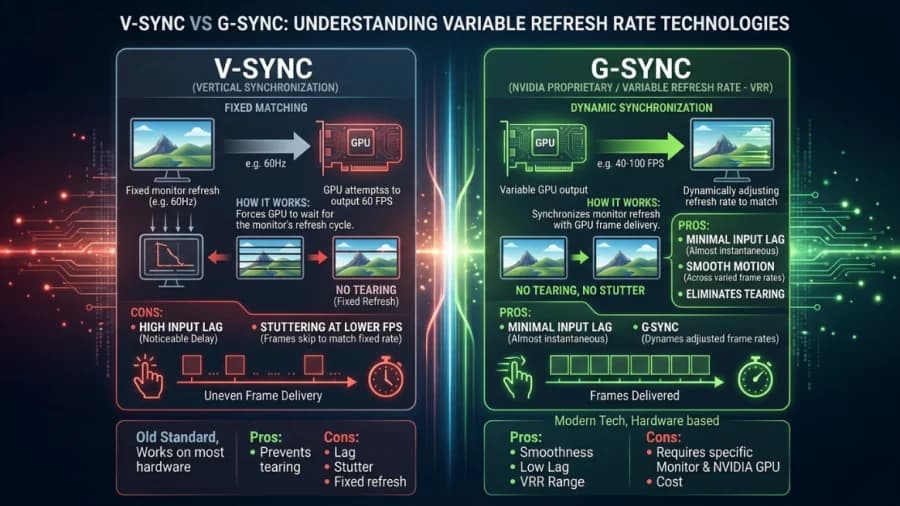
A 240 Hz monitor can still feel messy in shooters, fighters, and console play if frame rate, refresh rate, and latency are out of step. NVIDIA’s G-SYNC smooths that handoff, and once you understand what it is doing, the settings stop feeling like jargon and start looking like a real fix.
Refresh rate is only half the story
Refresh rate is how often the display updates each second, usually measured in hertz. A 60 Hz screen refreshes 60 times a second, while 120 Hz, 144 Hz, 165 Hz, and 240 Hz panels update more often, which can make motion look smoother if the graphics pipeline can keep up. Frame rate is different: that is the number of frames the game actually produces, and when the two do not line up, you get tearing, where two frames appear in the same scanout, or stutter, where uneven pacing makes motion feel jerky.
That mismatch is the pain point a lot of players run into after buying good hardware. A strong GPU and a quick panel still feel bad if the display is forcing a fixed cadence on a game that is dipping, bouncing, or hovering just below the monitor’s refresh ceiling. Variable refresh rate, or VRR, exists to make the display follow the game instead of making the game obey the screen.
What G-SYNC actually changes
G-SYNC matches the monitor’s refresh rate to the GPU frame rate, which helps eliminate tearing and minimize stutter and input lag. That is the core promise, and it is why G-SYNC and G-SYNC Compatible displays matter for players who care about feel, not just image quality. It is especially useful in games with widely varying performance, including open-world RPGs, competitive shooters, and busy co-op scenes where frame rate can swing hard from one area to the next.
NVIDIA introduced G-SYNC in October 2013 as display technology for “ultra-smooth, stutter-free gaming.” By May 31, 2015, NVIDIA was already pushing new features, new monitors, and G-SYNC notebooks. By January 2024, NVIDIA said G-SYNC had grown to hundreds of G-SYNC, G-SYNC ULTIMATE, and G-SYNC Compatible gaming monitors, gaming displays, and TVs.
There is also a basic compatibility check worth doing before you buy or toggle anything. G-SYNC requires a G-SYNC or G-SYNC Compatible display. Windows 7 or later is required for G-SYNC displays, and Desktop Window Manager must be disabled when using G-SYNC with windowed applications.
Fix your setup tonight
If you want the fastest real-world improvement, start with the display chain you already own and make sure every link matches the job.
1. Confirm the display supports VRR, either through G-SYNC, G-SYNC Compatible, or the console’s own VRR support.
2. Set the monitor or TV to its actual high refresh mode. A 120 Hz, 144 Hz, 165 Hz, or 240 Hz screen only helps if the system is really using that mode.
3. Match the game’s performance to the display instead of chasing a number on a benchmark overlay. Stable frametimes plus VRR usually feel better than a frame rate that keeps bouncing around.
4. On Windows, remember the G-SYNC windowed-app caveat. If you are using G-SYNC with windowed applications on a G-SYNC display, Desktop Window Manager has to be disabled.
5. Cut down anything that adds unnecessary buffering unless you need the extra visual option badly enough to accept the delay.
Console players need the right chain too
VRR is not just a PC story anymore. PlayStation announced on March 23, 2022 that Variable Refresh Rate support was coming to PS5, which gave modern TV and monitor owners a cleaner path to the same goal: fewer visible artifacts when performance moves around. Microsoft posted on Xbox Wire on April 20, 2018 that a May update would add 120 Hz support to consoles.
On Xbox Series X, 4K gaming at 120 Hz requires an Xbox Series X console, an Ultra High Speed HDMI cable that supports HDMI 2.1, and a TV that supports HDMI 2.1. If one part of that chain is missing, the whole setup falls back to a weaker result, and that is where a lot of “my TV is fast enough” frustration comes from.
Input lag is the other half of the feel problem
System latency is the time it takes mouse clicks to end up as pixels on screen. The shorter that path, the more immediate the game feels when you are tracking a target, timing a parry, or hitting notes in a rhythm game. NVIDIA Reflex technologies, system changes, and peripheral tweaks are the tools for bringing that delay down.
This article was produced by Prism’s automated news system from verified source data, official records, and press releases, then run through automated quality and moderation checks before publishing. The system is built and supervised by the people who set the standards it runs under. Read our full AI policy.
Did this article answer your question?