Meshtastic discovery tools help users find the best LoRa preset
Discovery, traceroute, and Neighbor Info turn Meshtastic from guesswork into field diagnosis. Used in order, they show the right preset, the real path, and the weakest link.
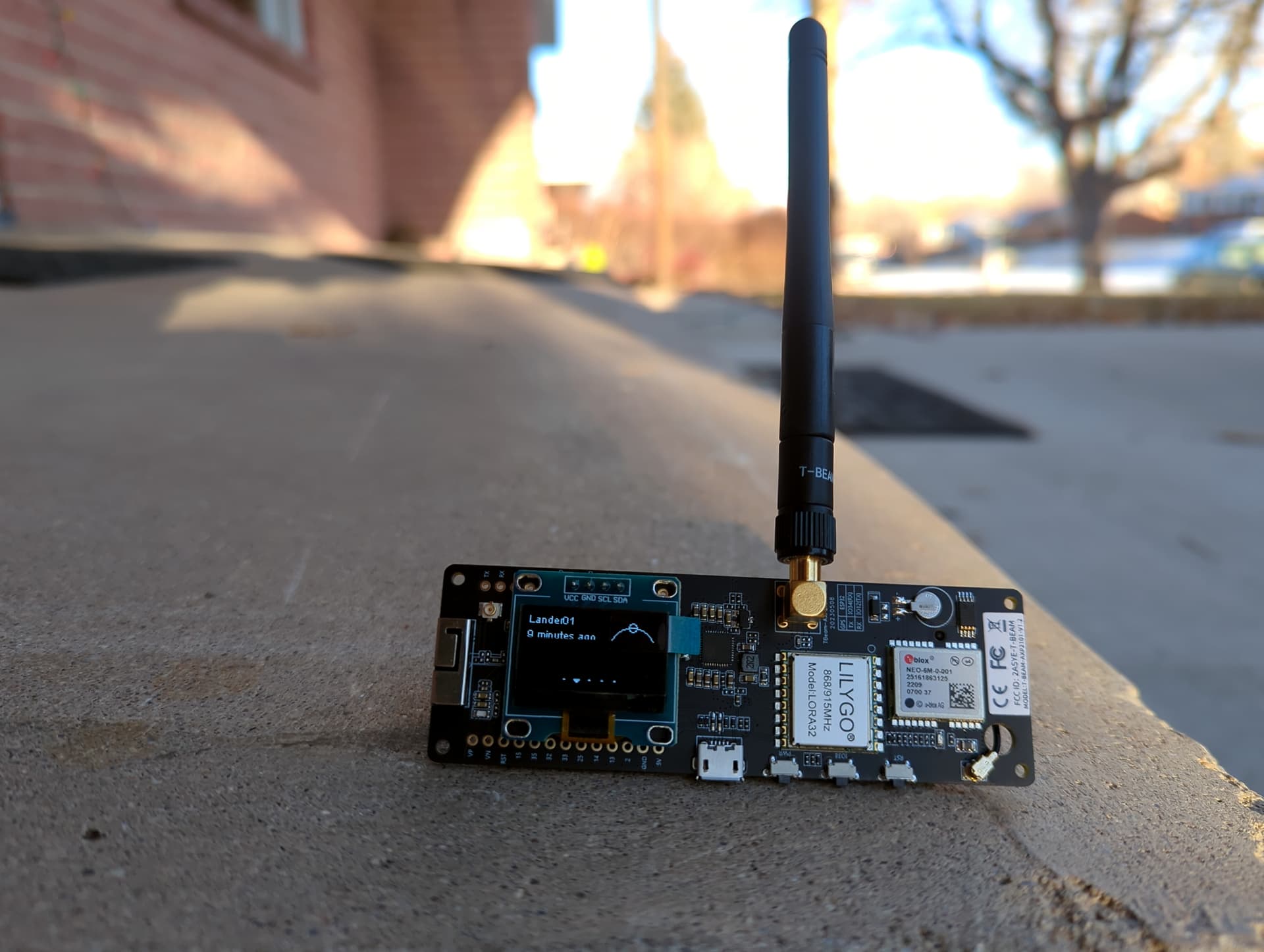
A Meshtastic node that looks fine on the bench can fail the second it hits a ridge, a rooftop, or a crowded channel. The fix usually is not “more power” but better diagnosis: first find which LoRa preset actually hears in your location, then trace where packets are detouring or dying, then check whether the problem is direct link quality, antenna placement, or the mesh layout itself. Meshtastic’s Discovery tools are built for exactly that kind of field work.
Start with Discovery, not assumptions
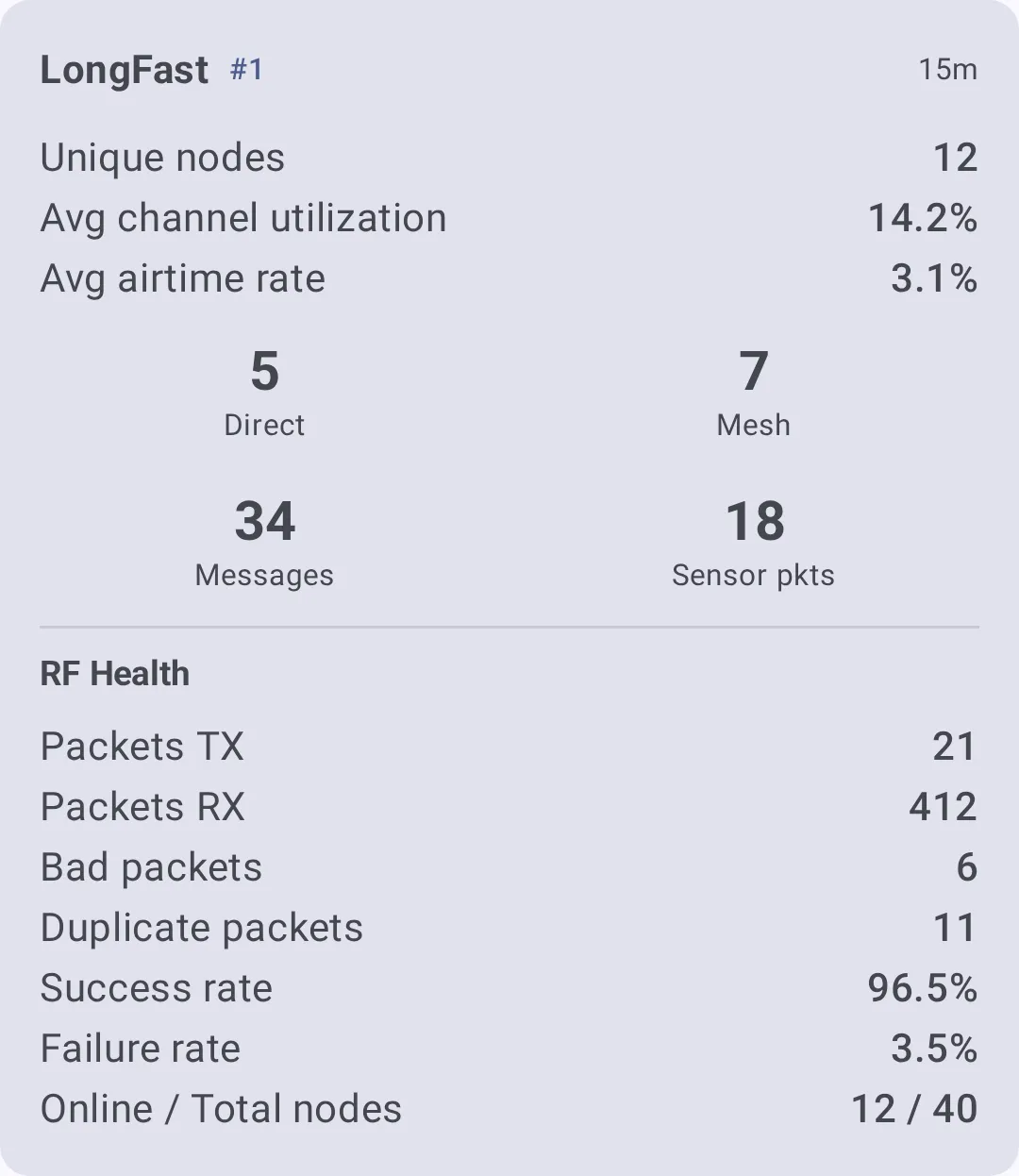
Start by scanning the area and seeing which nodes can hear each other, what paths messages take, and where bottlenecks or weak links exist. Local Mesh Discovery is the part that matters most when you are choosing a preset for a new node, because it scans nearby Meshtastic radios operating on different frequency settings, cycles through LoRa modem presets, listens on each one for a set period, and records how many nodes it hears plus how busy the airwaves are.
That ranked output gives you something the usual “pick a preset and hope” approach never does: a way to compare presets in your actual location. Meshtastic is not LoRaWAN, Helium, or TTN, and it uses the full spectrum frequency range designated to LoRa technology for each region. In the US region alone, there can be several hundred possible frequency channels, so the preset that works on one hill, in one valley, or on one block may not be the one that works best somewhere else. If you are setting up a new node, start by letting Discovery tell you which preset is most active where you stand, then pick the one that hears the most nodes with the least channel utilisation.
If one preset clearly hears more nodes and the airwaves look less busy, build around that preset rather than carrying over a default from another site.
Use traceroute when the mesh looks alive but the message still wanders
Discovery can tell you that a mesh exists; Traceroute tells you how it actually behaves when a packet leaves one node and tries to reach another. The system does not keep track of the route a packet is taking to its destination except when using Traceroute, because it saves bandwidth. That makes traceroute a deliberate exception, not a routine background feature, which is why it is so useful when messages start taking three hops, disappearing at a relay, or arriving only after a suspicious detour.
On June 17, 2023, Meshtastic’s “Month of Modules” video called Traceroute a way to visualize the topology of your mesh. Instead of guessing whether a node is dead, overloaded, or simply the wrong bridge for the route you want, traceroute shows the path the mesh is actually choosing. If a route bends around one relay every time, or if a link disappears whenever traffic rises, traceroute shows the path the mesh is actually choosing.
If traceroute shows a long or unstable path, move the relay, add a better-placed bridge node, or change the path design before you chase firmware or battery settings.
Use Neighbor Info to check the links that sit one hop away
Neighbor Info is the tool that gives you a neighborhood-level map instead of a full route trace. The module broadcasts each node’s 0-hop neighbors and the quality of those links, which makes it especially good for diagnosing whether a bad result comes from placement, antenna choice, or the shape of the mesh. Neighbor Info is informative only, does not affect routing behavior, and is disabled by default. That separation matters: you can inspect the mesh without changing how it routes.
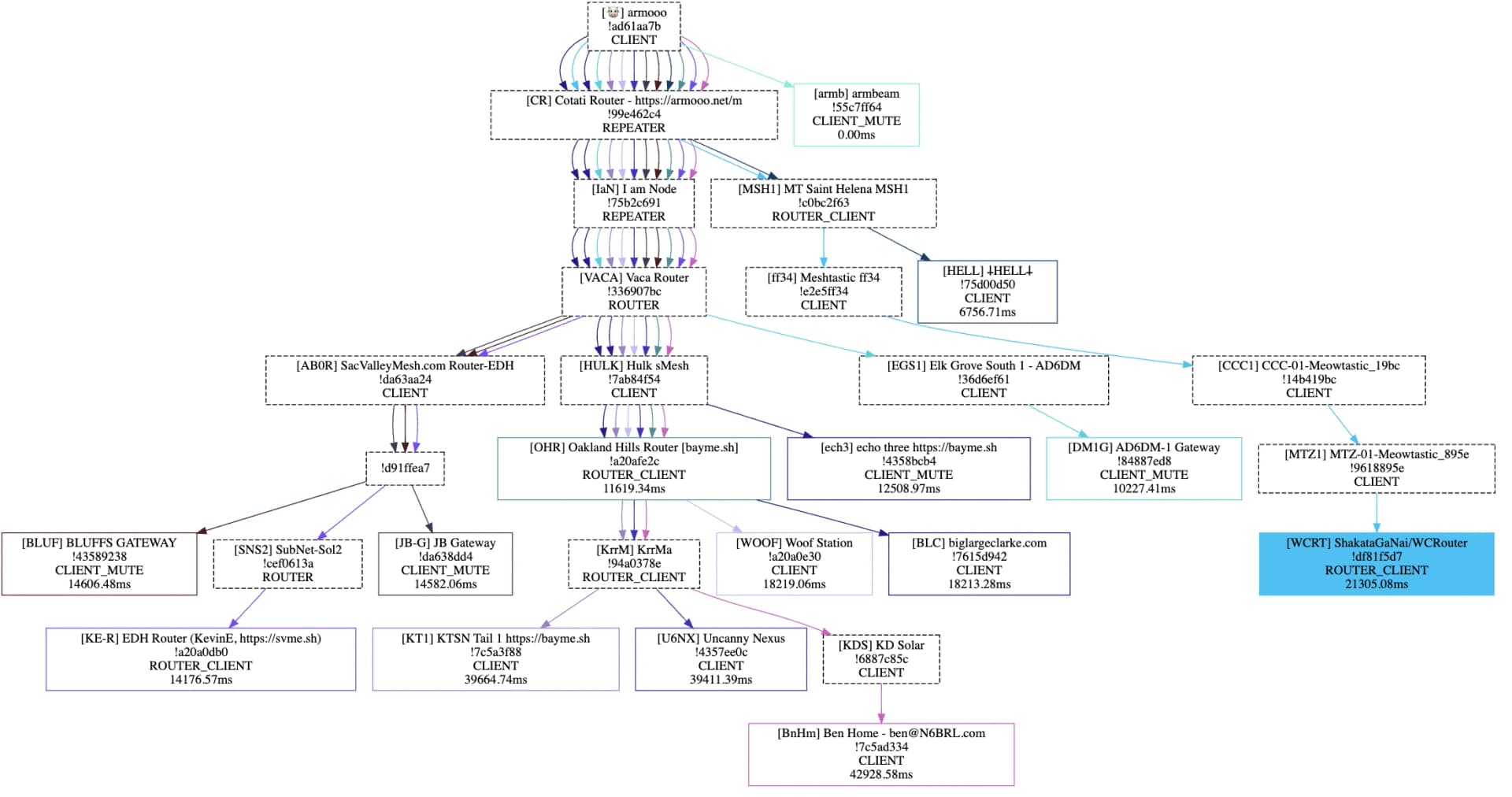
The module’s configuration options are straightforward: Enabled, Update Interval, and Transmit Over LoRa. In practice, that means you can decide how often nodes advertise their neighbor data and whether that information is shared over the radio link itself. Because it is only reporting link quality and not steering traffic, Neighbor Info is the cleanest way to confirm whether two nodes that should hear each other actually do.
If a node reports weak or missing 0-hop neighbors even when traceroute looks healthy elsewhere, the problem is probably local. Raise the antenna, move the node away from obstruction, or change the placement before you redesign the whole mesh.
Read the three tools as one field-diagnosis sequence
Used together, the tools answer three practical questions in order. First, Discovery and Local Mesh Discovery tell you which nodes can really hear each other and which LoRa preset is active in your area. Second, Traceroute shows where packets are detouring or dying, and whether the mesh topology is forcing traffic through a narrow bridge. Third, Neighbor Info shows whether the bad result comes from the nearest hop, which is usually where placement and antenna issues reveal themselves fastest.
That workflow fits Meshtastic’s own architecture. The network is decentralized, built on inexpensive LoRa radios, and it depends on matching Region and Modem Preset settings, or identical custom modem settings, for devices to communicate fully.
This article was produced by Prism’s automated news system from verified source data, official records, and press releases, then run through automated quality and moderation checks before publishing. The system is built and supervised by the people who set the standards it runs under. Read our full AI policy.
Did this article answer your question?