RetroArch latency tools can make emulation feel like original hardware
RetroArch can shave input lag down to a next-frame feel if you tune the right knob first. The catch is knowing when runahead helps, and when it just exposes weak hardware or bad sync.

RetroArch can hit next-frame response times, and in some cases that gets close enough to original hardware that the gap is hard to feel. Latency is not one problem, but a stack of timing choices, and each tool in RetroArch attacks a different part of that stack.
Start with the display chain, not the emulator
If your monitor or TV is adding lag, no amount of clever emulator tuning will fully save it. RetroArch’s dynamic rate control needs the display refresh rate configured accurately to roughly 0.1 percent, and OS refresh-rate detection is often unreliable. That matters on handheld docks and mini PCs hooked to living-room TVs, where a sloppy 59.94 Hz versus 60.00 Hz setup can turn a good-feeling build into one that constantly drifts.
This is also where the old TV problem shows up. Older sets without a game mode can still benefit from runahead, and picture processing remains the real delay culprit regardless of shaders and overlays. If the panel is the slow part, fix the panel first, then tune the emulator.
Why runahead feels so dramatic
Runahead is the flashiest latency fix because it attacks delay inside the game itself, not just in the video pipeline. It calculates frames as fast as possible in the background, then rolls the result back to the point closest to the input command. That is why the feature gets compared to rollback netcode like GGPO, and why Libretro calls it one of RetroArch’s “crowning features.”
The practical payoff is easy to understand when you look at classic games. In Libretro’s examples, Super Mario Bros. on NES has one frame of input latency on real hardware, while Super Mario World on SNES has two frames. Runahead tries to hide that built-in delay, which is why it can make a game feel suddenly alive even when the emulation core was already accurate.
There is a price, though. Runahead depends on save states, so the core has to support them cleanly and the machine has to have enough CPU headroom to run extra frames ahead of time. Push it too hard and you can get stutter, rollback weirdness, or audio problems that make the cure feel worse than the disease.
Single-instance versus two-instance, and why that matters
RetroArch has two runahead modes: single-instance and two-instance. Single-instance mode disables audio and video while it runs and restores a save state from RAM, which keeps things simpler but can expose cores that dislike state loads. Two-instance mode uses a primary and secondary core, and that extra separation can avoid some of the audio problems that show up when loading states becomes part of the workflow.
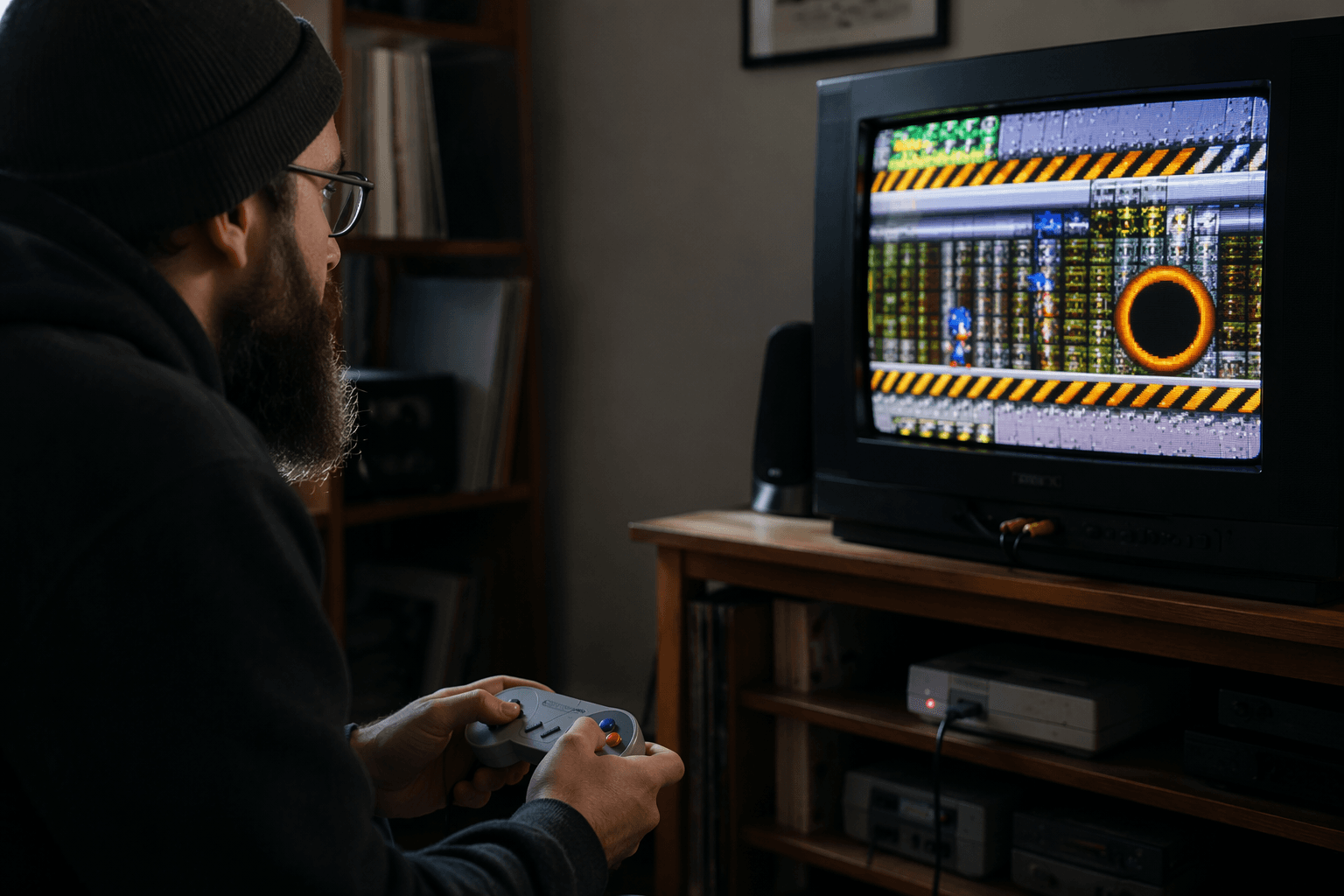
This is where weak hardware gets exposed fast. A handheld that is already close to its CPU limit, or a mini PC running shaders, overlays, and background tasks, may handle one frame of runahead and immediately fall apart at two. If you hear crackle, see rollback jitter, or notice the game starting to hitch at the same moment input feels better, that is your sign to back off one frame before touching anything else.
Frame delay, GPU hard sync, and the rest of the stack
Frame Delay is the next knob worth understanding because it acts later in the pipeline than runahead. Instead of simulating ahead, it trims the time between the emulator finishing a frame and the GPU presenting it, which can make input feel tighter without the heavy CPU cost of more runahead frames. Automatic Frame Delay, added in RetroArch version 1.9.13 on November 7, 2021, makes that tuning less tedious by handling the adjustment for you instead of forcing per-game babysitting.
Then there are Synchronization Fences, often called GPU Hard Sync, along with max swapchain images and modern video drivers like Vulkan. These options can reduce latency further, but they are not free. Hard sync and similar settings depend on the renderer, may be hidden in some contexts, and threaded video can cut overhead while also making true smooth VSync behavior impossible and adding a bit of latency back.
Low-lag settings can absolutely backfire if the system does not have the headroom to keep up, especially on compact handhelds and tiny desktop boxes.
What to try first on a handheld or mini PC
On a fresh RetroArch setup, go in this order.
1. Make sure the display refresh rate is set correctly, especially if you are using a TV or external monitor.
2. Switch to Vulkan if your core and device support it, because modern video drivers are part of the responsiveness toolkit.
3. Turn on Automatic Frame Delay or set a conservative manual Frame Delay if the core behaves well.
4. Test one frame of runahead.
5. If the game still feels late and the hardware has room, try two frames, but stop the moment stutter or audio crackle appears.
On faster systems, runahead is the big leap; on borderline hardware, Frame Delay may give you most of the win with far less risk. For cores with especially good support, Libretro says FinalBurn Neo can get to virtually 0 frames of input lag with runahead and pre-emptive frames, while MAME only partially supports the feature and may need a second instance to behave properly.
This article was produced by Prism’s automated news system from verified source data, official records, and press releases, then run through automated quality and moderation checks before publishing. The system is built and supervised by the people who set the standards it runs under. Read our full AI policy.
Did this article answer your question?