How to prepare your Sims 4 saves and mods for July patch
Back up your saves now, pull your mods before patch day, and you can spend July 21 playing instead of repairing a broken install.
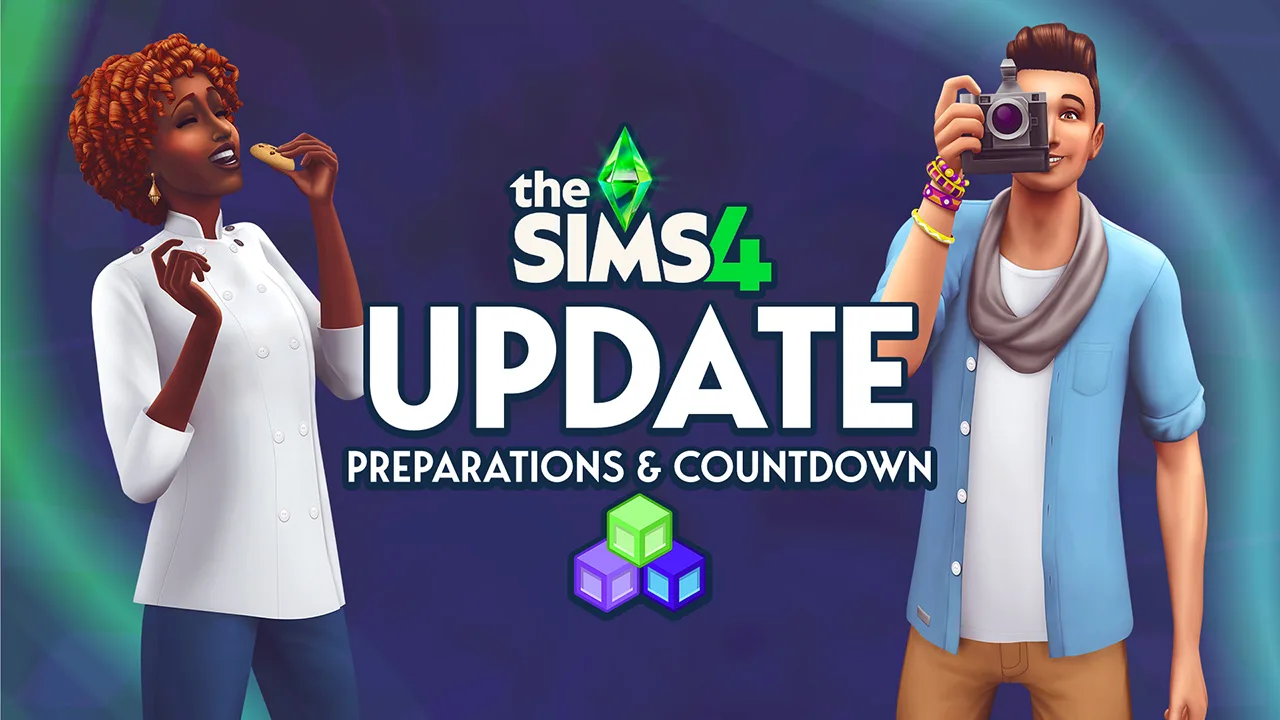
The Sims 4 update lands on the EA App on July 21, and if your folder is modded, the smartest move is to treat it like a storm warning: back up first, patch later, and do not trust a clean boot until you have checked the game yourself. The difference between a smooth night and a lost weekend usually comes down to whether you did the dull prep work in advance.
Back up the save you actually care about
Start with your `saves` folder, not your mod folder. Regular backups are best practice, including before major game changes, and that matters more when you are deep into a legacy household, a challenge run, or a save packed with custom lots and long-running storylines. If the patch goes sideways, EA Help lets you recover a past saved game on PC, Mac, or console by loading your game and choosing which save to restore.
Do not stop at one copy if you can help it. Keep a version on your computer and another somewhere separate, because the point is to survive a bad update, a bad mod, or a bad sync problem without losing the whole neighborhood.
Protect your tray files and your builds
Your tray files deserve the same attention as your saves. Those files carry your lots, households, and Sims into the Gallery workflow you actually use when you move builds around or reconstruct families, so losing them can be just as painful as losing a save. Before you patch, make sure they are copied somewhere safe alongside your main save backup.
This is the part a lot of players skip because the game launches fine and the save screen still looks normal. Then they discover later that the build library they depended on is the thing that got scrambled.
Pull your mods before the patch lands
Mods and game updates can conflict, and you should check that the game works before you re-enable mods. That means the safest move is to temporarily remove your mods and custom content before patching, then bring them back only after you have confirmed the base game is stable. For players with huge script mod stacks or CC-heavy builds, that is the safest way to patch.
If you want to be organized, separate script mods, gameplay mods, and build-and-buy CC so you can put things back in stages instead of dumping everything into the Mods folder at once. That makes it much easier to identify the exact file that broke something, whether it is a UI tweak, a tuning mod, or a piece of CC that suddenly refuses to load. A clean test run first saves you from blaming the wrong file later.
Watch creator update pages after the patch
Patch day is not just a download. It is a waiting game for the people who make the mods that keep your save alive. Once the July update goes live, keep an eye on creator update pages and community posts for the mods you rely on most, especially the ones that touch UI, gameplay tuning, or neighborhood behavior.
That matters even more this month because the July update includes a new AutoSave feature for The Sims 4 and a Memory Boost feature for Mac and console players to improve overall performance. The patch also continues fixing top-reported community issues. Any update that changes core systems like saving and performance can shake loose problems in a modded install, so the “wait for the green light” habit is still the right call before you put your full setup back together.
Know what changed in the July maintenance cycle
The July patch is part of a longer run of maintenance-focused updates, not a random one-off. EA’s June 23 Laundry List outlined over 10 planned fixes for the most-voted issues on the EA Forums and invited players to a special dev Q&A. By July 14, EA had narrowed that down to the base game update set for July 21 and flagged the AutoSave and Memory Boost additions.
The team is still working through player-reported bugs rather than treating this as a cosmetic patch. The game is getting changes that reach into save behavior and performance, which is exactly where mod conflicts and recovery headaches tend to show up. When a patch touches those systems, the safest assumption is that your first launch after updating is a diagnostic run, not your normal play session.
Use recovery tools before panic sets in
If something does go wrong, do not immediately start overwriting files or reintroducing every mod at once. Restore a previous save on PC, Mac, or console, then test the game in a stripped-down state before adding anything back. That is the fastest way to tell whether the issue is the update itself, one broken file, or a mod that needs a creator hotfix.
The same logic applies to re-enabling mods after the patch. Bring them back only after you have checked that the base game works, then add them in manageable batches. If your install is heavy enough that you need a spreadsheet to keep track of creators, versions, and last-updated dates, use it here.
This article was produced by Prism’s automated news system from verified source data, official records, and press releases, then run through automated quality and moderation checks before publishing. The system is built and supervised by the people who set the standards it runs under. Read our full AI policy.
Did this article answer your question?