OSHA monitor placement tips could ease monday.com desk strain
A quick monitor reset can cut strain fast: OSHA says the right screen position helps prevent eye, neck, and back pain, and monday.com’s hybrid setup makes that matter twice.
A desk setup can go from tolerable to painful for one simple reason: the monitor is in the wrong place. OSHA treats that as an ergonomic problem, not a personal failure, and its workstation guidance says the screen position alone can help reduce fatigue, eye strain, and neck and back pain. For monday.com employees who spend the day in code, docs, dashboards, CRM tabs, calls, and notes, that is a useful reset: before blaming your body, check your setup.
Why this matters at monday.com
OSHA says computer-workstation injuries are often ergonomic in nature and can be difficult to diagnose, which is part of why people keep working through discomfort until it becomes a bigger problem. The agency also says there are no specific OSHA standards that apply to computer workstations, so the practical fix is not waiting for a rulebook. It is using the tools already available, starting with the workstation itself.
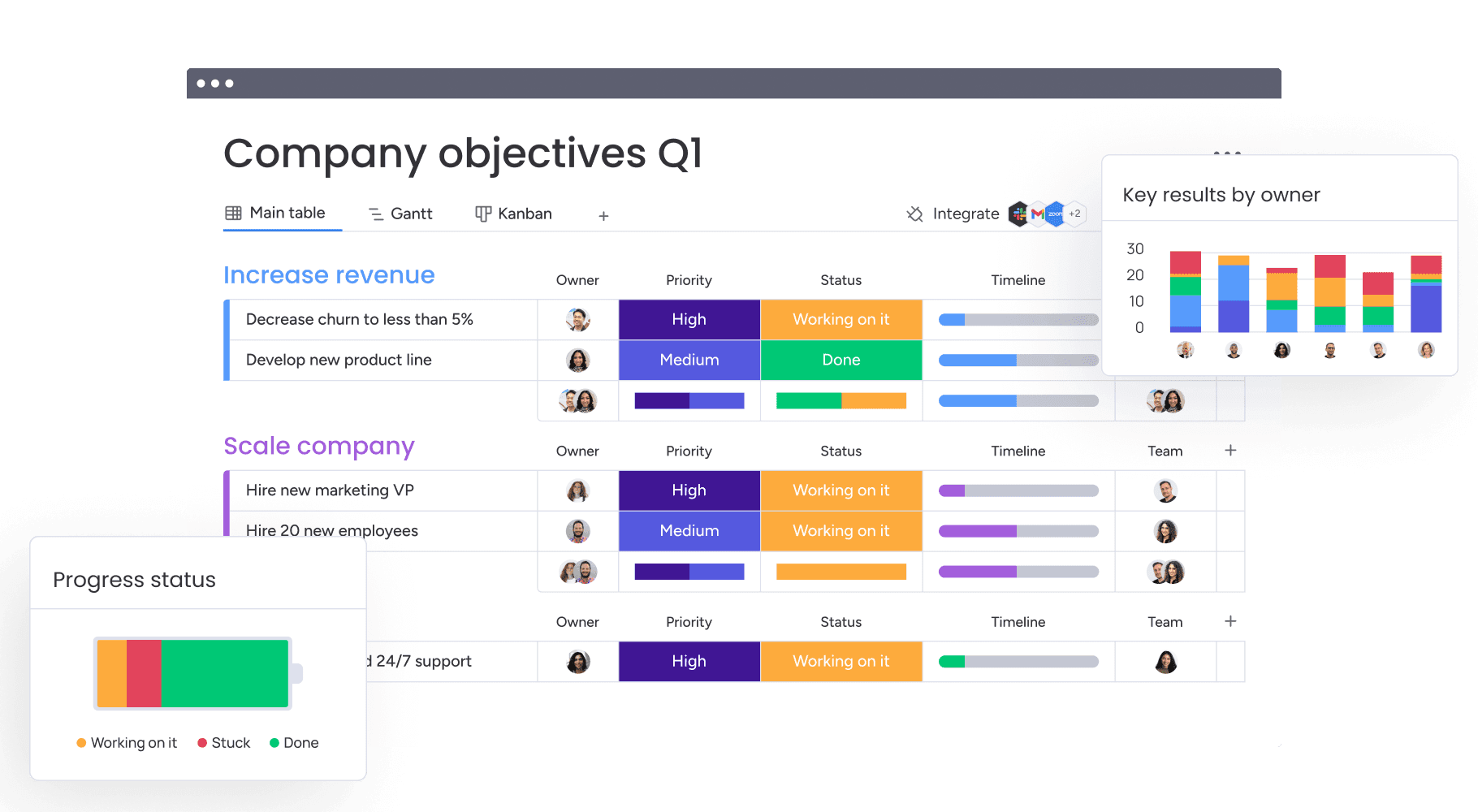
That lands especially hard in a hybrid company. monday.com says most teams spend three days a week together in the office, with flexibility to work where they do their best work the rest of the time. The company also positions its software for teams working from home or from the office, which means many employees are effectively managing two workstations, not one. If your office setup is decent but your home setup is causing neck tension, or vice versa, the problem is not mysterious. The system is different, and the body notices.
The 10-minute monitor audit
OSHA’s computer-workstation eTool is built around a simple idea: evaluate what is already there before you buy anything new. For existing desks, the agency recommends using an evaluation checklist. For new purchases, it points workers to a purchasing guide checklist. That makes the right kind of self-audit very practical: check the screen first, then adjust the rest around it.
Start with the monitor itself:
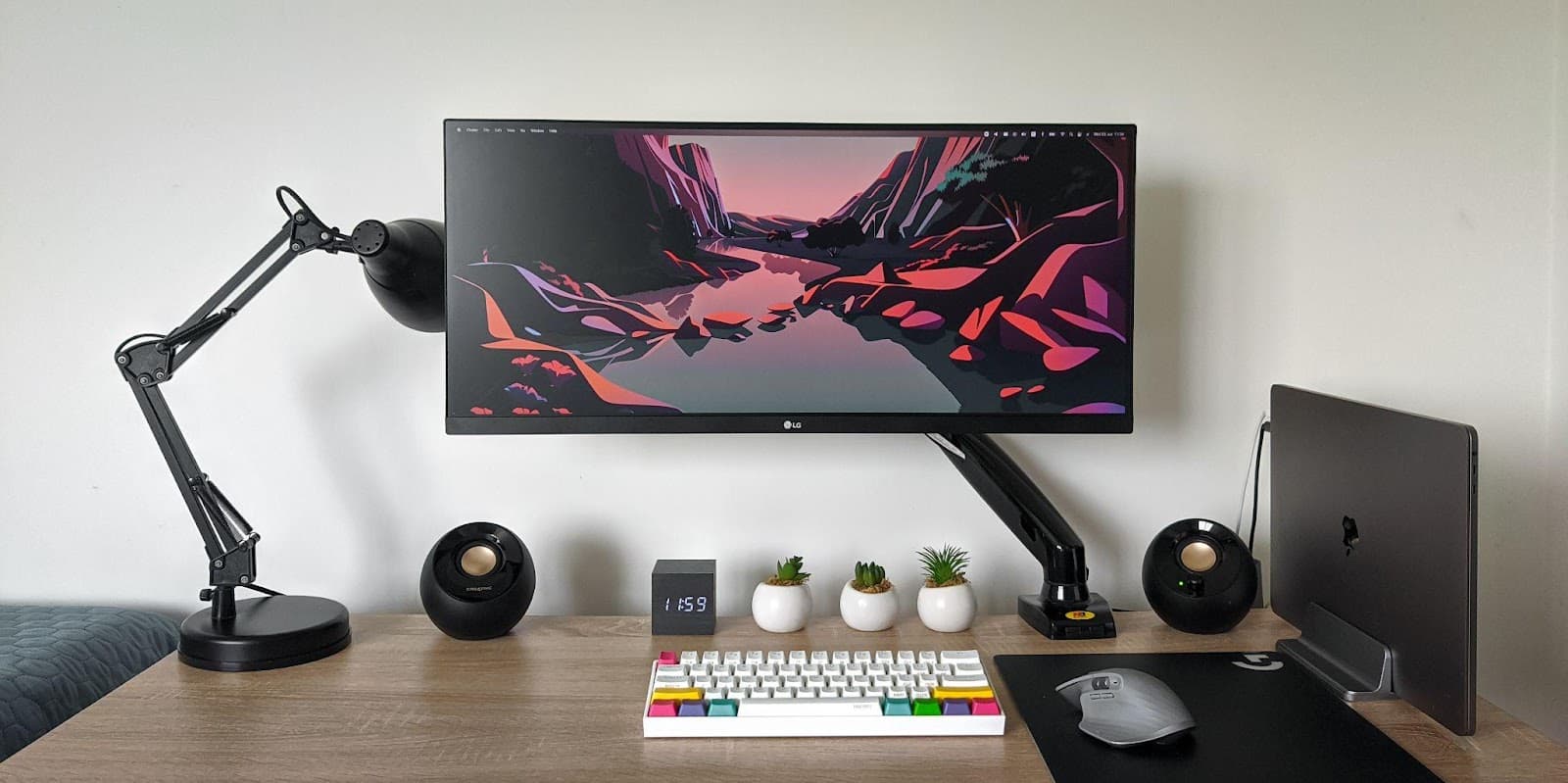
- Put the screen directly in front of you. Twisting toward a laptop or side monitor is exactly the kind of awkward posture OSHA warns against.
- Keep the screen at least 20 inches away. That distance helps limit eye strain and reduces the habit of leaning forward.
- Set the top line of the screen at or below eye level. If you are looking sharply down or craning up, your neck is doing extra work.
- Make the screen perpendicular to a window. OSHA says that orientation helps reduce overhead glare and visual strain from light coming in at the wrong angle.
These are small adjustments, but they matter because monitor placement is not just about comfort. OSHA says a suitable monitor in the right position helps reduce exposure to forceful exertions, awkward postures, and overhead glare. In other words, the screen can quietly create the pain that people often attribute to “bad posture” or “too much laptop time.”
Don’t treat the chair as the only fix
A better chair can help, but OSHA’s guidance makes a bigger point: workstation safety is a system, not a single purchase. The monitor, keyboard, desk height, lighting, and viewing distance all interact. If one piece is off, the rest of the setup has to compensate, and that compensation usually shows up in the shoulders, neck, or wrists first.
That is why the eTool emphasizes both evaluation and purchasing checklists. For current desks, the evaluation checklist helps users analyze what is already in front of them. For future purchases, the buying checklist helps workers avoid buying a monitor, desk, or accessory that looks helpful but does not fit the person using it. The goal is not a prettier desk. It is a workstation that supports the task without forcing the body into a defensive posture.
Look beyond the screen to how work is organized
OSHA also notes that users can face added risk from task organization even when workstation design is correct. That matters for people whose jobs are screen-heavy and repetitive. Engineers can spend hours in code. Product managers can chain together docs, dashboards, and meetings. Sales teams can live in CRM systems, calls, and note-taking. Even if each individual task is reasonable, the repetition and pace can add up.
That is where ergonomics becomes more than furniture advice. CDC and NIOSH describe ergonomics as designing tasks, workspaces, controls, displays, tools, lighting, and equipment to fit employees’ physical capabilities. NIOSH says the goal is to reduce stress and eliminate injuries and disorders associated with overuse, awkward posture, and repeated tasks. That fits the reality of hybrid knowledge work: the issue is rarely one bad chair. It is the combination of screen time, fixed posture, and repeated motions.
OSHA’s broader ergonomics materials add another useful layer. Musculoskeletal disorders affect muscles, nerves, blood vessels, ligaments, and tendons, which helps explain why discomfort can feel diffuse or slow-moving rather than like a single obvious injury. A stiff neck, aching forearm, or sore lower back may seem minor at first, but those are often the signals people miss when the desk setup is doing the damage.
How to use the checklist without overthinking it
The most useful way to treat OSHA’s guidance is as a recurring maintenance habit. Before you assume your back is the problem, run through a quick sequence:
1. Center the monitor.
2. Check the distance.
3. Match the top of the screen to eye level.
4. Turn the screen away from glare.
5. Notice whether your shoulders, wrists, or neck are still working too hard.
If that solves part of the issue, you have learned something useful without buying anything. If it does not, then the rest of the setup deserves attention too, especially desk height, keyboard position, and lighting. OSHA’s own materials make the larger point clearly: a workstation only works well when all the components work together.
NIH’s computer-workstation ergonomics checklist pushes in the same direction. Its aim is to help users set up their workstation for optimal comfort and performance, which is the right framing for office workers who are trying to stay productive without paying for it in pain later. Comfort is not a luxury in this case. It is part of keeping attention on the work.
For monday.com, that is a quietly important operational lesson. A hybrid workforce can move between office and home, but the body carries the same habits to both places. If the company wants people to do strong work in code, product planning, sales, and support, it helps when the screen is in the right place and the workstation is not fighting them all day. The fix is small, the payoff is immediate, and it is already sitting on the desk.
This article was produced by Prism’s automated news system from verified source data, official records, and press releases, then run through automated quality and moderation checks before publishing. The system is built and supervised by the people who set the standards it runs under. Read our full AI policy.
Know something we missed? Have a correction or additional information?
Submit a Tip